> For the complete documentation index, see [llms.txt](https://docs.parallels.com/landing/llms.txt). Markdown versions of documentation pages are available by appending `.md` to page URLs; this page is available as [Markdown](https://docs.parallels.com/landing/pdfm-ug/v27-de-de/parallels-desktop-for-mac-27-handbuch/einstellungen-von-parallels-desktop-und-virtuellen-maschinen/einstellungen-fur-virtuelle-maschinen/hardware-einstellungen/festplatteneinstellungen.md).

# Festplatteneinstellungen

Im Bereich **Festplatte** können Sie die Einstellungen der virtuellen Maschine in Bezug auf die Festplatte anzeigen und konfigurieren.

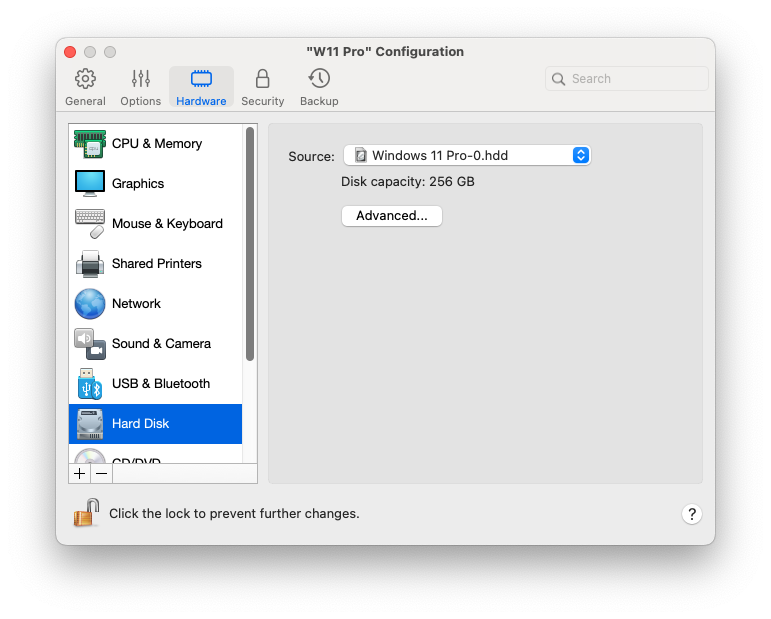
Um diese Einstellungen zu öffnen, wählen Sie **Aktionen** > **Konfigurieren** > **Hardware** und klicken Sie anschließend auf **Festplatte**.

<figure><img src="https://content.gitbook.com/content/kYR9fxzfqfysm3ZaXdkK/blobs/bBlR9pK1u6XyhqE8Gmo0/Screenshot%202024-01-19%20at%2018.31.59.png" alt="" width="563"><figcaption></figcaption></figure>

<table><thead><tr><th width="214">Option</th><th>Beschreibung</th></tr></thead><tbody><tr><td><strong>Quelle</strong></td><td>In diesem Feld geben Sie die Datei der virtuellen Festplatte an (<code>.hdd</code>), die die Festplatte der virtuellen Maschine emuliert. Um eine virtuelle Festplattendatei zu verwenden, wählen Sie diese aus der Liste aus oder klicken Sie auf <strong>„Image-Datei auswählen“</strong> und geben Sie den Pfad zur gewünschten Image-Datei an (<code>.hdd</code>).</td></tr><tr><td><strong>Erweitert</strong> > <strong>Eigenschaften</strong></td><td>Klicken Sie auf diese Schaltfläche, um die Festplattengröße zu bearbeiten.</td></tr><tr><td><strong>Erweitert</strong> > <strong>Speicherort</strong></td><td>Verwenden Sie dieses Feld, um den Schnittstellentyp für den Anschluss der Festplatte festzulegen. Diese Option ist nur für fortgeschrittene Benutzer gedacht.</td></tr><tr><td><strong>Erweitert</strong> > <strong>TRIM aktivieren</strong></td><td>In den meisten Fällen vergrößert sich der Speicherplatz, den die virtuelle Maschine auf Ihrer Festplatte belegt, wenn Sie Dateien und andere Daten hinzufügen, wird jedoch nicht verringert, wenn Sie Daten löschen. Um Parallels Desktop so einzustellen, dass der Speicherplatz automatisch reduziert wird, wählen Sie <strong>„TRIM aktivieren“</strong>. Diese Option kann die Leistung von HDD-Festplatten (jedoch nicht von SSD-Festplatten) beeinträchtigen.</td></tr><tr><td><strong>Erweitert</strong> > <strong>Freien Speicherplatz mit dem Mac synchronisieren</strong><br>(nur Windows/NTFS)</td><td>Diese Option stellt sicher, dass der tatsächlich verbleibende freie Speicherplatz für die virtuelle Festplatte der Gastmaschine auf der Grundlage des auf Ihrem Mac verfügbaren freien Speicherplatzes korrekt ermittelt und angezeigt wird. Die Option ist standardmäßig aktiviert.</td></tr></tbody></table>


---

# Agent Instructions
This documentation is published with GitBook. GitBook is the documentation platform designed so that both humans and AI agents can read, navigate, and reason over technical content effectively. Learn more at gitbook.com.

## Querying This Documentation
If you need additional information that is not directly available in this page, you can query the documentation by asking a question.

Perform an HTTP GET request on the following URL with the `ask` and `goal` query parameters:

```
GET https://docs.parallels.com/landing/pdfm-ug/v27-de-de/parallels-desktop-for-mac-27-handbuch/einstellungen-von-parallels-desktop-und-virtuellen-maschinen/einstellungen-fur-virtuelle-maschinen/hardware-einstellungen/festplatteneinstellungen.md?ask=<question>&goal=<user_goal>
```

`ask` is the immediate question: it should be specific, self-contained, and written in natural language.
`goal` is what the user is ultimately trying to achieve, the reason they need the answer. Sharing it helps GitBook give you a better, more relevant answer. A goal is most helpful when it describes the outcome the user wants rather than restating the question. For example, with `ask=how do I create an API token`, a goal like `automate deployments from our CI pipeline` lets GitBook tailor the answer to that use case.

The response will contain a direct answer to the question and relevant excerpts and sources from the documentation.

Use this mechanism when the answer is not explicitly present in the current page, you need clarification or additional context, or you want to retrieve related documentation sections.
