> For the complete documentation index, see [llms.txt](https://docs.parallels.com/landing/llms.txt). Markdown versions of documentation pages are available by appending `.md` to page URLs; this page is available as [Markdown](https://docs.parallels.com/landing/pdfm-ug/v27-it-it/guida-utente-di-parallels-desktop-per-mac-27/usa-windows-sul-mac/mouse-trackpad-e-tastiera/creazione-di-nuove-abbreviazioni-da-tastiera.md).
# Creazione di nuove abbreviazioni da tastiera
È possibile premere determinate combinazioni di tasti, chiamate abbreviazioni da tastiera, per attivare velocemente varie azioni in Parallels Desktop. Ad esempio, puoi premere Command-Control-F per fare in modo che Windows passi a modalità Schermo Intero. È possibile usare le abbreviazioni della tastiera esistenti (visibili presso: **Parallels Desktop** > **Preferenze** > **Abbreviazioni** > **Abbreviazioni dell'applicazione**) e creare anche le proprie abbreviazioni.
Per creare una nuova abbreviazione da tastiera:
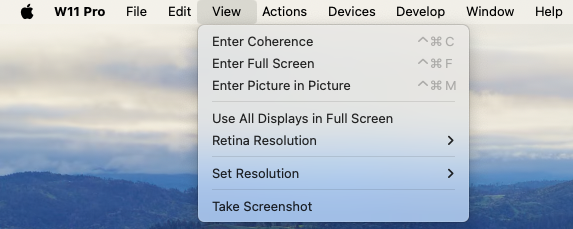
1. Definisci una nota per il nome del comando per cui desideri creare un'abbreviazione, nel modo in cui compare in un menu su Parallels Desktop. Ad esempio, se desideri creare una nuova abbreviazione per passare alla modalità Schermo Intero, aprendo il menu **Visualizza** in Parallels Desktop vedrai che il nome della voce del menu è **Entra in Schermo Intero**:
2. In macOS, scegli **Menu Apple** > **Preferenze di Sistema.**
3. In Preferenze di Sistema, fai clic su **Tastiera** e quindi scegli **Abbreviazioni**.
4. Seleziona **Abbreviazioni dell'applicazione** nella barra laterale e clicca sul pulsante Aggiungi.
5. Se vuoi che una nuova abbreviazione funzioni soltanto in Parallels Desktop, scegli Parallels Desktop dal menu **Applicazione**. Se l'opzione **Tutte le applicazioni** è selezionata, l'abbreviazione funzionerà per qualsiasi applicazione con lo stesso nome di comando e che sia al momento attiva.
6. Inserisci il nome della voce del menu del passaggio 1.\
\
**Importante:** è necessario inserire il nome del comando esattamente come visualizzato nel menu di Parallels Desktop, altrimenti la nuova combinazione di tasti non funzionerà.
7. Nel campo **Collegamento da Tastiera** premi la combinazione di tasti per cui desideri attivare l'azione.
{% hint style="info" %}
**Nota:** È necessario creare abbreviazioni diverse per comandi che cambiano nel menu a seconda dello stato di Parallels Desktop, come **Entra in Schermo Itero** e **Esci da Schermo Intero**.
{% endhint %}
---
# Agent Instructions
This documentation is published with GitBook. GitBook is the documentation platform designed so that both humans and AI agents can read, navigate, and reason over technical content effectively. Learn more at gitbook.com.
## Querying This Documentation
If you need additional information that is not directly available in this page, you can query the documentation by asking a question.
Perform an HTTP GET request on the following URL with the `ask` and `goal` query parameters:
```
GET https://docs.parallels.com/landing/pdfm-ug/v27-it-it/guida-utente-di-parallels-desktop-per-mac-27/usa-windows-sul-mac/mouse-trackpad-e-tastiera/creazione-di-nuove-abbreviazioni-da-tastiera.md?ask=&goal=
```
`ask` is the immediate question: it should be specific, self-contained, and written in natural language.
`goal` is what the user is ultimately trying to achieve, the reason they need the answer. Sharing it helps GitBook give you a better, more relevant answer. A goal is most helpful when it describes the outcome the user wants rather than restating the question. For example, with `ask=how do I create an API token`, a goal like `automate deployments from our CI pipeline` lets GitBook tailor the answer to that use case.
The response will contain a direct answer to the question and relevant excerpts and sources from the documentation.
Use this mechanism when the answer is not explicitly present in the current page, you need clarification or additional context, or you want to retrieve related documentation sections.