> For the complete documentation index, see [llms.txt](https://docs.parallels.com/landing/llms.txt). Markdown versions of documentation pages are available by appending `.md` to page URLs; this page is available as [Markdown](https://docs.parallels.com/landing/pdfm-ug/v27-ja-jp/parallels-desktop-for-mac-27-yzzugaido/mac-de-windows-wosuru/debaisuno/debaisuno.md).
# デバイス設定の調整
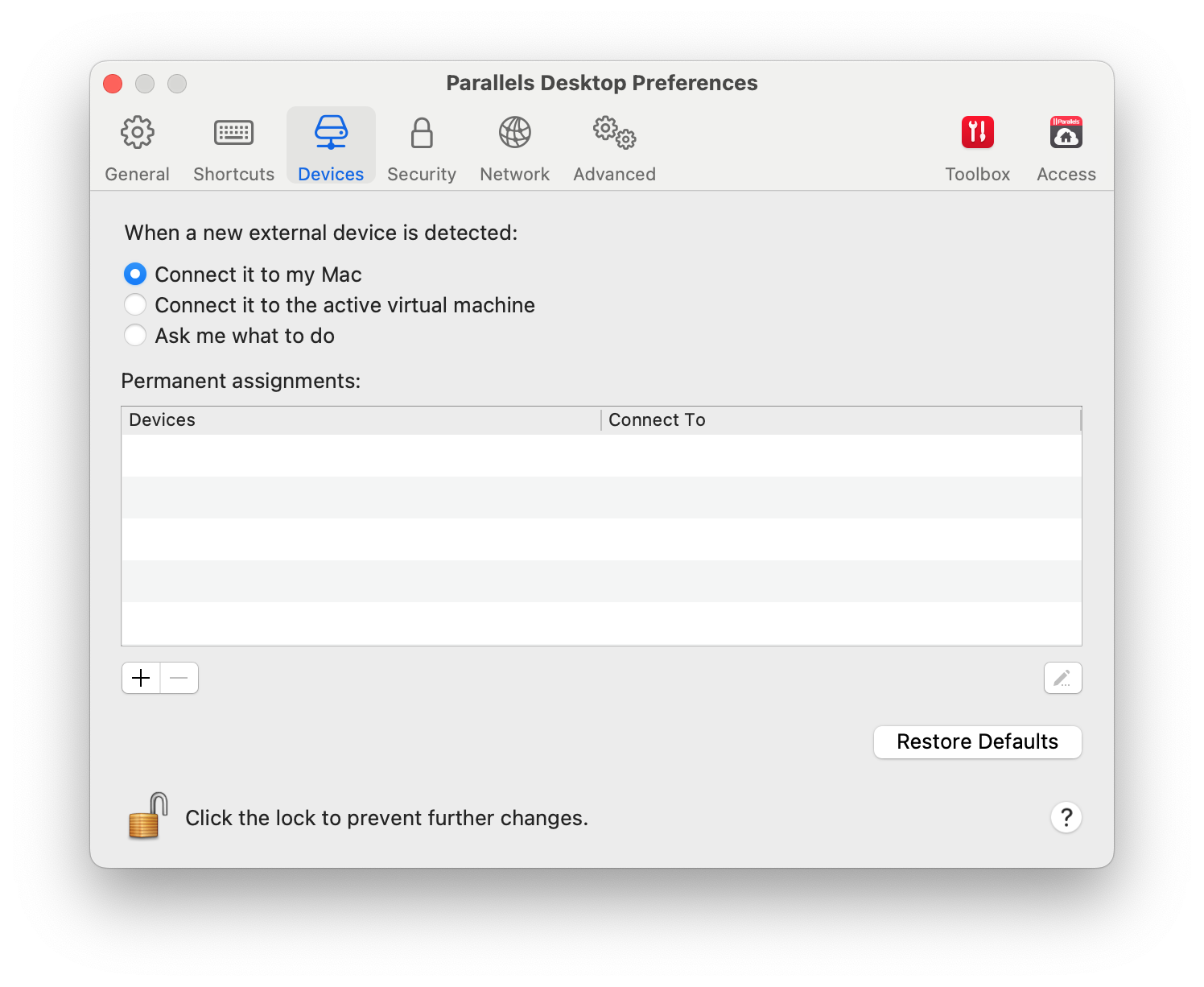
Parallels Desktop 環境設定の \[デバイス] ペインで、次の操作を実行できます。
* 新しい USB、Thunderbolt、または FireWire デバイスを Mac に接続したときに、どのような動作を行うかを設定する。
* 特定の外部デバイスが macOS または Windows で常に使用されるように設定する。
* Windows に接続された外部 NTFS ドライブを Mac にマウントすることを選択する。
デバイス設定にアクセスするには、以下の操作を実行します。
1. 次のいずれかを実行します。
* メニューバーの Parallels Desktop アイコンをクリックし、**\[環境設定]** を選択します。
* Dock 内の Parallels Desktop のアイコンを右クリックし、**\[環境設定]** を選択します。
2. **\[デバイス]** をクリックします。
### **新しい外部デバイスを Mac に接続したときに、どのような動作を行うかを設定する**
次のいずれかを選択します。
* 自分の Mac に接続する。新しい外部デバイスは、macOS アプリケーションで自動的に使用できるようになります。
* デバイスをアクティブな仮想マシンに接続する。新しい外部デバイスは、Windows アプリケーションで自動的に使用できるようになります。Windows が実行されていない場合は、外部デバイスは macOS に接続されます。
* 処理を確認する。外部デバイスを接続するたびに、デバイスを Windows に接続するか、Mac に接続するかの確認が表示されます。
### **特定の外部デバイスが常に macOS または Windows で使用されるように設定します**
特定の外部デバイスを常に macOS か Windows のいずれかで使用するかがわかっている場合は、次の手順に従って設定を行います。デバイスは、少なくとも 1 回は Mac に接続されている必要があります。
1. ウィンドウの下部にある \[追加](+)ボタンをクリックします。
2. リストからデバイスを選択します。
3. \[接続先] 列に表示される単語(\[コンピューター] や \[Windows] など)をダブルクリックします。その単語がポップアップメニューとして表示されます。
4. 次のいずれかを実行します。
* デバイスを常に macOS アプリケーションで使用できるようにするには、メニューから \[コンピューター] を選択します。
* デバイスを常に Windows アプリケーションで使用できるようにするには、メニューから \[Windows] を選択します。
既存の割り当てを解除し、そのデバイスが macOS または Windows に自動的に接続されないようにするには、\[外部デバイス] 列でデバイスを選択し、\[削除](-)ボタンをクリックします。
{% hint style="info" %}
**注**: 外部デバイスを Windows アプリケーションで使用できるようにするには、デバイス用の Windows ドライバーのインストールが必要になる場合があります。通常、ドライバーは製造元の Web サイトでダウンロードできます。
{% endhint %}
---
# Agent Instructions
This documentation is published with GitBook. GitBook is the documentation platform designed so that both humans and AI agents can read, navigate, and reason over technical content effectively. Learn more at gitbook.com.
## Querying This Documentation
If you need additional information that is not directly available in this page, you can query the documentation dynamically by asking a question.
Perform an HTTP GET request on the current page URL with the `ask` query parameter, and the optional `goal` query parameter:
```
GET https://docs.parallels.com/landing/pdfm-ug/v27-ja-jp/parallels-desktop-for-mac-27-yzzugaido/mac-de-windows-wosuru/debaisuno/debaisuno.md?ask=&goal=
```
`ask` is the immediate question: it should be specific, self-contained, and written in natural language.
`goal` is optional and describes the broader end goal you are ultimately trying to accomplish on behalf of the user. GitBook uses it to tailor the answer towards what is most useful for that goal.
The response will contain a direct answer to the question and relevant excerpts and sources from the documentation.
Use this mechanism when the answer is not explicitly present in the current page, you need clarification or additional context, or you want to retrieve related documentation sections.