> For the complete documentation index, see [llms.txt](https://docs.parallels.com/landing/llms.txt). Markdown versions of documentation pages are available by appending `.md` to page URLs; this page is available as [Markdown](https://docs.parallels.com/landing/pdfm-ug/v27-ja-jp/parallels-desktop-for-mac-27-yzzugaido/mac-de-windows-wosuru/dtano/apple-touch-id-wotte-windows-niroguinsuru.md).
# Apple Touch ID を使って Windows にログインする
Parallels Desktop space.vars.ver\_num では、Apple の Touch ID 指紋スキャナーを使用して Windows マシンにログインできます。設定が完了すると、この機能により、パスワードや PIN コードの入力を指先のタッチで代替し、より迅速に起動することができます。
{% hint style="info" %}
**注**: この統合は、macOS 側で生体認証チェックが完了した後に、Windows にカスタムの認証プロバイダーを追加し、サインインプロセスを処理することによって機能します。Windows には仮想指紋リーダーは追加されず、Windows Hello はこのプロセスに関与しません。
{% endhint %}
以下の要件を満たしていることを確認してください:
* 指紋認証スキャナーを内蔵した Mac、または Touch ID を搭載した Apple Magic Keyboard を利用できる。
* Mac コンピューターで Touch ID を設定している。
* Parallels Desktop バージョン19以降がインストールされています。
* ゲストマシンが Windows 10 以降である。
* ゲストマシンの Parallels Tools が最新バージョンに更新されている。
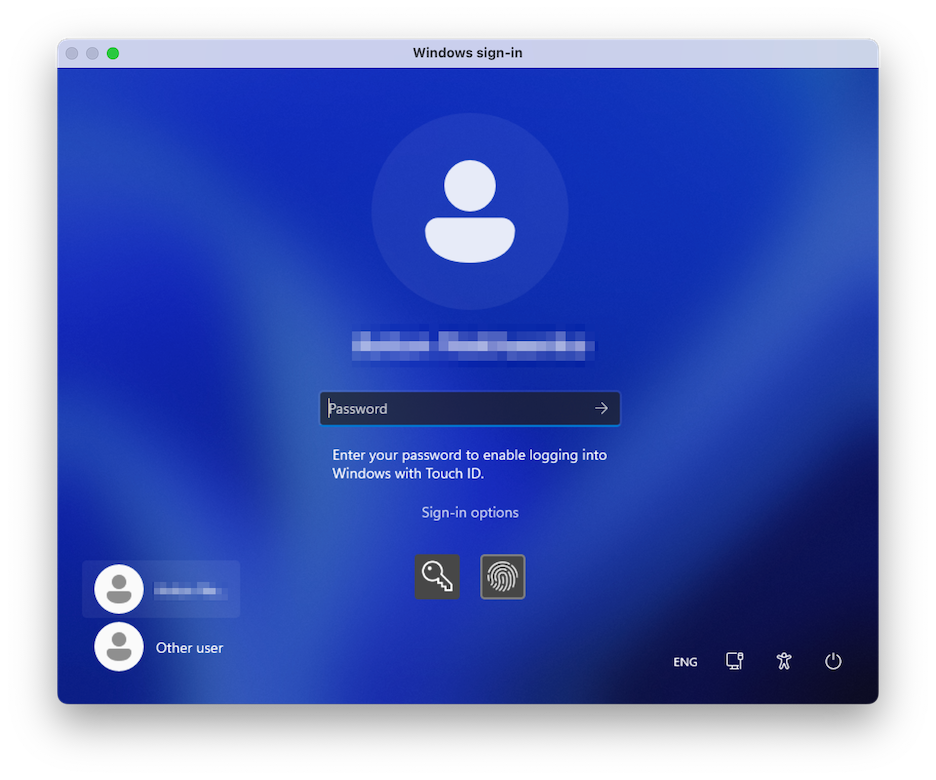
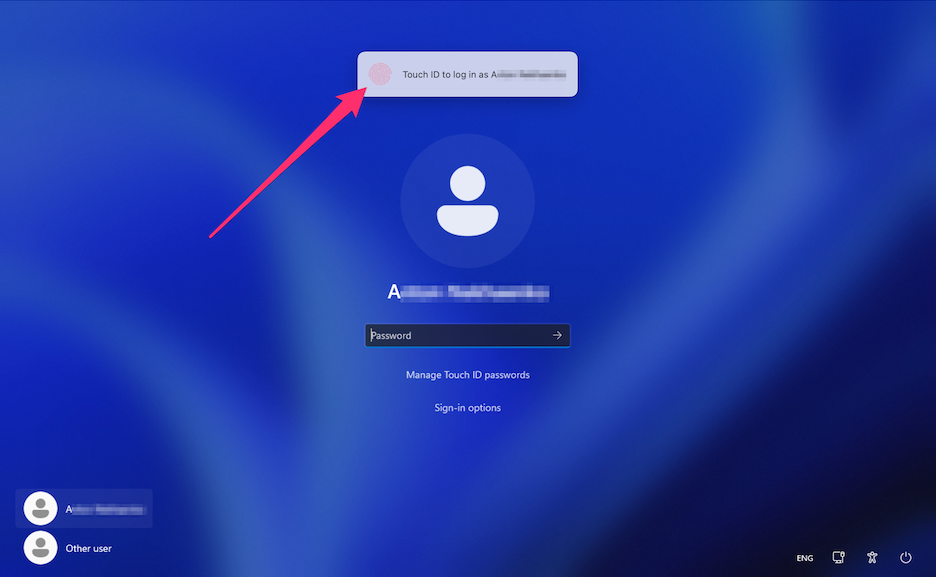
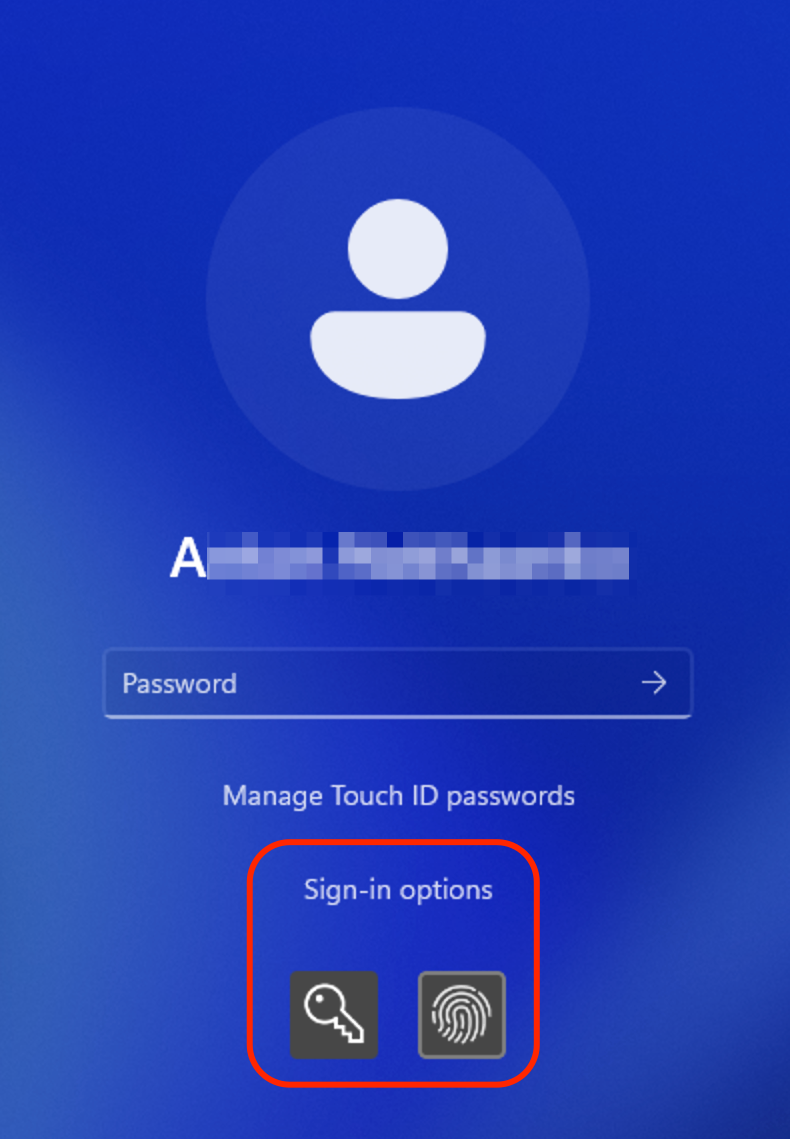
すべての要件が満たされると、次に Windows マシンを起動したときにログイン画面が表示され、Touch ID でログインできるようにパスワードの入力が求められます。その後、ログイン画面に「`Touch ID で {user_name} としてログインします`」という通知が表示されます。Touch ID を使用すると、Windows のロックが解除されます。この通知が表示されない場合は、**\[サインインオプション]** を選択し、指紋のアイコンが表示されている画面上のボタンを選択します。
また、プロンプトを無視して通常通りパスワードを入力してログインすることもできます。その場合は、画面上の鍵のアイコンが表示されているボタンを選択してください。
{% hint style="info" %}
**注**: Windows のパスワードは Apple のクラウドサービスに保存されません。パスワードは、ローカルの暗号化されたセキュアな領域に保存され、Touch ID の検証にのみ使用されます。
{% endhint %}
**\[Touch ID のパスワードを管理]** オプションを選択し、指紋のスキャンにより確認することで、保存された Windows の認証情報を管理または削除することができます。
---
# Agent Instructions
This documentation is published with GitBook. GitBook is the documentation platform designed so that both humans and AI agents can read, navigate, and reason over technical content effectively. Learn more at gitbook.com.
## Querying This Documentation
If you need additional information that is not directly available in this page, you can query the documentation dynamically by asking a question.
Perform an HTTP GET request on the current page URL with the `ask` query parameter, and the optional `goal` query parameter:
```
GET https://docs.parallels.com/landing/pdfm-ug/v27-ja-jp/parallels-desktop-for-mac-27-yzzugaido/mac-de-windows-wosuru/dtano/apple-touch-id-wotte-windows-niroguinsuru.md?ask=&goal=
```
`ask` is the immediate question: it should be specific, self-contained, and written in natural language.
`goal` is optional and describes the broader end goal you are ultimately trying to accomplish on behalf of the user. GitBook uses it to tailor the answer towards what is most useful for that goal.
The response will contain a direct answer to the question and relevant excerpts and sources from the documentation.
Use this mechanism when the answer is not explicitly present in the current page, you need clarification or additional context, or you want to retrieve related documentation sections.