> For the complete documentation index, see [llms.txt](https://docs.parallels.com/landing/llms.txt). Markdown versions of documentation pages are available by appending `.md` to page URLs; this page is available as [Markdown](https://docs.parallels.com/landing/pdfm-ug/v27-ja-jp/parallels-desktop-for-mac-27-yzzugaido/mac-de-windows-wosuru/macos-deno-windows-nono/macos-to-windows-deaitemuwosuru/intnettonorinkumatahamruwoni-macos-mataha-windows-dekuyounisuru.md).
# インターネットのリンクまたはメールを常に macOS または Windows で開くように設定する
デフォルトでは、Windows でリンクをクリックすると、そのリンクの種類に対してデフォルトの Windows アプリケーションが開きます。また、macOS でリンクをクリックすると、デフォルトの macOS アプリケーションが開きます。メールも同様で、Windows でメールを開くと Windows のデフォルトのメールクライアントが開き、macOS でメールを開くと macOS のデフォルトのメールアプリケーションが開きます。
リンクやメールは macOS または Windows のどちらでクリックしても常に同じ方法で開くように設定できます。
{% hint style="info" %}
**注:** この機能を使用するには、[Parallels Tools](/landing/pdfm-ug/v27-ja-jp/parallels-desktop-for-mac-27-yzzugaido/na/parallels-tools-noinsutrumatahaappudto/windows-no-parallels-tools.md) をインストールする必要があります。ほとんどの場合、Parallels Tools はデフォルトでインストールされています。
{% endhint %}
### **インターネットリンクを常に Windows で開くように設定する**
macOS でクリックしたリンクをすべて常に Windows で開くように設定するには、以下の手順を実行します。
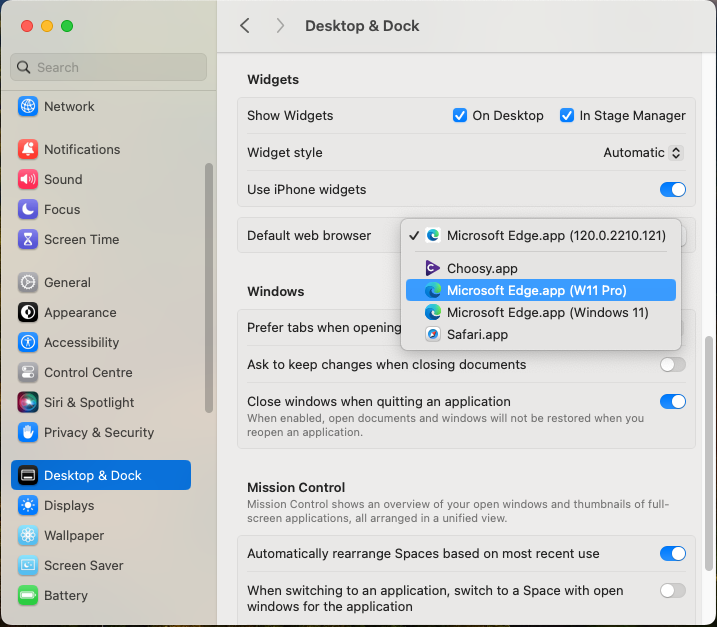
1. macOS では、**\[システム設定]** > **\[デスクトップと Dock]** を開きます。
2. **\[デフォルトの Web ブラウザー]** メニューで、Windows のブラウザーを選択します。
これで macOS でリンクをクリックすることで、選択した Windows のブラウザーで開けるようになりました。
{% hint style="info" %}
**注**: Windows 11 以降では、Microsoft によるアップデートにより、デフォルトブラウザーの変更方法がより複雑になっています。この新しいプロセスでは、インターネット閲覧でよく使われるリンクやプロトコルの種類ごとに、デフォルトのアプリケーションを変更する必要があります。つまり、HTTP、HTTPS、FTP などです。\
\
これを実行するには、**\[スタート]** > **\[設定]** > **\[アプリ]** > **\[既定のアプリ]** に進み、**\[リンクの種類で既定値を選択する]** を選択します。
{% endhint %}
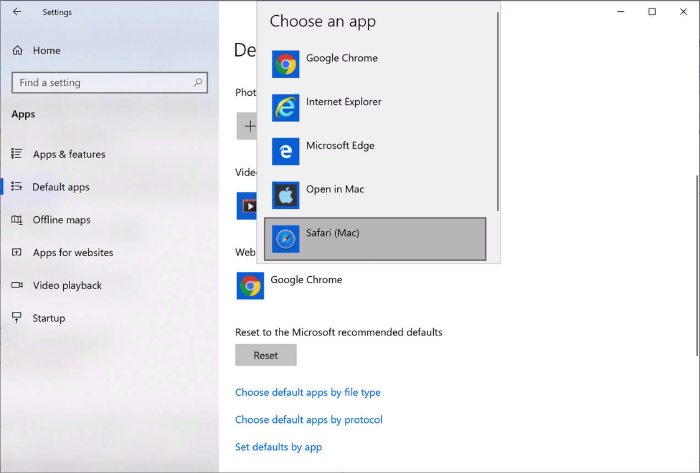
Windows 10 以前の場合、Windows でクリックしたリンクをすべて常に macOS で開くように設定するには、以下の手順を実行します。
1. Windows で、**\[スタート]** ボタン > **\[設定]** > **\[アプリ]** > **\[既定のアプリ]** をクリックします。
2. **\[Web ブラウザー]** セクションでブラウザーをクリックして、macOS のブラウザーを選択します。
これで Windows でリンクをクリックすることで、選択した macOS のブラウザーで開けるようになりました。
### **メールを常に macOS または Windows で開くように設定する**
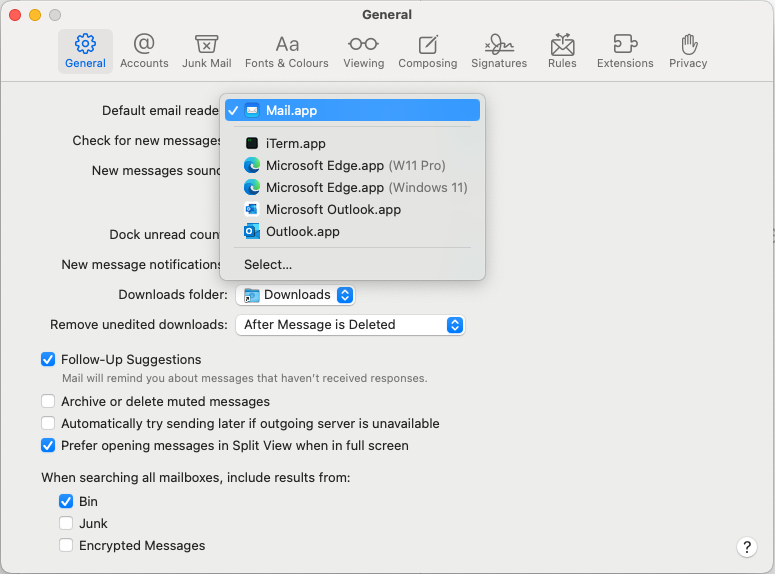
macOS で開いたメールをすべて常に Windows で開くように設定するには、以下の手順を実行します。
1. macOS で、**\[メール]** アプリの **\[環境設定]** > **\[一般]** を開きます。
2. **\[デフォルトメールソフト]** メニューで、メールアプリケーションを選択します。
これで macOS でメールをダブルクリックすることで、選択した Windows のメールアプリで開けるようになりました。
{% hint style="info" %}
**注**:ウィンドウズ11から、マイクロソフトはデフォルトの電子メールクライアントを変更するのが難しくなりました。新しいプロセスでは、インターネットブラウジングでよく使われるリンク/プロトコルタイプごとにデフォルトのアプリケーションを変更する必要があります: `EML`、`MSG`、`ICSなど`。
これを実行するには、**\[スタート]** > **\[設定]** > **\[アプリ]** > **\[既定のアプリ]** に進み、**\[リンクの種類で既定値を選択する]** を選択します。
{% endhint %}
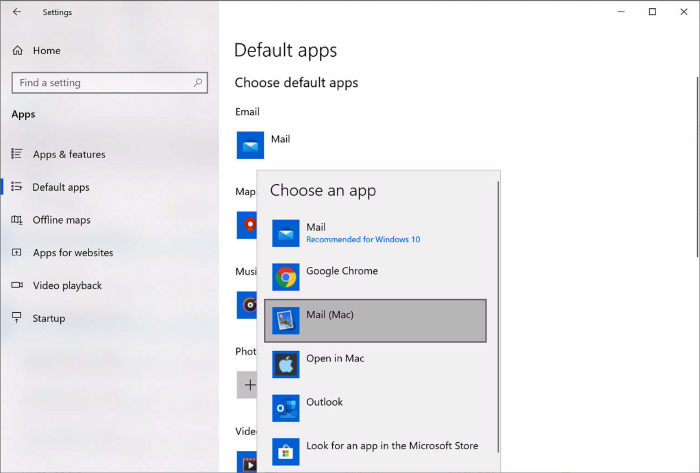
Windows 10以前のバージョンで、Windowsで開いたすべてのEメールを常にmacOSで開くように設定するには、次のようにします:
1. Windows で、**\[スタート]** ボタン > **\[設定]** > **\[アプリ]** > **\[既定のアプリ]** をクリックします。
2. **\[メール]** セクションでメールアプリケーションをクリックして、macOS のメールアプリを選択します。
これで Windows でメールをダブルクリックすることで、選択した macOS のメールアプリで開けるようになりました。
---
# Agent Instructions
This documentation is published with GitBook. GitBook is the documentation platform designed so that both humans and AI agents can read, navigate, and reason over technical content effectively. Learn more at gitbook.com.
## Querying This Documentation
If you need additional information that is not directly available in this page, you can query the documentation by asking a question.
Perform an HTTP GET request on the following URL with the `ask` and `goal` query parameters:
```
GET https://docs.parallels.com/landing/pdfm-ug/v27-ja-jp/parallels-desktop-for-mac-27-yzzugaido/mac-de-windows-wosuru/macos-deno-windows-nono/macos-to-windows-deaitemuwosuru/intnettonorinkumatahamruwoni-macos-mataha-windows-dekuyounisuru.md?ask=&goal=
```
`ask` is the immediate question: it should be specific, self-contained, and written in natural language.
`goal` is what the user is ultimately trying to achieve, the reason they need the answer. Sharing it helps GitBook give you a better, more relevant answer. A goal is most helpful when it describes the outcome the user wants rather than restating the question. For example, with `ask=how do I create an API token`, a goal like `automate deployments from our CI pipeline` lets GitBook tailor the answer to that use case.
The response will contain a direct answer to the question and relevant excerpts and sources from the documentation.
Use this mechanism when the answer is not explicitly present in the current page, you need clarification or additional context, or you want to retrieve related documentation sections.