> For the complete documentation index, see [llms.txt](https://docs.parallels.com/landing/llms.txt). Markdown versions of documentation pages are available by appending `.md` to page URLs; this page is available as [Markdown](https://docs.parallels.com/landing/pdfm-ug/v27-ja-jp/parallels-desktop-for-mac-27-yzzugaido/mac-de-windows-wosuru/mausutorakkupaddokbdo/kbdoshtokattonokasutamaizu.md).
# キーボードショートカットのカスタマイズ
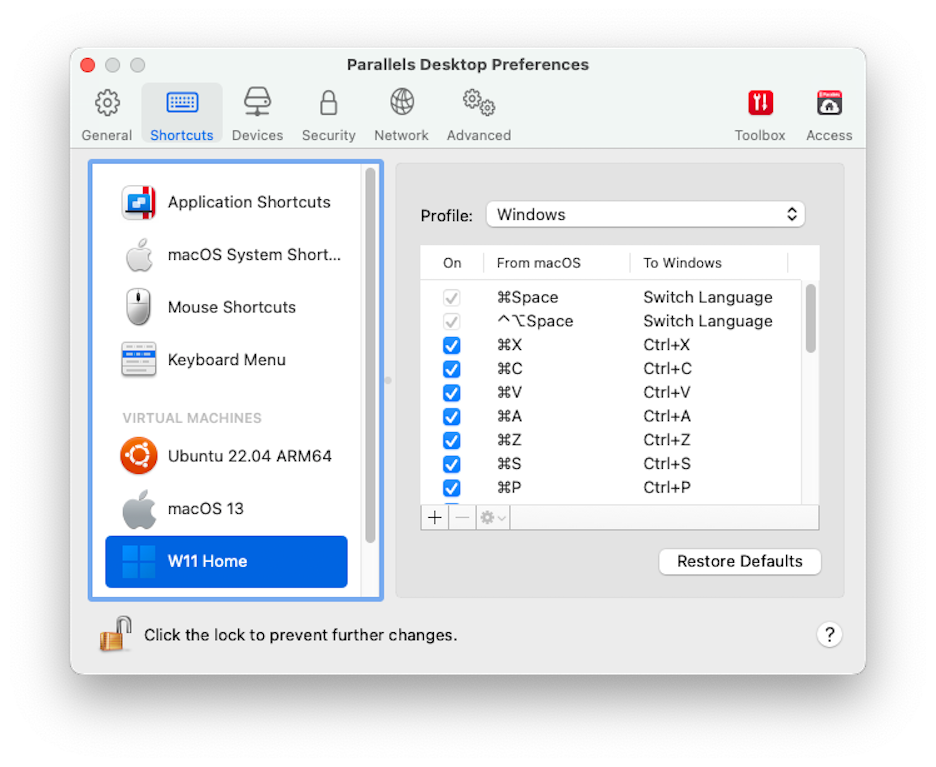
Parallels Desktop では、デフォルトで一般的な macOS キーボードショートカットキーの組み合わせが、対応する Windows キーの組み合わせに割り当てられます。そのため、たとえば、Command-C を押して macOS でテキストをコピーするのに慣れている場合は、Windows の Control-C に切り替える必要がありません。
また、キーボードショートカットを使用およびカスタマイズして、Coherence、フルスクリーン、ウィンドウ表示モードを切り替えること、および Parallels Desktop の表示と非表示を切り替えることができます。
### **キーボードショートカットのカスタマイズ**
1. 次のいずれかを実行します。
* メニューバーの Parallels Desktop アイコンをクリックし、**\[環境設定]** を選択します。
* Dock 内の Parallels Desktop のアイコンを右クリックし、**\[環境設定]** を選択します。
2. **\[ショートカット]** をクリックします
3. サイドバーの \[仮想マシン] リストから Windows を選択します。
または、Parallels Desktop で別の OS を使用しており、キーボードショートカットをカスタマイズするには、サイドバーで OS を選択します。Windows アプリケーションを使用している場合、上部の **\[再割り当て前]** 列でキーの組み合わせを押すと、**\[再割り当て後]** 列のキーの組み合わせがトリガーされます。
4. 鍵アイコンがロックされている場合は、クリックして、管理者パスワードを入力します。
5. 次のいずれかを実行します。
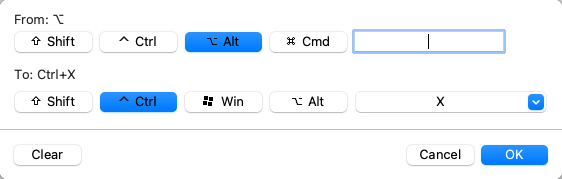
* 既存のキーの組み合わせを編集するには、キーの組み合わせをダブルクリックして選択し、**\[編集]** ボタンをクリックします 。修飾キーをクリックし、選択または選択解除します。必要であれば、テキストフィールドの文字を変更します。
* キーの組み合わせを削除するには、選択して **\[削除]** **(-)** ボタンをクリックします 。
* 新しいキーの組み合わせを追加するには、**\[追加] (+)** ボタンをクリックします 。
Parallels Desktop で複数の OS を使用している場合は、[各 OS のキーボードプロファイルを作成](/landing/pdfm-ug/v27-ja-jp/parallels-desktop-for-mac-27-yzzugaido/na/mac-deno-os-wosuru/gesuto-os-nokbdonokasutamaizu.md)できます。
{% hint style="info" %}
**注:** 1.一部のキーの組み合わせは、編集または削除できません。\
\
2.**Mac のショートカットには、Windows に同様のショートカットがないものがあります。たとえば、F11 キーまたは Fn+F11 キーの組み合わせを使用して、Expose で macOS デスクトップを表示できますが、Windows には Expose がないため、同じ処理を行うキーまたはキーの組み合わせはありません。**
{% endhint %}
### **macOS システムのショートカットを有効または無効にする**
macOS では、キーボードのファンクションキー(F1、F2、F3 など)で、ダッシュボードや Mission Control のアクティベート、画面の明るさの調整、音量の調節などの機能を制御します。デフォルトでは、Windows アプリケーションがアクティブの場合、ファンクションキーとその他の Mac システムショートカットキーの組み合わせ(Cmd+Tab を押して開いているアプリケーションを切り替えるなど)を使用して macOS 機能をアクティベートできます。
ファンクションキーと macOS システムショートカットキーの組み合わせにより、macOS または Windows の機能をアクティベートするかどうかを設定するには、次の操作を実行します。
1. サイドバーの **\[macOS システムショートカット]** をクリックします。
2. **\[macOS システムショートカットの送信]** メニューから次のいずれかを選択します。
* **常に**: Windows または Windows アプリケーションがアクティブの場合は、ファンクションキーとその他のシステムショートカットは、常に Windows の機能をトリガーします。
* **使用しない**: ファンクションキーとその他のシステムショートカットは、常に macOS の機能をトリガーします。
* **自動**: Windows を使用している場合、Windows で機能しないシステムショートカット(Control- 上矢印ボタンを使用して Mission Control を表示するなど)は macOS の機能をトリガーします。macOS をゲスト OS として使用しており、ゲスト OS またはそのアプリケーションがアクティブの場合は、macOS 固有のシステムショートカットは、macOS のゲストバージョンで機能をトリガーします。
### **キーボードメニューをカスタマイズする**
Window モードでキーの組み合わせを入力するには、**\[デバイス]** > **\[キーボード]** の順に選択し、キーの組み合わせを選びます。使用可能なキーの組み合わせをカスタマイズするには、次の手順に従います。
1. 次のいずれかを実行します。
* メニューバーの Parallels Desktop アイコンをクリックし、**\[環境設定]** を選択します。
* Parallels Desktop のメニューバーが画面上部にある場合は、**\[Parallels Desktop]** > **\[環境設定]** を選択します。
2. **\[ショートカット]** > **\[キーボードメニュー]** をクリックします。
3. 鍵アイコンがロックされている場合は、クリックして、管理者パスワードを入力します。
4. 次のいずれかを実行します。
* 新しいキーの組み合わせを追加するには、**\[追加]**(+)ボタンをクリックします
* キーの組み合わせをキーボードメニューから削除するには、選択して **\[削除]**(-)ボタンをクリックします
* 既存のキーの組み合わせを編集するには、キーの組み合わせをダブルクリックするか、選択して、**\[編集]** ボタンをクリックします修飾キーをクリックし、選択または選択解除します。必要であれば、テキストフィールドの文字を変更します。
---
# Agent Instructions
This documentation is published with GitBook. GitBook is the documentation platform designed so that both humans and AI agents can read, navigate, and reason over technical content effectively. Learn more at gitbook.com.
## Querying This Documentation
If you need additional information that is not directly available in this page, you can query the documentation dynamically by asking a question.
Perform an HTTP GET request on the following URL with the `ask` and `goal` query parameters:
```
GET https://docs.parallels.com/landing/pdfm-ug/v27-ja-jp/parallels-desktop-for-mac-27-yzzugaido/mac-de-windows-wosuru/mausutorakkupaddokbdo/kbdoshtokattonokasutamaizu.md?ask=&goal=
```
`ask` is the immediate question: it should be specific, self-contained, and written in natural language.
`goal` is what the user is ultimately trying to achieve, the reason they need the answer. Sharing it helps GitBook give you a better, more relevant answer. A goal is most helpful when it describes the outcome the user wants rather than restating the question. For example, with `ask=how do I create an API token`, a goal like `build a script that syncs our docs to a CMS` lets GitBook tailor the answer to that use case.
The response will contain a direct answer to the question and relevant excerpts and sources from the documentation.
Use this mechanism when the answer is not explicitly present in the current page, you need clarification or additional context, or you want to retrieve related documentation sections.