> For the complete documentation index, see [llms.txt](https://docs.parallels.com/landing/llms.txt). Markdown versions of documentation pages are available by appending `.md` to page URLs; this page is available as [Markdown](https://docs.parallels.com/landing/pdfm-ug/v27-ja-jp/parallels-desktop-for-mac-27-yzzugaido/mac-de-windows-wosuru/windows-karano/mac-nisaretapurintno.md).
# Mac に接続されたプリンターの共有
Macに接続されているプリンタならどれでも、Windowsアプリケーションから印刷に使用できます。
{% hint style="info" %}
**注**:この機能は、[Parallels Tools がインストールされている](/landing/pdfm-ug/v27-ja-jp/parallels-desktop-for-mac-27-yzzugaido/na/parallels-tools-noinsutrumatahaappudto/linux-no-parallels-tools.md) Linux 環境でも利用できます。
{% endhint %}
Windowsアプリケーションからドキュメントを印刷するには:
* ドキュメントを開き、通常どおり印刷します(たとえば、**ファイル** > **印刷** を選択します)。
印刷ウィンドウでは、Macに接続されている任意のプリンタを選択できます。
{% hint style="info" %}
**注**: Macに接続されたプリンタを使用してWindowsから初めて印刷を行う際、デフォルトの用紙サイズはA4(8.27×11.7インチ/210×297 mm)に設定されています。一度、ご使用の用紙サイズに変更してください。
{% endhint %}
### Macに接続されたプリンタの共有
1. 次のいずれかを実行します。
* メニューバーのParallels Desktopアイコンをクリックし、**設定**を選択します。
* 画面上部に Parallels Desktop のメニューバーが表示されている場合は、**アクション** > **設定** を選択します。
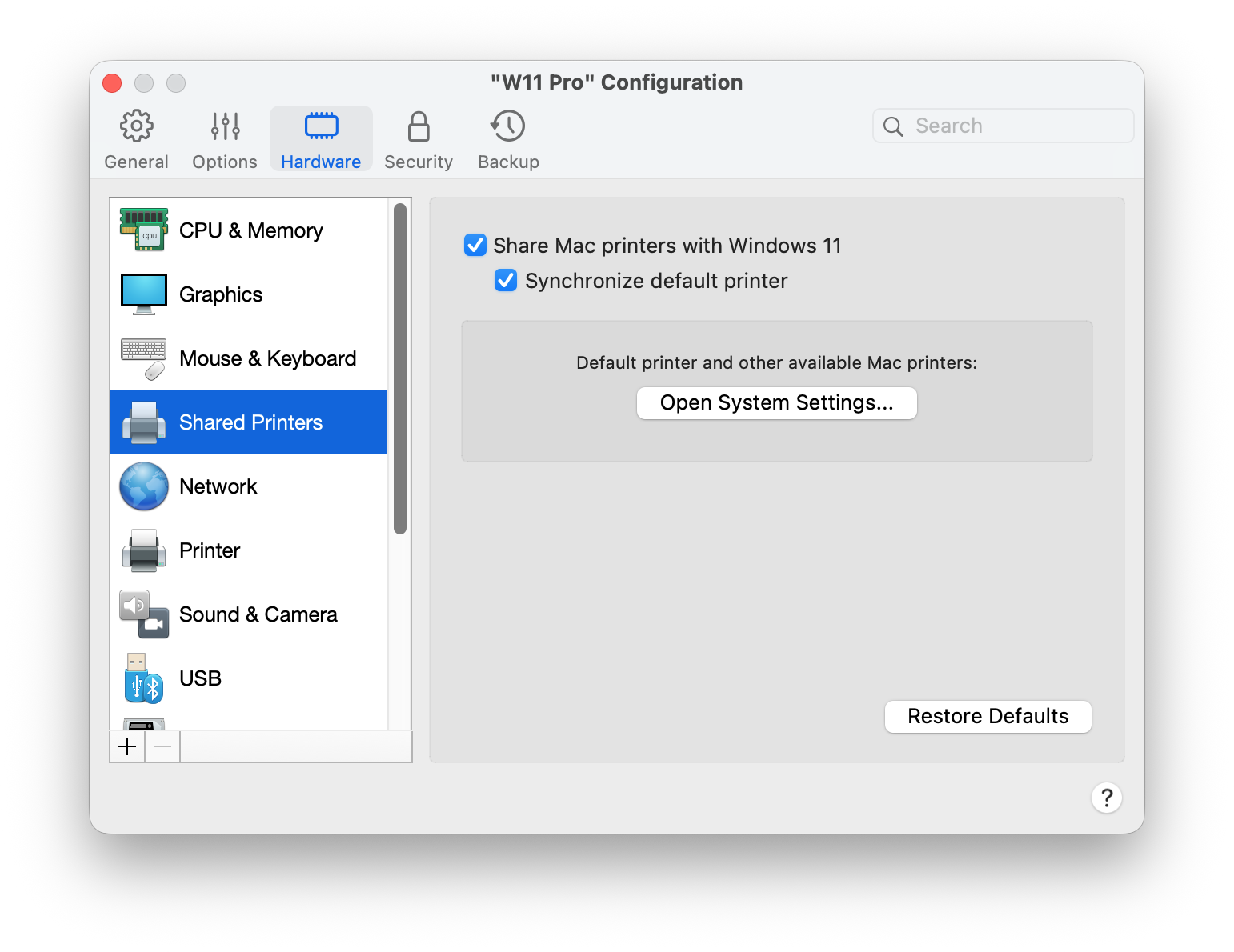
2. **ハードウェア** をクリックし、**共有プリンタ** を選択します。
3. **Mac のプリンタを Windows と共有** を選択します。
\### 新しい既定のプリンタを設定する
デフォルトでは、Windows は Mac と同じ既定のプリンタを使用するように設定されています。Windows で別の既定のプリンタを使用するには:
1. 次のいずれかを実行します:
* メニューバーの Parallels Desktop アイコンをクリックし、**設定** を選択します。\* 画面上部に Parallels Desktop のメニューバーが表示されている場合は、**アクション** > **設定** を選択します。
* 画面上部に Parallels Desktop のメニューバーが表示されている場合は、**アクション** > **設定** を選択します。
2. **ハードウェア** をクリックし、**共有プリンタ** を選択します。
3. **デフォルトのプリンタを同期する** のチェックを外します。
これで、Windows で通常どおり新しいデフォルトのプリンタを設定できるようになります。
### 印刷前に「ページ設定」を表示する
Parallels Desktop は、IPP ([Internet Printing Protocol](https://ja.wikipedia.org/wiki/Internet_Printing_Protocol)) を使用して Mac のプリンタを Windows と共有するため、ページ設定(向き、 用紙サイズ、片面または両面印刷、および同様のオプション)は、Windows 内で直接設定されます。
Windows 11 では、これらの設定は **設定** > **Bluetooth とデバイス** > **プリンターとスキャナー** >{`プリンター名`} > **印刷設定** から利用できます。
### Linuxでのプリンターの追加
Linuxの仮想マシンは、IPP(Internet Printing Protocol)を使用して、Macで既に設定済みのプリンターを自動的に認識します。手動での設定は不要です。
{% hint style="info" %}
**注**:IPP経由でLinux仮想マシンに接続されたプリンターは、現時点ではMacのオペレーティングシステムとのデフォルトの用紙サイズの同期が行えないため、デフォルト設定が使用されます。Linuxから印刷する際は、正しい用紙サイズが設定されていることを確認してください。
{% endhint %}
Linux仮想マシンにMacのプリンタが正しく設定されていることを確認するには、Linuxマシンで「設定」アプリを開き、\*\*「プリンタ」\*\*セクションを確認してください。
---
# Agent Instructions
This documentation is published with GitBook. GitBook is the documentation platform designed so that both humans and AI agents can read, navigate, and reason over technical content effectively. Learn more at gitbook.com.
## Querying This Documentation
If you need additional information that is not directly available in this page, you can query the documentation dynamically by asking a question.
Perform an HTTP GET request on the current page URL with the `ask` query parameter, and the optional `goal` query parameter:
```
GET https://docs.parallels.com/landing/pdfm-ug/v27-ja-jp/parallels-desktop-for-mac-27-yzzugaido/mac-de-windows-wosuru/windows-karano/mac-nisaretapurintno.md?ask=&goal=
```
`ask` is the immediate question: it should be specific, self-contained, and written in natural language.
`goal` is optional and describes the broader end goal you are ultimately trying to accomplish on behalf of the user. GitBook uses it to tailor the answer towards what is most useful for that goal.
The response will contain a direct answer to the question and relevant excerpts and sources from the documentation.
Use this mechanism when the answer is not explicitly present in the current page, you need clarification or additional context, or you want to retrieve related documentation sections.