> For the complete documentation index, see [llms.txt](https://docs.parallels.com/landing/llms.txt). Markdown versions of documentation pages are available by appending `.md` to page URLs; this page is available as [Markdown](https://docs.parallels.com/landing/pdfm-ug/v27-ja-jp/parallels-desktop-for-mac-27-yzzugaido/na/mashinno/apple-siliconmacdenox8664intelmashinnoinptoto/apple-siliconmacdenox8664mashinnoto.md).
# Apple Silicon搭載Macでのx86\_64仮想マシンの起動と実行
Apple Silicon搭載のMacでx86\_64仮想マシンをインポートして起動するには、以下の手順に従います。
{% hint style="danger" %}
**注意**: Apple Silicon搭載のMacで新たにインポートしたx86\_64マシンを使用する前に、[このリスト](/landing/pdfm-ug/v27-ja-jp/parallels-desktop-for-mac-27-yzzugaido/na/mashinno/apple-siliconmacdenox8664intelmashinnoinptoto.md#apple-siliconnomacdex8664mashinwosurutokino)で確認してください。
{% endhint %}
1. Intel Macでは、[このリスト](/landing/pdfm-ug/v27-ja-jp/parallels-desktop-for-mac-27-yzzugaido/na/mashinno/apple-siliconmacdenox8664intelmashinnoinptoto.md#apple-siliconnomacdedekirux8664noopertingushisutemu)に指定されているとおり、当社のエミュレータと互換性のあるオペレーティングシステムを実行する仮想マシンを選択してください。
2. 選択した仮想マシンを正しくシャットダウンします。正しくシャットダウンされていない仮想マシンを転送すると、データ損失が発生する可能性があります。
3. Intel Macで作成されたLinux仮想マシンのほとんどは、レガシーBIOSをエミュレートする仮想ブートローダーを使用しており、これは当社のエミュレーション機能と互換性がありません。Linux x86\_64マシンを転送する場合は、まずIntel Mac上で新しいマシンを作成する必要があります。以下の手順に従ってください。
1. 必要なLinuxディストリビューション用のx86\_64 ISOファイルをダウンロードします。
2. Intel Mac 上で Parallels Desktop を起動し、「**ファイル**」> 「**新規**」を選択します。
3. 「**Windows、Linux、または macOS をイメージファイルからインストールする**」 をクリックし、ダウンロードした ISO ファイルを選択して、「**続行**」 をクリックします。 または、「**無料システム** 」セクションから推奨されるオプションのいずれかを選択します。
4. 「**インストール前の設定のカスタマイズ**」をクリックし、**続行**を選択します。
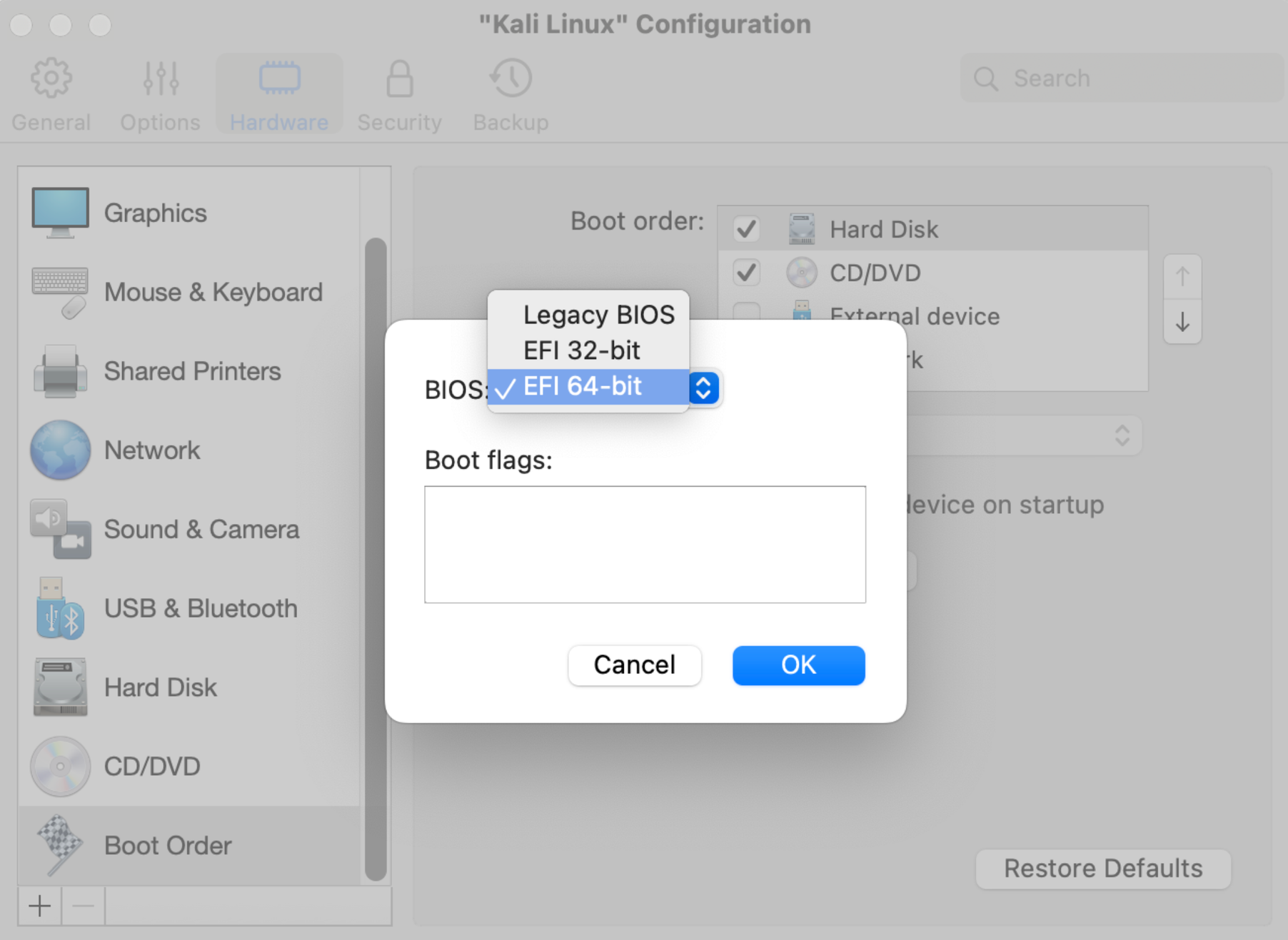
5. 設定ウィンドウが開いたら、「**ハードウェア**」タブに切り替え、左側のパネルから「**起動順序**」の項目を選択します。「**詳細**」をクリックし、「`64ビットEFI`」オプションを選択します。
「**OK**」をクリックします。
6. ウィンドウを閉じて、インストールを続行します。
4. Intel Mac で Parallels Desktop コントロールセンターを開き、必要な仮想マシンを選択して右クリックし、「**Finder で表示**」をクリックします。これにより、x86\_64 仮想マシンの `.pvm` ファイルが表示されます。
5. `.pvm`ファイルを、例えば外付けUSBドライブを使用して、ターゲットのApple Silicon搭載Macに転送します。
6. 必要な `.pvm` ファイルを Apple Silicon Mac の [Parallels Desktop 仮想マシンが保存されているフォルダ](/landing/pdfm-ug/v27-ja-jp/parallels-desktop-for-mac-27-yzzugaido/na/mashinno/mashinno/shiimashinnono.md)にコピーし、右クリックして、「**プログラムから開く**」>「**Parallels Desktop**」の順に選択します。
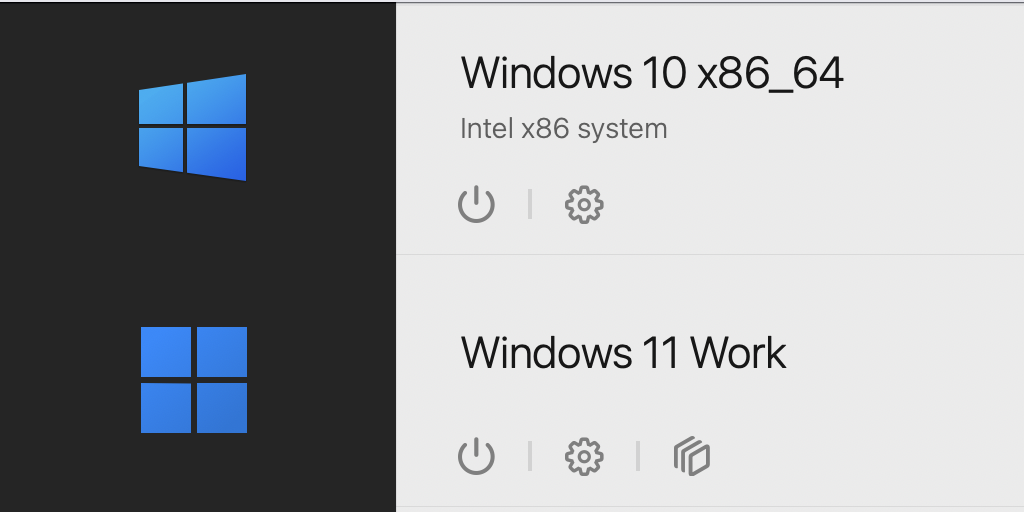
7. インポートした仮想マシンは、コントロールセンターで最初は「**非互換**」と表示されます。右クリックして、「**エミュレータの使用を開始**」オプションを選択します。
その後、仮想マシンは**Intel x86システム**」として指定されます。
8. Apple Silicon搭載のMacで新たにインポートしたx86\_64マシンを使用する前に、[このリスト](/landing/pdfm-ug/v27-ja-jp/parallels-desktop-for-mac-27-yzzugaido/na/mashinno/apple-siliconmacdenox8664intelmashinnoinptoto.md#apple-siliconnomacdex8664mashinwosurutokino)で確認してください。
最新の互換性アップデートおよびトラブルシューティング情報については、[このKB記事](https://kb.parallels.com/130217)を参照してください。
Intel Macをお持ちでない場合でも、Apple Silicon Macでx86\_64仮想マシンを作成して実行することができます。ただし、いくつかの制限があります。詳細は、[このサブチャプター](/landing/pdfm-ug/v27-ja-jp/parallels-desktop-for-mac-27-yzzugaido/na/mashinno/apple-siliconmacdenox8664intelmashinnoinptoto/apple-siliconmacdex8664intelmashinwosuru.md)をお読みください。
---
# Agent Instructions
This documentation is published with GitBook. GitBook is the documentation platform designed so that both humans and AI agents can read, navigate, and reason over technical content effectively. Learn more at gitbook.com.
## Querying This Documentation
If you need additional information that is not directly available in this page, you can query the documentation dynamically by asking a question.
Perform an HTTP GET request on the current page URL with the `ask` query parameter, and the optional `goal` query parameter:
```
GET https://docs.parallels.com/landing/pdfm-ug/v27-ja-jp/parallels-desktop-for-mac-27-yzzugaido/na/mashinno/apple-siliconmacdenox8664intelmashinnoinptoto/apple-siliconmacdenox8664mashinnoto.md?ask=&goal=
```
`ask` is the immediate question: it should be specific, self-contained, and written in natural language.
`goal` is optional and describes the broader end goal you are ultimately trying to accomplish on behalf of the user. GitBook uses it to tailor the answer towards what is most useful for that goal.
The response will contain a direct answer to the question and relevant excerpts and sources from the documentation.
Use this mechanism when the answer is not explicitly present in the current page, you need clarification or additional context, or you want to retrieve related documentation sections.