> For the complete documentation index, see [llms.txt](https://docs.parallels.com/landing/llms.txt). Markdown versions of documentation pages are available by appending `.md` to page URLs; this page is available as [Markdown](https://docs.parallels.com/landing/pdfm-ug/v27-ja-jp/parallels-desktop-for-mac-27-yzzugaido/parallels-desktop-tomashin/mashin/hdowea/gurafikku.md).

# グラフィック設定

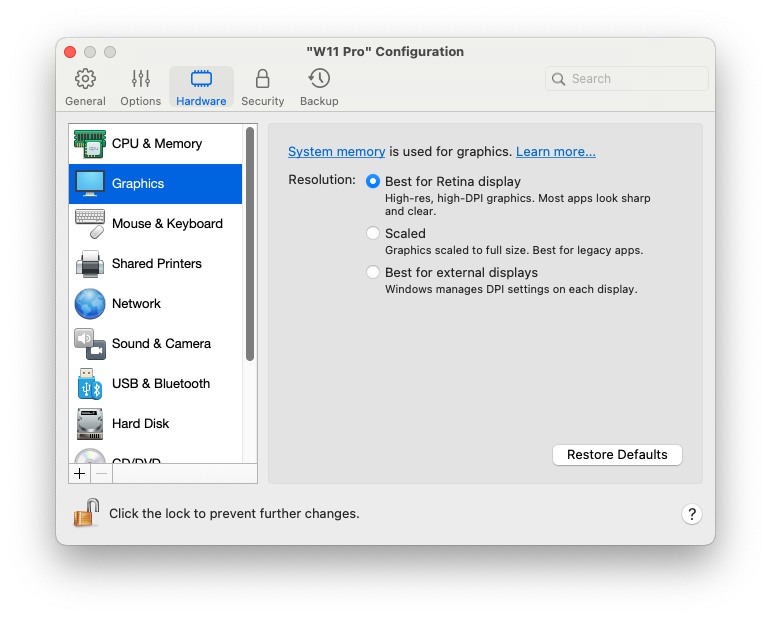
**\[グラフィックス]** ペインで、仮想マシンのビデオカードで使用できるビデオメモリ量の表示と構成、および解像度の設定などを実行できます。

この設定を開くには、**\[処理]** > **\[設定]** > **\[ハードウェア]** の順に選択して、**\[グラフィックス]** をクリックします。

<figure><img src="https://content.gitbook.com/content/UmbH6Lp9Mv0rCplkFmMZ/blobs/kHRvyfkWvsd5hmzm4tmq/Screenshot%202024-01-19%20at%2017.51.35.png" alt="" width="563"><figcaption></figcaption></figure>

<table><thead><tr><th width="273">オプション</th><th>説明</th></tr></thead><tbody><tr><td><strong>メモリ</strong></td><td><p>Windows 8 以降の仮想マシンを使用している場合、Parallels Desktop はグラフィック用にシステムメモリを使用します。仮想マシンに割り当てられるグラフィックメモリの容量を増やすには、<a href="/landing/pdfm-ug/v27-ja-jp/parallels-desktop-for-mac-27-yzzugaido/parallels-desktop-tomashin/mashin/hdowea/cpu-tomemorino.md"><strong>[CPU およびメモリ]</strong> ペイン</a>でシステムメモリの容量を増やします。<br></p><p>Windows 7 以前、Linux または macOS のオペレーティングシステムを搭載した仮想マシンの場合、<strong>[メモリ]</strong> メニューで、仮想マシンが利用できるビデオメモリの容量を設定できます。</p></td></tr><tr><td><strong>解像度</strong></td><td><p>Retina ディスプレイ搭載の Mac で Windows 7 またはそれ以降を使用して作業する場合は、画面上の Windows の表示方法を選択できます。</p><ul><li><strong>Retina ディスプレイに最適</strong>: Windows の解像度は Retina ディスプレイの解像度と同じになり、DPI 設定が増加されます。Windows のインターフェイス要素とテキストは、フルサイズでクリアかつシャープになります。このオプションは、Windows 7 以降でサポートされています。</li><li><strong>サイズ調整される</strong>: Windows の解像度と DPI 設定は変更されません。代わりに、Windows がフルサイズに調整されます。この結果、Windows のインターフェイス要素とテキストはシャープではなくなります。このオプションは、Windows アプリケーションが高い DPI 設定をサポートしていない場合や画面に小さく表示されるものである場合に便利です。</li><li><strong>外部ディスプレイに最適</strong>: Retina ではないマルチディスプレイの 1 つで Windows を使用して作業する場合は、このオプションを使用してください。このオプションは、Windows 8 以降でサポートされています。</li></ul><p>Windows XP の場合:<br></p><p>Retina ディスプレイ搭載の Mac で Windows XP を使用して作業する場合、Windows のサイズは変更されますが、解像度は変更されません。この結果、Windows のインターフェイス要素とテキストはシャープではなくなります。<br></p><p>ただし、<strong>[Retina 解像度を有効化]</strong> を選択すると、Windows で Retina のフル（2880x1800）解像度を有効にできます。このような高解像度では、Windows のインターフェイス要素とテキストは、シャープになりますが小さくなります。</p></td></tr><tr><td><strong>3D アクセラレーション</strong></td><td><p>このメニューは Linux 仮想マシンのみで利用可能で、3D アクセラレーションオプションはデフォルトで有効になっています。Linux で GUI に問題がある場合は、<strong>3D アクセラレーション</strong>メニューから <strong>[オフ]</strong> を選択してください。<br></p><p>Linux ゲストオペレーティングシステムの場合、Parallels Desktop は OpenGL 4.1（互換性プロファイル）をサポートします。</p><p>Windows 仮想マシンの場合、3D アクセラレーションがデフォルトでオンになっているためこのメニューは利用できません。Windows では、Parallels Desktop は OpenGL 4.1（互換性プロファイル）と DirectX 11.1 をサポートしています。<br></p><p>macOS の場合、Parallels Desktop for Mac 26でサポートされているすべてのバージョンがMetalグラフィックスもサポートしています。ただし、その仮想マシンに Parallels Tools がインストールされていることが条件となります。</p><p><br>ご使用の Windows または Linux アプリから、もっと上のバージョンの DirectX または OpenGL が必要であるという警告が発された場合は、Parallels のフォーラムでお知らせください。フォーラムにアクセスするには、<strong>[ヘルプ]</strong> > <strong>[お勧めの機能]</strong> をクリックするか、最新の関連トピックから検索します。</p></td></tr><tr><td><p><strong>必ず高パフォーマンスグラフィックを使用してください</strong></p><p>（Apple Silicon Mac では利用できません）</p></td><td>お使いの Mac でグラフィックの切り替えがサポートされている場合にのみ、このオプションが表示されます。このオプションを選択すれば、パフォーマンスが向上します。選択を解除すればバッテリー持続時間を延長できます。</td></tr></tbody></table>


---

# Agent Instructions
This documentation is published with GitBook. GitBook is the documentation platform designed so that both humans and AI agents can read, navigate, and reason over technical content effectively. Learn more at gitbook.com.

## Querying This Documentation
If you need additional information that is not directly available in this page, you can query the documentation dynamically by asking a question.

Perform an HTTP GET request on the current page URL with the `ask` query parameter, and the optional `goal` query parameter:

```
GET https://docs.parallels.com/landing/pdfm-ug/v27-ja-jp/parallels-desktop-for-mac-27-yzzugaido/parallels-desktop-tomashin/mashin/hdowea/gurafikku.md?ask=<question>&goal=<endgoal>
```

`ask` is the immediate question: it should be specific, self-contained, and written in natural language.
`goal` is optional and describes the broader end goal you are ultimately trying to accomplish on behalf of the user. GitBook uses it to tailor the answer towards what is most useful for that goal.

The response will contain a direct answer to the question and relevant excerpts and sources from the documentation.

Use this mechanism when the answer is not explicitly present in the current page, you need clarification or additional context, or you want to retrieve related documentation sections.
