> For the complete documentation index, see [llms.txt](https://docs.parallels.com/landing/llms.txt). Markdown versions of documentation pages are available by appending `.md` to page URLs; this page is available as [Markdown](https://docs.parallels.com/landing/pdfm-ug/v27-ja-jp/parallels-desktop-for-mac-27-yzzugaido/parallels-desktop-tomashin/mashin/opushon/opushon.md).

# 詳細オプション

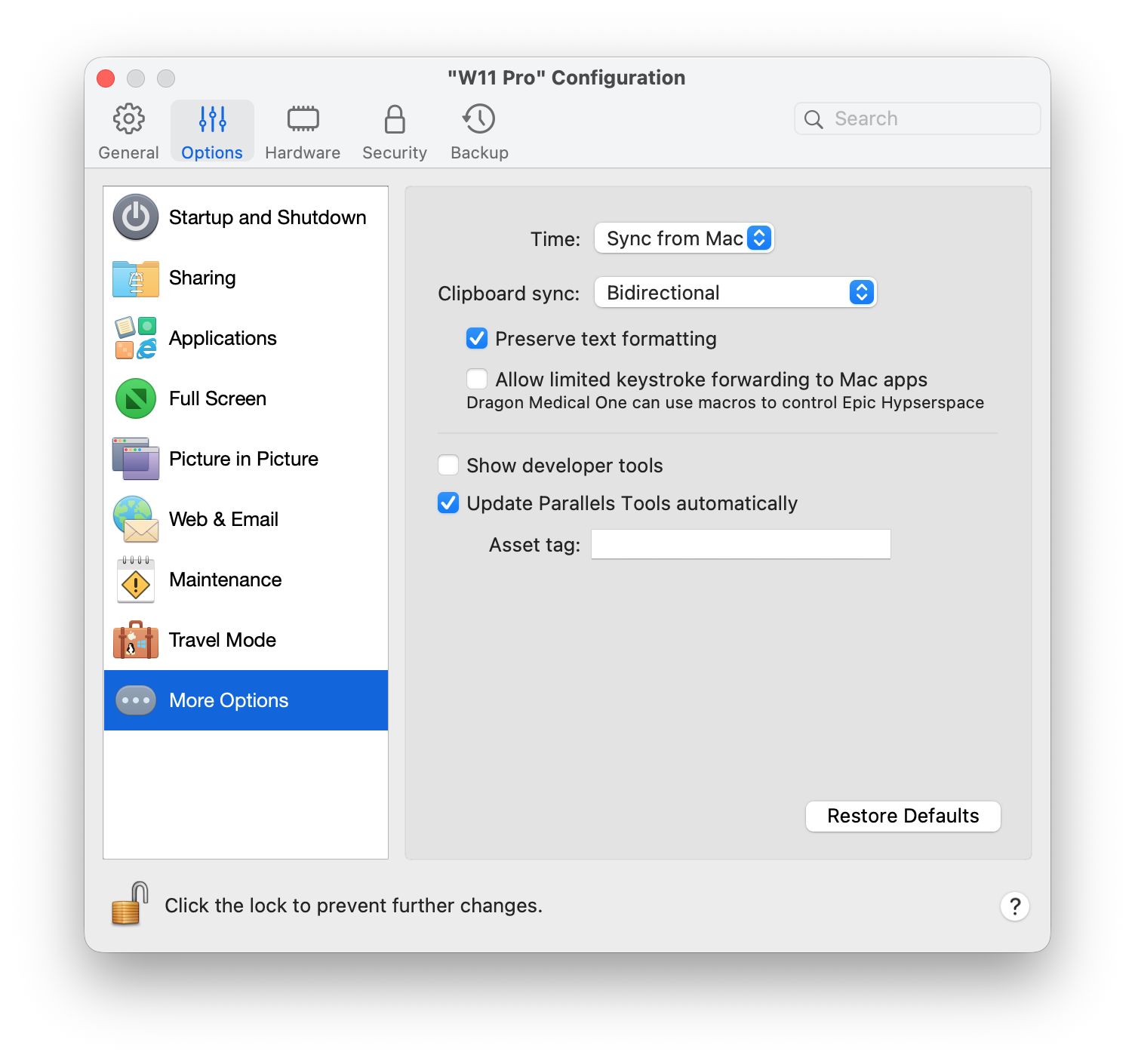
**\[詳細オプション]** ペインで、Mac クリップボードを共有するかどうかを選択したり、macOS と時刻を同期するかどうかを設定したりすることができます。

この設定を開くには、**\[処理]** > **\[構成]** > **\[オプション]** を選択し、**\[CPU およびメモリ]** をクリックします。

<figure><img src="https://content.gitbook.com/content/UmbH6Lp9Mv0rCplkFmMZ/blobs/AYhuuzvT1hhbXHtMs5zV/PDFM-125476_Keystroke_Fwding.png" alt="" width="563"><figcaption></figcaption></figure>

<table><thead><tr><th width="247">オプション</th><th>説明</th></tr></thead><tbody><tr><td><strong>時間</strong>（Apple Silicon Mac 上で動作する macOS 仮想マシンでは利用できません）</td><td><p>仮想マシンの時刻設定を Mac の時刻設定と同期するには、<strong>[Mac と同期]</strong> を選択します。<br></p><p>仮想マシンと macOS の時刻設定を常に同じにするには、<strong>[いずれかの OS に同期]</strong> を選択します。このオプションが選択されている場合、仮想マシンの時刻設定を手動で変更すると、macOS にも反映されます（その逆も同様です）。<br></p><p>仮想マシンで設定されているタイムゾーンが Mac のタイムゾーンと異なる場合は、<strong>[同期しない]</strong> を選択することで時間の相違を維持できます。</p></td></tr><tr><td><strong>クリップボードの同期</strong>（Apple Silicon Mac 上で動作する macOS 仮想マシンでは利用できません）</td><td><p>この設定により、Mac と仮想マシン間におけるクリップボードの内容の利用（コピー &#x26; ペーストのバッファ）を管理します。<br></p><p>デフォルトの<strong>双方向</strong>オプションでは、Mac と仮想マシンの間で、双方向のコピー &#x26; ペーストが可能です。<br></p><p><strong>無効</strong>オプションでは、双方向のコピー &#x26; ペーストがブロックされます。<br></p><p><strong>{virtual_machine} から Mac</strong> および <strong>Mac から {virtual_machine}</strong> オプションを使用すると、コピー &#x26; ペーストが許可される方向を制限することができます。この機能は、Parallels Desktop for Mac Pro および Business/Enterprise Edition でのみ使用できます。</p></td></tr><tr><td><strong>テキスト書式を維持する</strong></td><td>このオプションを選択すると、Macアプリと仮想マシン間でコピーするテキストの書式設定を保持できます。</td></tr><tr><td><strong>Mac アプリへのキーストローク転送を制限付きで許可する</strong> (Parallels Desktop for Mac Business/Enterprise Editions のみ）</td><td><p>このオプションを選択すると、仮想マシンからホストMacアプリへの限定的なキーストローク転送を許可し、特定のエンタープライズソフトウェアワークフローを実現できます。<br></p><p><strong>注</strong>：このオプションはDragon Medical Oneワークフロー向けに設計されており、マクロやディクテーションコマンドによるEpic Hyperspaceのコントロールが許可されます。セキュリティ上の理由から、この機能では<code>Cmd</code>キーは除外されます。</p></td></tr><tr><td><strong>[開発者ツールを表示する]</strong>（Parallels Desktop for Mac Pro と Business/Enterprise Editions のみ）。</td><td><p>Parallels Desktop にはソフトウェア開発者に役立つ複数の機能があります。macOS メニューバーに <strong>[開発]</strong> メニューを表示する場合は、このオプションを選択します。このメニューでは、以下を行うことができます。<br></p><ul><li>SSH セッションを開始する。</li><li>macOS のデフォルトの Web ブラウザで仮想マシンの IP アドレスを開く。</li><li>デバッグセッションを開始する。</li><li>仮想マシンのメモリダンプを生成する。</li></ul><p>次のポイントは Windows 仮想マシンでのみ利用可能です（ポイントの一部が表示されない場合があります。これは Windows のバージョンによって異なります）。<br></p><ul><li><strong>すべてのタスク</strong>（別名「神モード」）のリストを開きます。</li><li>ステップ記録を開きます。</li><li>レジストリエディターを開きます。</li><li>コマンドプロンプトを開きます。</li><li>[実行] ウィンドウを開きます。</li></ul></td></tr><tr><td><strong>Parallels Tools を自動的にアップデートする</strong>（Parallels Desktop for Mac Pro と Business/Enterprise Editions のみ）</td><td><a href="/landing/pdfm-ug/v27-ja-jp/parallels-desktop-for-mac-27-yzzugaido/na/parallels-tools-noinsutrumatahaappudto.md">Parallels Tools</a> を自動的にアップデートする場合は、このオプションを選択します。</td></tr><tr><td><strong>macOS SSH パブリックキーで認証</strong> (Parallels Desktop for Mac Pro および Business/Enterprise Edition でのみ、Linux マシンで利用可能です。)</td><td>このオプションを有効にすると、Mac の公開 SSH 鍵を Linux 仮想マシンと同期させることができ、パスワードを入力せずに仮想マシンへの認証が可能になります。この機能は SSH 証明書をサポートしておらず、仮想マシンに通常のユーザーが 1 人しかいないか、Mac と仮想マシンでユーザー名が一致している必要があります。</td></tr><tr><td><strong>仮想マシンの名前をゲスト OS のホストネームに設定</strong> (Parallels Desktop for Mac Pro および Business/Enterprise Edition でのみ、Linux マシンで利用可能です。)</td><td>この機能は、SSH経由でLinux仮想マシンを操作する際に便利です。これにより、例えば<code>{ユーザー名}@dhcp-{IPv4アドレス}:~ $</code>といった表示の代わりに<code>{ユーザー名}@{仮想マシンの名前}:~ $</code> と表示されるようになります。この設定を適用するには、仮想マシンを再起動する必要があります。</td></tr><tr><td><strong>[資産タグ]</strong>（Parallels Desktop for Mac Business/Enterprise Edition でのみ利用できます）</td><td>資産タグは、組織内でコンピューター資産を識別、制御、追跡するのに役立ちます。Parallels Desktop では、仮想マシンの BIOS に資産タグを設定できます。資産タグは、ゲスト OS の標準ツールを使って読み取ることができます。資産タグを設定するには、対応するフィールドにタグを入力します。</td></tr></tbody></table>


---

# Agent Instructions
This documentation is published with GitBook. GitBook is the documentation platform designed so that both humans and AI agents can read, navigate, and reason over technical content effectively. Learn more at gitbook.com.

## Querying This Documentation
If you need additional information that is not directly available in this page, you can query the documentation dynamically by asking a question.

Perform an HTTP GET request on the current page URL with the `ask` query parameter, and the optional `goal` query parameter:

```
GET https://docs.parallels.com/landing/pdfm-ug/v27-ja-jp/parallels-desktop-for-mac-27-yzzugaido/parallels-desktop-tomashin/mashin/opushon/opushon.md?ask=<question>&goal=<endgoal>
```

`ask` is the immediate question: it should be specific, self-contained, and written in natural language.
`goal` is optional and describes the broader end goal you are ultimately trying to accomplish on behalf of the user. GitBook uses it to tailor the answer towards what is most useful for that goal.

The response will contain a direct answer to the question and relevant excerpts and sources from the documentation.

Use this mechanism when the answer is not explicitly present in the current page, you need clarification or additional context, or you want to retrieve related documentation sections.
