> For the complete documentation index, see [llms.txt](https://docs.parallels.com/landing/llms.txt). Markdown versions of documentation pages are available by appending `.md` to page URLs; this page is available as [Markdown](https://docs.parallels.com/landing/pdfm-ug/v27-ja-jp/parallels-desktop-for-mac-27-yzzugaido/parallels-desktop-tomashin/parallels-desktop-huan-jing-she-ding/na.md).

# 一般的な環境設定

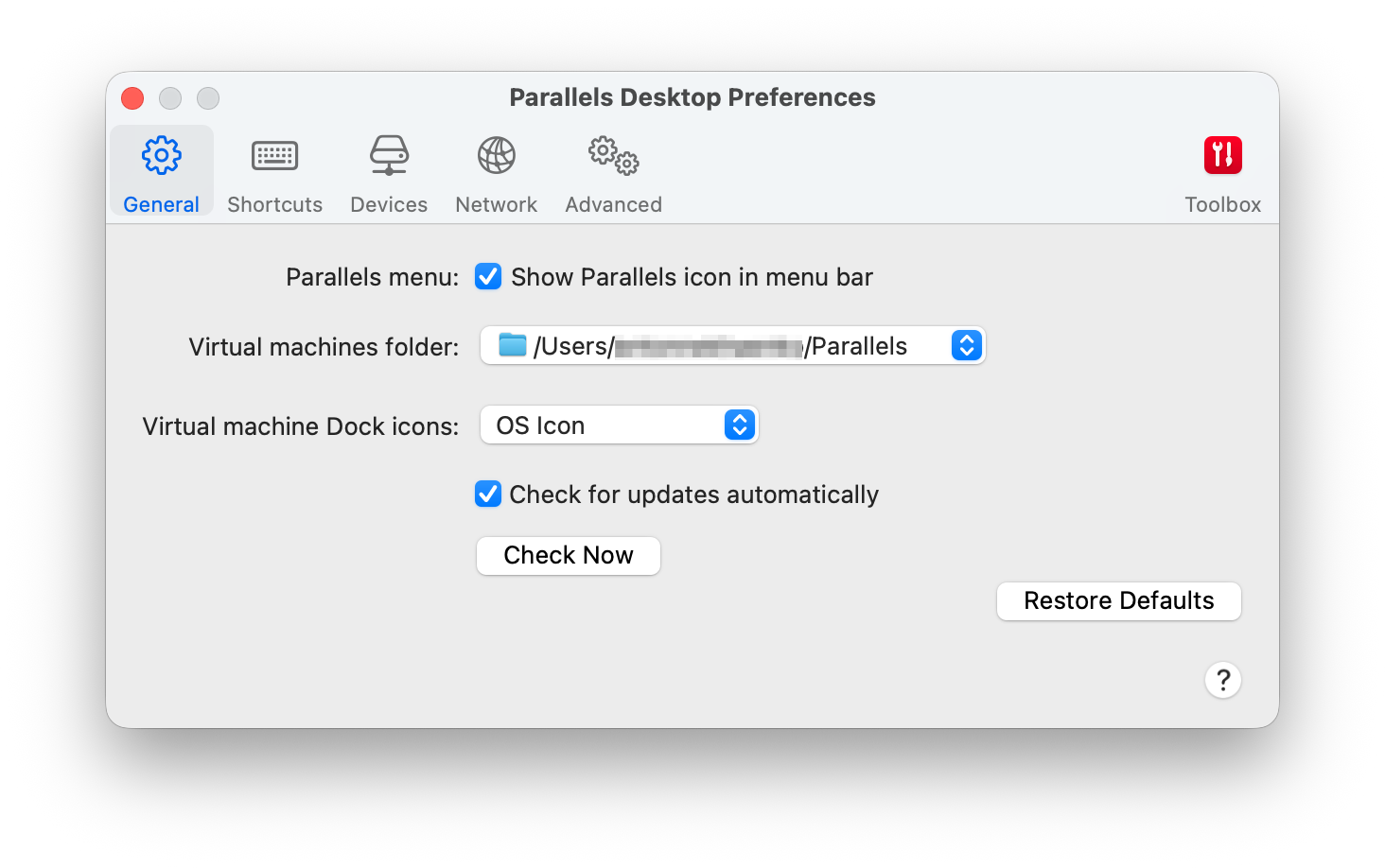
**\[一般]** 環境設定を使用すると、macOS メニューバーで Parallels メニューを使用可能にするかどうかを指定したり、仮想マシンの保存先フォルダーを変更したりできます。

<figure><img src="https://337036503-files.gitbook.io/~/files/v0/b/gitbook-x-prod.appspot.com/o/spaces%2FUmbH6Lp9Mv0rCplkFmMZ%2Fuploads%2Fgit-blob-2a2c5f111f8e08cae9a732776088f578f1aa1b9b%2FPDFM-122038_PDPref-General.png?alt=media" alt="" width="561"><figcaption></figcaption></figure>

これらの環境設定を開くには、**\[Parallels Desktop]** > **\[環境設定]** を選択し、**\[一般]** をクリックします。

<table><thead><tr><th width="337">オプション</th><th>説明</th></tr></thead><tbody><tr><td><strong>Parallels メニュー</strong></td><td>macOS メニューバーで Parallels Desktop メニューを利用可能にするかどうかを選択します。このメニューでは、Parallels Desktop メニュー、環境設定、コントロールセンター、ヘルプリソース、仮想マシンの操作などに簡単にアクセスできます。</td></tr><tr><td><strong>仮想マシンのフォルダー</strong></td><td>新しい仮想マシンの保存場所を設定します。デフォルトでは、ユーザーのホームフォルダー内の <code>Parallels</code> フォルダーに保存されます。</td></tr><tr><td><strong>仮想マシンの Dock アイコン</strong></td><td><p>仮想マシンが Dock で使用するアイコンのタイプを選択します。</p><ul><li><strong>OS アイコン</strong>: Dock アイコンは、ゲストオペレーティングシステムのタイプを示します。</li><li><strong>ライブスクリーンショット</strong>: Dock アイコンに、ゲストオペレーティングシステムに表示されるイメージの縮小版が表示されます。</li><li><strong>なし</strong>: Dock に仮想マシンのアイコンが表示されません。</li></ul></td></tr><tr><td><strong>アップデートの確認</strong></td><td>Parallels Desktop がソフトウェアのアップデートを確認する頻度を設定します。</td></tr><tr><td><strong>自動的にアップデートをダウンロード</strong></td><td>このオプションを選択すると、Parallels Desktop は自動的にアップデートをダウンロードし、インストールするかどうかを確認します。</td></tr><tr><td><strong>すぐにチェック</strong></td><td>アップデートを手動で確認するには、このボタンをクリックします。<strong>[Parallels Desktop]</strong> アプリケーションメニューから <strong>[アップデートの確認]</strong> を選択することもできます。</td></tr></tbody></table>


---

# Agent Instructions
This documentation is published with GitBook. GitBook is the documentation platform designed so that both humans and AI agents can read, navigate, and reason over technical content effectively. Learn more at gitbook.com.

## Querying This Documentation
If you need additional information that is not directly available in this page, you can query the documentation dynamically by asking a question.

Perform an HTTP GET request on the current page URL with the `ask` query parameter, and the optional `goal` query parameter:

```
GET https://docs.parallels.com/landing/pdfm-ug/v27-ja-jp/parallels-desktop-for-mac-27-yzzugaido/parallels-desktop-tomashin/parallels-desktop-huan-jing-she-ding/na.md?ask=<question>&goal=<endgoal>
```

`ask` is the immediate question: it should be specific, self-contained, and written in natural language.
`goal` is optional and describes the broader end goal you are ultimately trying to accomplish on behalf of the user. GitBook uses it to tailor the answer towards what is most useful for that goal.

The response will contain a direct answer to the question and relevant excerpts and sources from the documentation.

Use this mechanism when the answer is not explicitly present in the current page, you need clarification or additional context, or you want to retrieve related documentation sections.
