> For the complete documentation index, see [llms.txt](https://docs.parallels.com/landing/llms.txt). Markdown versions of documentation pages are available by appending `.md` to page URLs; this page is available as [Markdown](https://docs.parallels.com/landing/ras-admin-guide/parallels-ras-21-administrators-guide/connection-and-authentication-settings/logon-hours-settings.md).
# Logon hours settings
{% hint style="info" %}
**Note:** This feature is not supported on Parallels Clients earlier than version 19 and Parallels Client for Chrome. Creating a logon hours rule restricts the ability to connect to published resources (within a site) using any of these clients.
{% endhint %}
Logon hours restrictions provide an ability to restrict user access to published resources during specified time frames using flexible expression-based rules.
## **Prerequisites**
Time zone redirection is required to be set on the server in order for the feature to work as intended.
To enable group policy setting Allow time zone redirection:
1. On the Active Directory server, open the Group Policy Management Console.
2. Expand your domain and?Group Policy Objects.
3. Right-click the GPO that you created for the group policy settings and select **Edit**.
4. In the **Group Policy Management Editor**, navigate to **Computer Configuration > Policies > Administrative Templates > Windows Components > Remote Desktop Services > Remote Desktop Session Host > Device and Resource Redirection**.
5. Enable the setting **Allow time zone redirection**.
## **Adding a logon hours rule**
To add a new logon hours rule:
1. In the RAS Console, navigate to **Connection** and select the **Logon hours** tab.
2. Click **Tasks > Add** (or click the **\[+]** icon).
3. In the **Name** field, specify the name of the rule in the .
4. in the **Description** field, specify the description of the rule
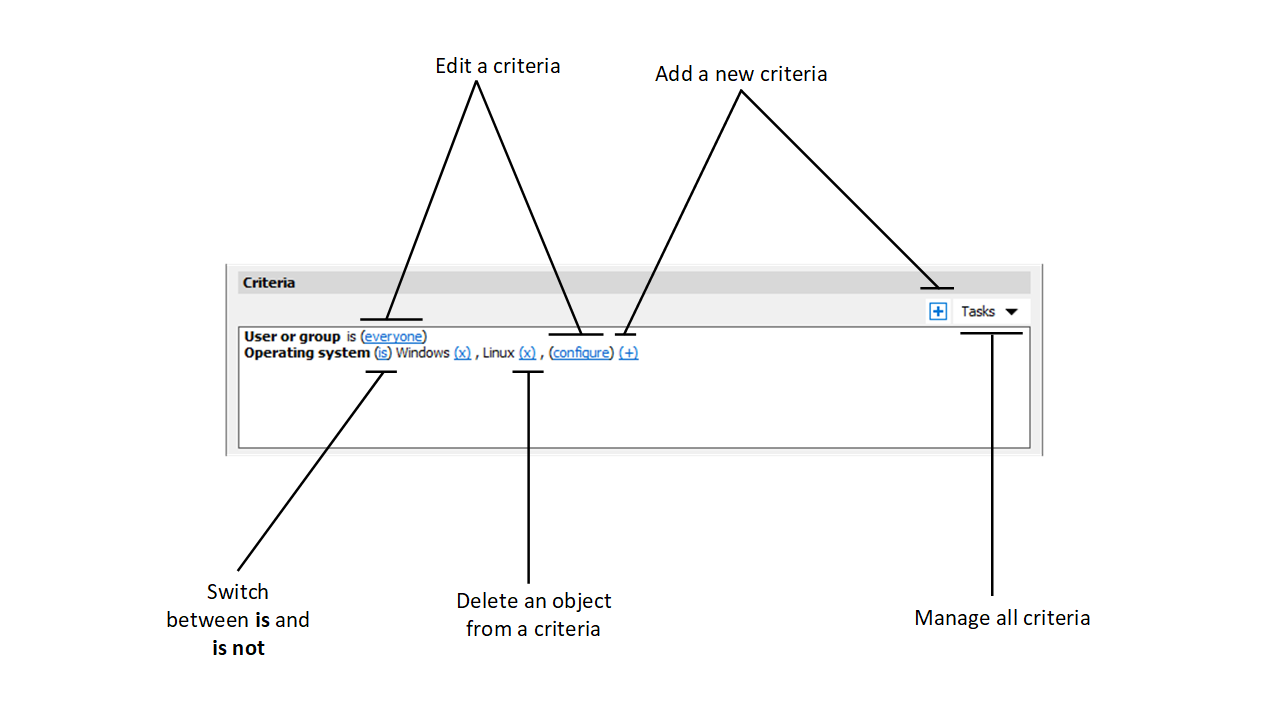
5. In the **Criteria** section, specify criteria for the rule. You will find the following controls:
* **(+)**: adds a new criteria. If you want to match a Secure Gateway, a client device name, a client device operating system, an IP address or a hardware ID, click **(+)**. In the context menu that appears, select the type of an object that you want to match and add the specific objects in the dialog that appears. The new criteria appears on the next line.
* **(X)**: Deletes a specific object from matching. For example, you want to delete IP address 198.51.100.1 from matching, click **(X)** next to it. This control appears when at least one object is added. If all objects in a criteria are deleted, the criteria is removed.
* **is** and **is not:** specifies whether the logon hours rule must be applied when a user connection matches the criteria. Click on the link to switch between the two options. This control appears when at least one object is added.
* **configure**: edits the list of objects to be matched. Click this link to add or delete new objects. Note that for the first criteria (**User or group**) this link is called **everyone**. It will change to **configure** once you specify objects for this criteria.
6. In the **Logon hours** specify the hours when users are permitted to log on. To deny logon during a certain day or period of time, select that day or time and click the **Logon denied** button that is located to the right of the table.
7. Click **OK**.
8. Click **Apply**.
{% hint style="info" %}
**Note:** If no logon hours rules are specified, access to published resources is not restricted. If rules are specified, but the user connection does not match any of them, the user is denied access.
{% endhint %}
You can also specify the following settings for a logon hours rule:
* **Do not allow Parallels Client to connect outside of allowed logon hours:** If selected, a Parallels Client is not allowed to connect to resources published on the site.
* **Disconnect user session if the time has elapsed:** If selected, shows users a notification that their sessions are going to be disconnected. After selecting this option, you can specify the settings below:
* **Notify user before disconnect:** Time when Parallels RAS notifies the user before the client is disconnected from the Farm.
* **Allow user to extend session time:** If selected, allows user to extend the session.
## **To specify these settings:**
1. In the RAS Console, navigate to **Connection** and select the **Logon hours** tab.
2. Select the rule that you want to configure.
3. Click the gear icon to the left of the **Task** menu. The **Options** dialog opens. From here, select the options that you want.
---
# Agent Instructions
This documentation is published with GitBook. GitBook is the documentation platform designed so that both humans and AI agents can read, navigate, and reason over technical content effectively. Learn more at gitbook.com.
## Querying This Documentation
If you need additional information that is not directly available in this page, you can query the documentation by asking a question.
Perform an HTTP GET request on the following URL with the `ask` and `goal` query parameters:
```
GET https://docs.parallels.com/landing/ras-admin-guide/parallels-ras-21-administrators-guide/connection-and-authentication-settings/logon-hours-settings.md?ask=&goal=
```
`ask` is the immediate question: it should be specific, self-contained, and written in natural language.
`goal` is what the user is ultimately trying to achieve, the reason they need the answer. Sharing it helps GitBook give you a better, more relevant answer. A goal is most helpful when it describes the outcome the user wants rather than restating the question. For example, with `ask=how do I create an API token`, a goal like `automate deployments from our CI pipeline` lets GitBook tailor the answer to that use case.
The response will contain a direct answer to the question and relevant excerpts and sources from the documentation.
Use this mechanism when the answer is not explicitly present in the current page, you need clarification or additional context, or you want to retrieve related documentation sections.