# Configuring MFA rules
Multi-factor authentication (MFA) can be enabled or disabled for all user connections, but you can configure more complex rules for specific connections. This functionality allows you to enable or disable MFA for the same user, depending on where the user is connecting from and from which device. Each MFA provider has one rule that consists of one or several criteria for matching against user connections. In turn, each criteria consists of one or several specific objects that can be matched.
You can match the following objects:
* User, a group the user belongs to, or the computer the user connects from.
* Secure Gateway the user connects to.
* Client device name.
* Client device operating system.
* IP address.
* Hardware ID. The format of a hardware ID depends on the operating system of the client.
Notice the following about the rules:
* Criteria and objects are connected by the OR operator. For example, if a rule has a criteria that matches certain IP addresses and a criteria that matches client device operating systems, the rule will be applied when a user connection matches one of the IP addresses OR one of the client operating systems.
To configure a rule:
1. In the RAS Console, navigate to **Connection** and select the **Multi-Factor authentication** tab.
2. Double-click on the provider you want to create the rule for.
3. Select the **Restrictions** tab.
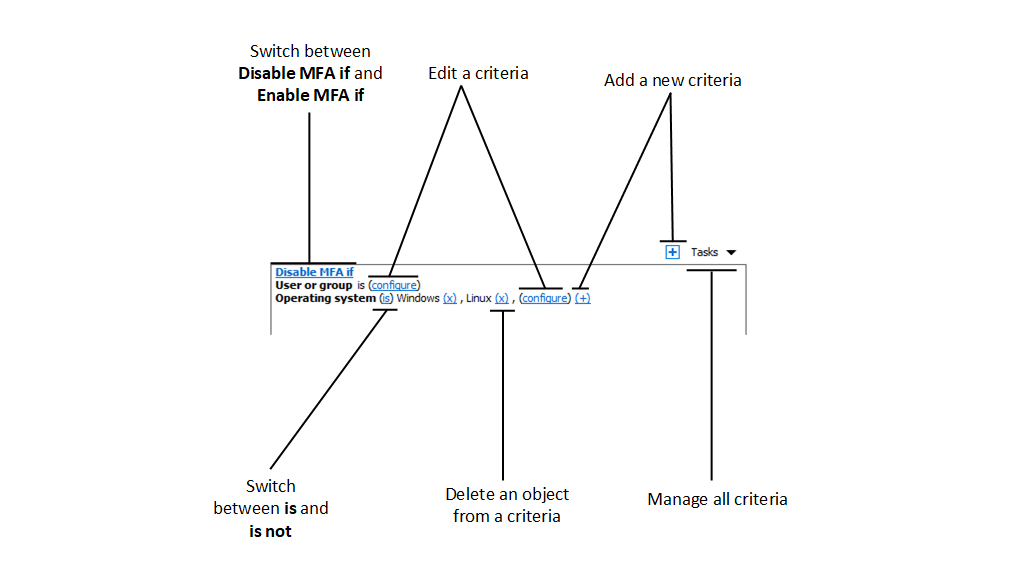
4. Specify criteria for the rule. You will find the following controls:
* **Enable MFA if** and **Disable MFA if:** specifies whether the MFA provider must be enabled when a user connection matches all the criteria. Click on the link to switch between the two options.
* **(+)**: adds a new criteria. If you want to match a Secure Gateway, a client device name, a client device operating system, an IP address or a hardware ID, click **(+)**. In the context menu that appears, select the type of an object that you want to match and add the specific objects in the dialog that appears. The new criteria appears on the next line.
* **(X)**: Deletes a specific object from matching. For example, you want to delete IP address 198.51.100.1 from matching, click **(X)** next to it. This control appears when at least one object is added. If all objects in a criteria are deleted, the criteria is removed.
* **is** and **is not:** specifies whether the MFA provider must be enabled when a user connection matches the criteria. Click on the link to switch between the two options. This control appears when at least one object is added.
* **configure**: edits the list of objects to be matched. Click this link to add or delete new objects. Note that for the first criteria (**User or group**) this link is called **everyone**. It will change to **configure** once you specify objects for this criteria.
---
# Agent Instructions: Querying This Documentation
If you need additional information that is not directly available in this page, you can query the documentation dynamically by asking a question.
Perform an HTTP GET request on the current page URL with the `ask` query parameter:
```
GET https://docs.parallels.com/landing/ras-admin-guide/parallels-ras-21-administrators-guide/connection-and-authentication-settings/multi-factor-authentication/configuring-mfa-rules.md?ask=
```
The question should be specific, self-contained, and written in natural language.
The response will contain a direct answer to the question and relevant excerpts and sources from the documentation.
Use this mechanism when the answer is not explicitly present in the current page, you need clarification or additional context, or you want to retrieve related documentation sections.