# Configuring Parallels RAS to use the DualShield Authentication Platform
To configure Deepnet DualShield settings:
1. Specify the following:
* **Server:** Hostname of the Deepnet server.
* **Enable SSL:** Whether to use SSL when connecting to the Deepnet server.
* **Port:** Port used for connection to the Deepnet server.
* **Agent:** Agent name that will be used during registration.
2. Click the **Check Connection** button to test that the authentication server can be reached and to verify that the RAS Console is registered as a DualShield agent. If you see the "DeepNet server not valid" message, it could be dues to the following:
* The specified server information is incorrect
* You need ot allow auto registration of the Parallels components as a DualShield agent.
3. If you need to allow auto registration of the Parallels components as a DualShield agent, do the following:
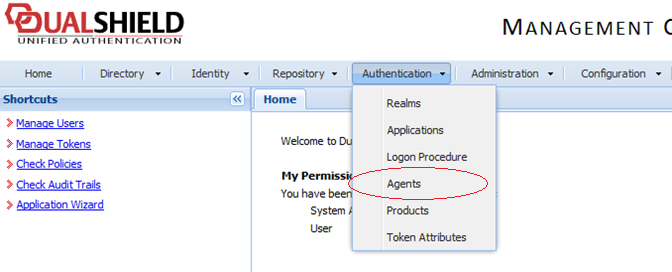
1. Go back to the DualShield Management Console and select **Agents** from the **Authentication** menu as shown below.
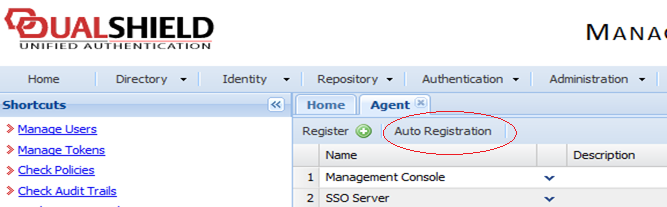
2. Select **Auto Registration**.
3. Select the **Enabled** option and set the date range.
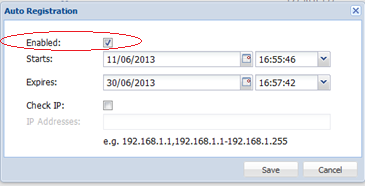
Once the Agent Auto Registration is set, go back to the RAS Console and select **Yes**. You should see a message that the Dual Shield agent has been successfully registered.
Please note that all RAS Connection Brokers must be registered with Deepnet DualShield server. If you are using secondary Connection Brokers, you need to close all open windows until you can press **Apply** in the RAS Console. This will inform all the agents to self-register as DualShield agents.
4. Go back to the RAS Console and click **Next**.
5. Specify the following:
* **Application:** Name of the Application created in [**Configuring DualShield 5.6+ Authentication Platform**](https://docs.parallels.com/landing/ras-admin-guide/parallels-ras-21-administrators-guide/connection-and-authentication-settings/multi-factor-authentication/using-deepnet-dualshield/configuring-dualshield-5.6+-authentication-platform)**.**
* **Default domain**: Domain that will be used if the domain was not specified by the user, in the Theme properties or in the Connection settings.
6. In the **Mode** drop-down list, and select how you want your users to be authenticated:
* **Mandatory for all users** means that every user using the system must log in using two-factor authentication.
* **Create token for Domain Authenticated Users** will allow Parallels RAS to automatically create software tokens for Domain Authenticated Users. Choose a token type from the drop-down list. Note that this option only works with software tokens, such as QuickID and MobileID
* **Use only for users with a DualShield account** will allow users that do not have a DualShield account to use the system without have to login using two-factor authentication.
7. In the **Allow channels** section, select the channels that will be used to send OTPs to users.
8. Click **Finish**.
---
# Agent Instructions: Querying This Documentation
If you need additional information that is not directly available in this page, you can query the documentation dynamically by asking a question.
Perform an HTTP GET request on the current page URL with the `ask` query parameter:
```
GET https://docs.parallels.com/landing/ras-admin-guide/parallels-ras-21-administrators-guide/connection-and-authentication-settings/multi-factor-authentication/using-deepnet-dualshield/configuring-parallels-ras-to-use-the-dualshield-authentication-platform.md?ask=
```
The question should be specific, self-contained, and written in natural language.
The response will contain a direct answer to the question and relevant excerpts and sources from the documentation.
Use this mechanism when the answer is not explicitly present in the current page, you need clarification or additional context, or you want to retrieve related documentation sections.