# Add an RD Session Host
First, you need to add an RD Session Host to the Farm. In this tutorial, we'll add the local server on which Parallels RAS is installed.
To add an RD Session Host to the Farm:
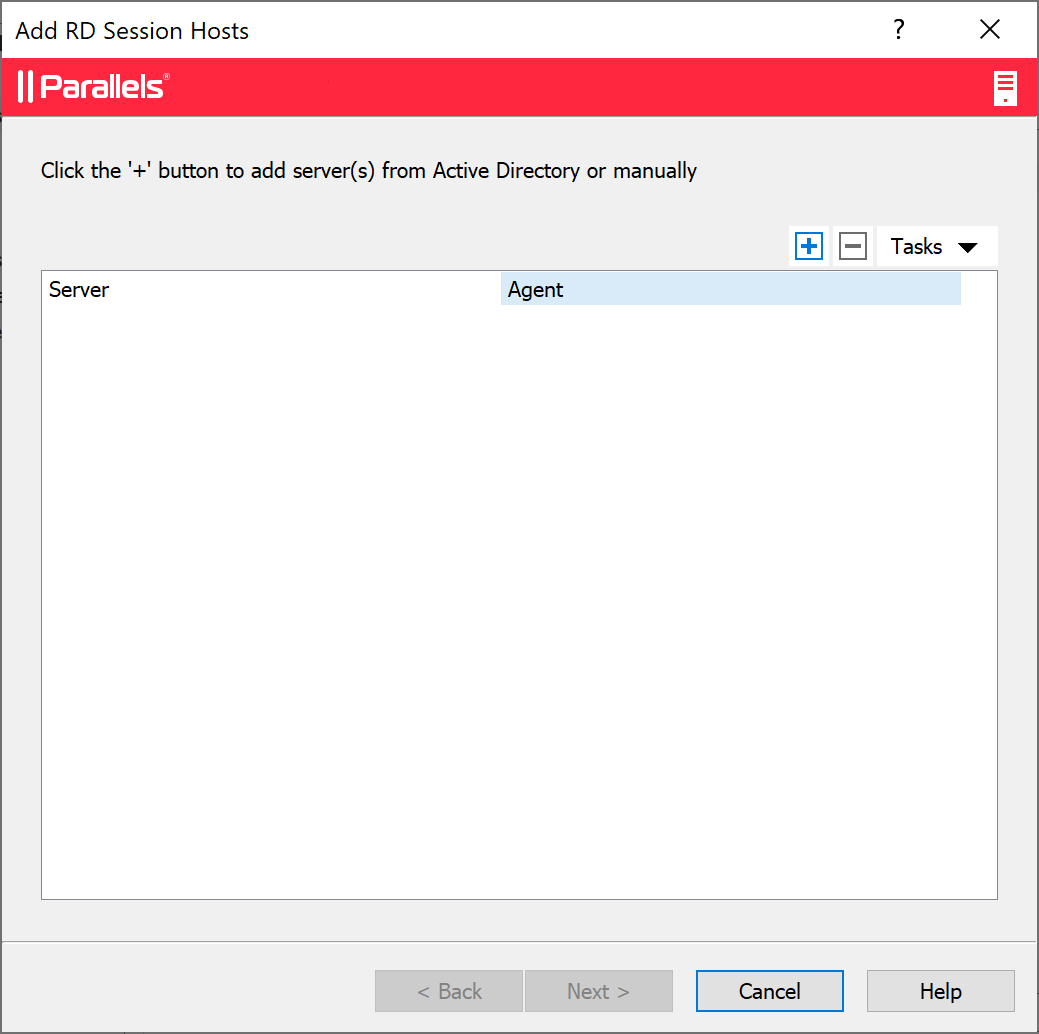
1. Click **Add RD Session Hosts**. The **Add RD Session Hosts** wizard opens.
2. Click the Tasks menu (or click the **\[+]** icon) and select one of the following:
* **Add from Active Directory**: Adds an RD Session Host from Active directory.
* **Add Manually**: Adds RD Session Host by entering its FQDN or IP address.
Note that if you enter the server FQDN, it will be used as the primary method of connecting to this server from other Parallels RAS components and clients. If you enter the IP address, it will be automatically resolved to FQDN, but only if the global option to resolve to FQDN is enabled. To see the current setting of this global option, click **Tools** > **Options** on the main menu. In the **Options** dialog, examine the **Always attempt to resolve to fully qualified domain name (FQDN) when adding hosts** option. When the option is selected, the IP address of every server/component in the RAS Farm is always resolved to FQDN. When the option is cleared, whatever is specified for a server (IP address or name) is used to communicate with a server. This makes a difference in deployments where an IP address cannot be used to access a server, such as when a server is hosted in the cloud. For more information, see [**Host Name Resolution**](https://docs.parallels.com/landing/ras-admin-guide/parallels-ras-21-administrators-guide/common-management-tasks/host-name-resolution).
3. Click **Next**.
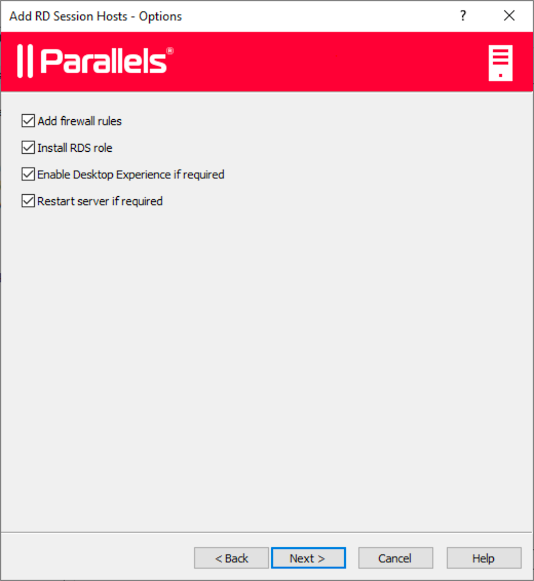
4. The page with general settings opens:
Specify the following settings:
* **Add firewall rules**. Add firewall rules required by Parallels RAS in Windows running on the server. See **Port Reference** for details.
* **Install RDS role**. Install the RDS role on the server if it's not installed. You should always select this option.
* **Enable Desktop Experience**. Enable the Desktop Experience feature in Windows running on the server. This option is enabled only if the Install RDS role option (above) is selected. The option applies to Windows Server 2008 R2 and Windows 2012 R1/R2 on which the Desktop Experience feature is not enabled by default.
* **Restart server if required**. Automatically restart the server if necessary. You can restart the server manually if you wish.
5. Click **Next**.
6. Add the server (or servers) to a host pool. Select the desired host pool or create a new host pool. If you are not sure what host pool to choose, select **Default Host pool**. Host pools are described in detail in the [**Manage host pools (RD Session Hosts)**](https://docs.parallels.com/landing/ras-admin-guide/parallels-ras-21-administrators-guide/rd-session-hosts/manage-rd-session-hosts/manage-host-pools-rd-session-hosts) section.
7. Click **Next**.
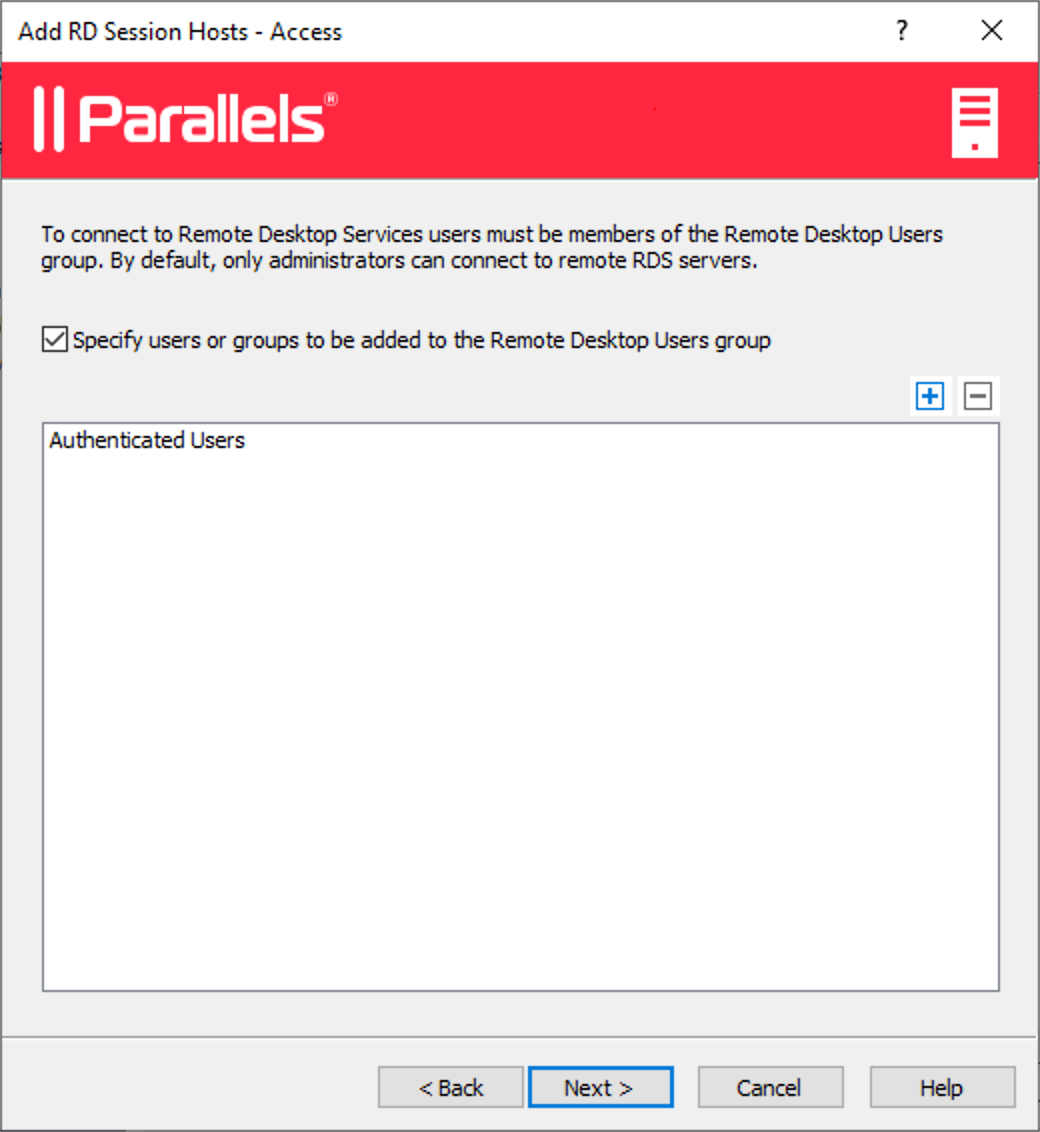
8. In order for end users to access published resources on the RD Session Host, they must be added to the Remote Desktop Users group in Windows running on the server. This can be done one of the following ways:
* Adding each user or group directly on the server using standard Windows administrative tools.
* Adding users or groups through Active Directory.
* Using the wizard page described below, which is provided for your convenience.
If you already added your users to the Remote Desktop Users group on the given server (or if for any reason you want to use one of the other methods listed above), you can simply click **Next** and skip this page.
To add users to the Remote Desktop Users group using the wizard, select the **Specify users or groups to be added to the Remote Desktop Users group** option and then click the **\[+]** icon. In the **Select Users or Groups** dialog, specify a user or group and click **OK**. The selected user/group will be added to the list on the wizard page.
9. Click **Next**.
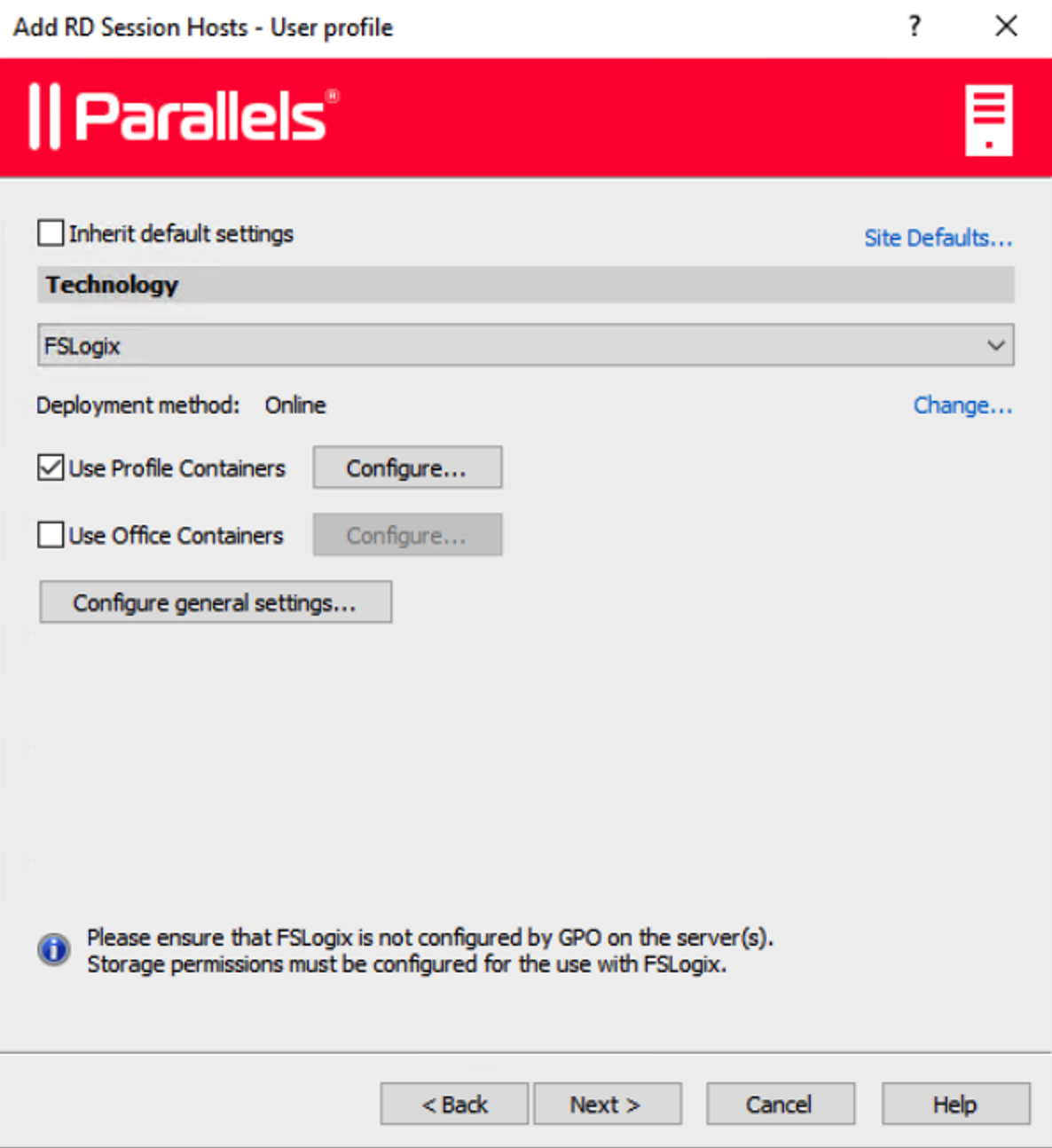
10. The **User profile** page allows you to select a technology to manage user profiles.
You can select from **User profile disk** or **FSlogix**. User Profile Disks are virtual hard disks that store user application data on a dedicated file share. Microsoft FSLogix Profile Container is the preferred Profile Management solution as the successor of Roaming Profiles and User Profile Disks (UPDs). It is set to maintain user context in non-persistent environments, minimize sign-in times and provide native profile experience eliminating compatibility issues. You can keep the default settings for now. We will talk in detail about [user profiles later in this guide](https://docs.parallels.com/landing/ras-admin-guide/parallels-ras-21-administrators-guide/rd-session-hosts/manage-rd-session-hosts/manage-hosts-rd-session-hosts/view-and-modify-rd-session-host-properties/user-profile).
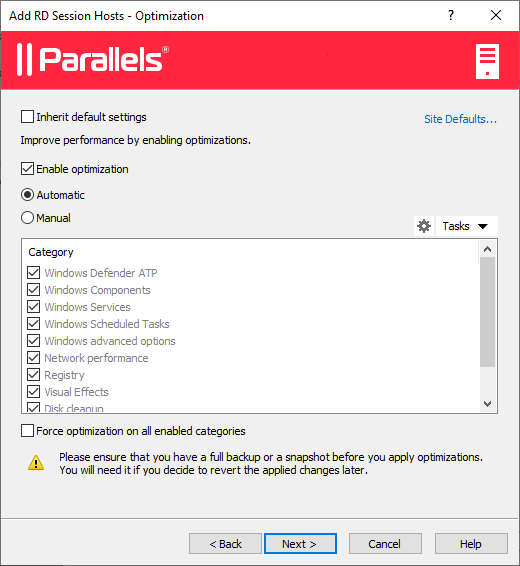
11. The **Optimization** page allows you to specify settings that will be used to optimize Windows on the RD Session Host for best performance in a Parallels RAS environment.
You can select Windows components, services, and other options that will be disabled, removed, or optimized to ensure a more efficient, streamlined, and improved delivery of virtual apps and desktops. You can keep the default settings or you can modify (or disable if not sure) optimization for now. Optimization is described in [detail later in this guide](https://docs.parallels.com/landing/ras-admin-guide/parallels-ras-21-administrators-guide/rd-session-hosts/manage-rd-session-hosts/manage-hosts-rd-session-hosts/view-and-modify-rd-session-host-properties/optimization).
12. On the next page, review the settings and click **Next**.
13. The **Install RAS RD Session Host Agent** dialog opens. Follow the instructions and install the agent. When the installation is finished, click **Done** to close the dialog.
14. Back in the wizard, click **Finish** to exit.
If you would like to verify that the RD Session Host has been added to the Farm, click the **Farm** category (below the **Start** category in the left pane of the Parallels RAS Console window) and then click **RD Session Hosts** in the navigation tree (the middle pane). The server should be included in the **RD Session Hosts** list. The **Status** column may display a warning message. If it does, reboot the server. The **Status** column should now say, "OK", which means that your RD Session Host is functioning properly.
Read on to learn how to [publish an application from an RD Session Host](https://docs.parallels.com/landing/ras-admin-guide/parallels-ras-21-administrators-guide/getting-started-with-parallels-ras/set-up-a-basic-parallels-ras-farm/publish-applications).
---
# Agent Instructions: Querying This Documentation
If you need additional information that is not directly available in this page, you can query the documentation dynamically by asking a question.
Perform an HTTP GET request on the current page URL with the `ask` query parameter:
```
GET https://docs.parallels.com/landing/ras-admin-guide/parallels-ras-21-administrators-guide/getting-started-with-parallels-ras/set-up-a-basic-parallels-ras-farm/add-an-rd-session-host.md?ask=
```
The question should be specific, self-contained, and written in natural language.
The response will contain a direct answer to the question and relevant excerpts and sources from the documentation.
Use this mechanism when the answer is not explicitly present in the current page, you need clarification or additional context, or you want to retrieve related documentation sections.