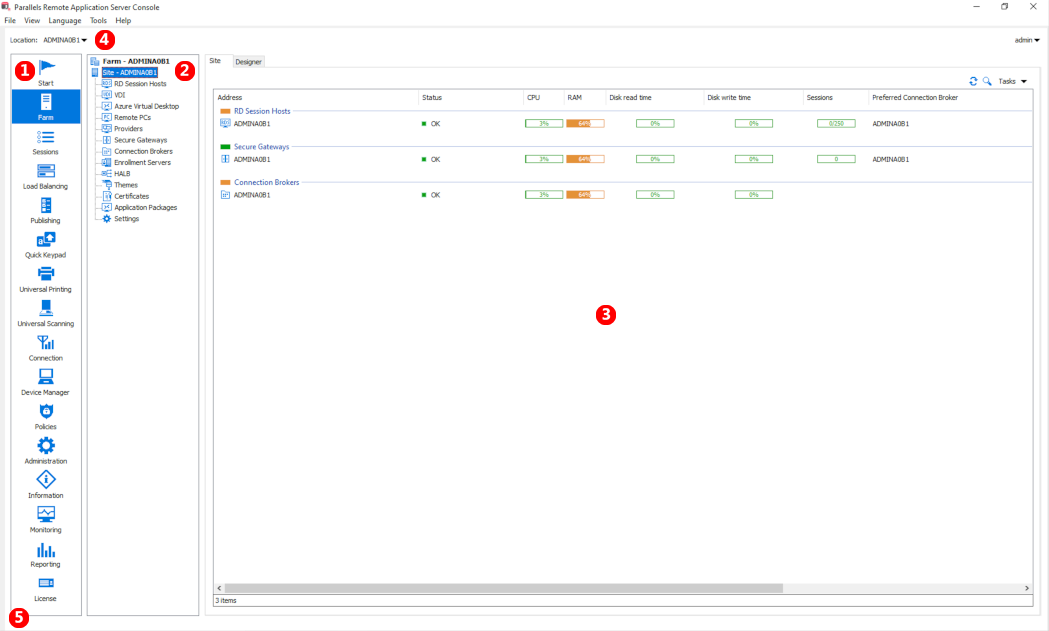
Parallels RAS Console
Parallels RAS Console
 | This section lists categories. Selecting a category will populate the right pane with elements relevant to that category. |
| ---------------------------------------------------------------------------------------------------------------------------------------------- | ---------------------------------------------------------------------------------------------------------------------------------------------------------------------------------------------------------------------------------------------------------------------------------------------------------------------------------------------------------------------------------------------------------------------------------------------------------------------------------------------------------------------------------------------------------------------------------------------------------------------------------------------------------------------------------------------------------------------------------------------------------------------------------------------------------------------------------------------------------------------------------------------------------------------------------------------------------------------------------------------------------------------------------------------------------------------------------------------------------------------------------------------------------------------------------------------------------------------------------------------------------------------------------------------------------------------------------------------------------------------------------------------------------------------------------------------------------------------------------------------------------------------------------------------------------------------------------------------------------------------------------------------------------------------------------------------------------------------------------------------------------------------------------------------------------------------------------------------------------------------------------------------------------------------------------------------------------------------------------------------------------------------- |
|
| This section lists categories. Selecting a category will populate the right pane with elements relevant to that category. |
| ---------------------------------------------------------------------------------------------------------------------------------------------- | ---------------------------------------------------------------------------------------------------------------------------------------------------------------------------------------------------------------------------------------------------------------------------------------------------------------------------------------------------------------------------------------------------------------------------------------------------------------------------------------------------------------------------------------------------------------------------------------------------------------------------------------------------------------------------------------------------------------------------------------------------------------------------------------------------------------------------------------------------------------------------------------------------------------------------------------------------------------------------------------------------------------------------------------------------------------------------------------------------------------------------------------------------------------------------------------------------------------------------------------------------------------------------------------------------------------------------------------------------------------------------------------------------------------------------------------------------------------------------------------------------------------------------------------------------------------------------------------------------------------------------------------------------------------------------------------------------------------------------------------------------------------------------------------------------------------------------------------------------------------------------------------------------------------------------------------------------------------------------------------------------------------------- |
|  | This section (the middle pane) is available only for the **Farm** and the **Publishing** categories. The navigation tree allows you to browse through objects related to that category. |
|
| This section (the middle pane) is available only for the **Farm** and the **Publishing** categories. The navigation tree allows you to browse through objects related to that category. |
|  | This section displays the selected object or category properties, such as servers in a Farm or published application properties, etc. |
|
| This section displays the selected object or category properties, such as servers in a Farm or published application properties, etc. |
|  |
| The information bar at the top of the RAS Console displays the name of the Site you are currently logged in to on the left side (the Location field). If you have more than one Site, you can switch between them by clicking the drop-down list (the Site name) and choosing a desired Site. If you used the RAS Console to connect to more than one Farm, the drop-down list will also display the other Farm name(s), clicking on which will connect the console to that Farm.
Your administrator account name is displayed on the right side. Clicking on the name opens a drop-down list from which you can initiate a chat with other administrators, show current sessions, and log off from the RAS Console.
The Press 'Apply' to commit the new settings message in the middle (in red) appears after you make any changes to any of the components or objects. It reminds you that you need to apply these changes to Parallels RAS for them to become effective. The following describes how it works.
When you make changes in the RAS Console, they are saved in the database as soon as you click OK in a dialog. If you close the console at this point, the changes will remain in the database and will not be lost. The changes, however, are not yet applied to running instances of the Parallels RAS processes, so they have no effect in the running RAS Farm. When you click the Apply button (at the bottom of the screen) the changes are applied to the runtime and become effective immediately.
When modifying anything in the RAS Console, follow these rules. When you make a small change, you can click Apply as soon as you are done with it. If you are working on something that requires many modifications in many places, you can wait until you are done with all changes and only then press Apply to apply all of them at the same time.
| | | The information bar at the bottom of the screen is used to display the most recent console notification (if one is available). |
---
# Agent Instructions
This documentation is published with GitBook. GitBook is the documentation platform designed so that both humans and AI agents can read, navigate, and reason over technical content effectively. Learn more at gitbook.com.
## Querying This Documentation
If you need additional information that is not directly available in this page, you can query the documentation dynamically by asking a question.
Perform an HTTP GET request on the current page URL with the `ask` query parameter, and the optional `goal` query parameter:
```
GET https://docs.parallels.com/landing/ras-admin-guide/parallels-ras-21-administrators-guide/getting-started-with-parallels-ras/the-parallels-ras-console.md?ask=
| The information bar at the bottom of the screen is used to display the most recent console notification (if one is available). |
---
# Agent Instructions
This documentation is published with GitBook. GitBook is the documentation platform designed so that both humans and AI agents can read, navigate, and reason over technical content effectively. Learn more at gitbook.com.
## Querying This Documentation
If you need additional information that is not directly available in this page, you can query the documentation dynamically by asking a question.
Perform an HTTP GET request on the current page URL with the `ask` query parameter, and the optional `goal` query parameter:
```
GET https://docs.parallels.com/landing/ras-admin-guide/parallels-ras-21-administrators-guide/getting-started-with-parallels-ras/the-parallels-ras-console.md?ask=