> For the complete documentation index, see [llms.txt](https://docs.parallels.com/landing/llms.txt). Markdown versions of documentation pages are available by appending `.md` to page URLs; this page is available as [Markdown](https://docs.parallels.com/landing/ras-admin-guide/parallels-ras-21-administrators-guide/saml-sso-authentication/saml-configuration/configure-certificate-authority-templates/create-a-smartcard-logon-certificate-template.md).
# Create a smartcard logon certificate template
To create a smartcard logon certificate template:
1. From the Certificate Authority server, launch the Certificate Authority management console (MMC) from Administrative Tools.
2. Expand the CA, right-click on the "Certificate Templates" folder, and select **Manage**.
3. Right-click on the "Smartcard Logon" certificate template and then select **Duplicate**.
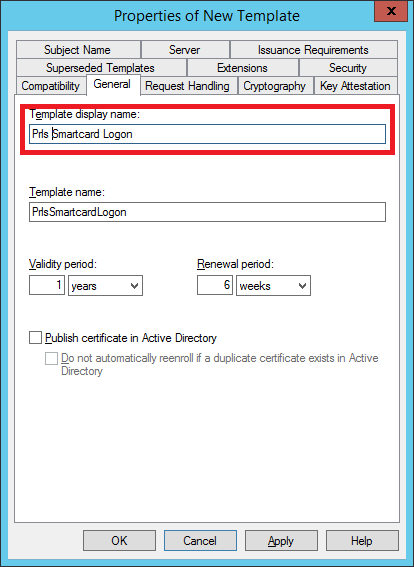
4. The new template properties open in the **General** tab. Type a template name in the text box. Note that the real name automatically appears in the second text box with no spaces. Remember this name. You will need it later to configure of SAML feature. The options on this tab should be configured as follows:
* **Template display name:** `PrlsSmartcardLogon`
* **Template name:** `PrlsSmartcardLogon`
* **Validity period:** `1 year(s)`
* **Renewal period:** `6 weeks`
* **Publish certificate in Active Directory:** `OFF`
* **Do not automatically re-enroll if a duplicate certificate exists in Active Directory:** `OFF`
{% hint style="info" %}
**Note:** The display name can be any name you choose; however, the template name must match the template name highlighted above.
{% endhint %}
5. Select the **Cryptography** tab and set the following:
* **Provider category:** Legacy Cryptographic Service Provider (read-only).
* **Algorithm name:** Determined by CSP
* **Minimum key size:** The desired minimum key size, up to 4096 bits
In the section **Choose which cryptographic providers can be used for requests**, choose **Requests must use one of the following providers**. In the following list of providers, select your preferred provider.
When using SAML with EntraID, and receiving in-session Primary Refresh Tokens (PRT) is required, select **Microsoft Enhanced RSA and AES Cryptographic Provider**.
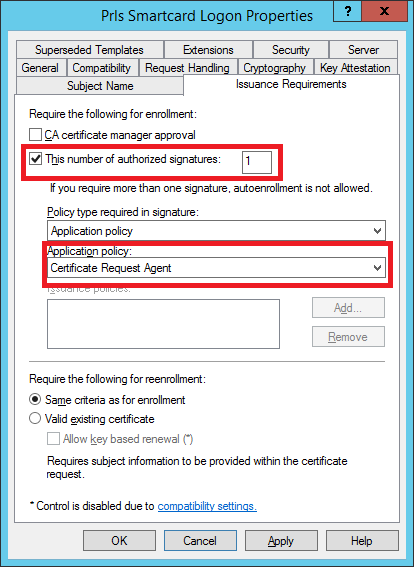
6. Select the **Issuance Requirements** tab and set the following:
* **CA certificate manager approval:** OFF
* **This number of authorized signatures:** 1
* **Policy type required in signature:** Application policy
* **Application policy:** Certificate Request Agent
* **Same criteria as for enrollment:** ON
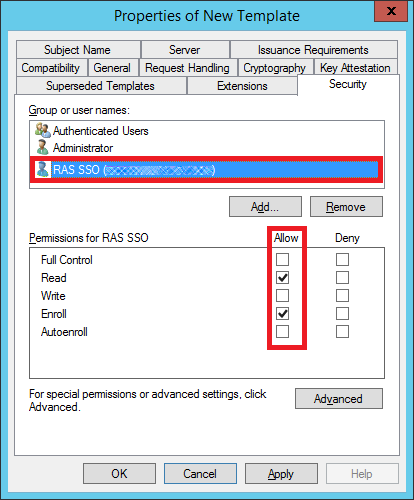
7. Select the **Security** tab and do the following:
* Click **Add.**
* Add the enrollment agent user account.
* Allow (select) the "Read" and "Enroll" permissions. Click **Apply** and **OK**.
## **Issue the certificate template**
To issue the certificate template that you've created:
1. Run Certificate Authority again and right click on **Certififcate Templates,** select **New**, and click on **Certificate Template to Issue**.
2. Select the certificate template you created in the previous steps (i.e., `Prls Smarcard Logon`), then click **OK**.
3. The certificate template should appear in the **Certificate Templates** list.
{% hint style="info" %}
**Note:** After creating the Smartcard Logon template and the Enrollment Agent template (described earlier), you should restart the **Active Directory Certificate Services** service in Windows.
{% endhint %}
---
# Agent Instructions
This documentation is published with GitBook. GitBook is the documentation platform designed so that both humans and AI agents can read, navigate, and reason over technical content effectively. Learn more at gitbook.com.
## Querying This Documentation
If you need additional information that is not directly available in this page, you can query the documentation dynamically by asking a question.
Perform an HTTP GET request on the current page URL with the `ask` query parameter, and the optional `goal` query parameter:
```
GET https://docs.parallels.com/landing/ras-admin-guide/parallels-ras-21-administrators-guide/saml-sso-authentication/saml-configuration/configure-certificate-authority-templates/create-a-smartcard-logon-certificate-template.md?ask=&goal=
```
`ask` is the immediate question: it should be specific, self-contained, and written in natural language.
`goal` is optional and describes the broader end goal you are ultimately trying to accomplish on behalf of the user. GitBook uses it to tailor the answer towards what is most useful for that goal.
The response will contain a direct answer to the question and relevant excerpts and sources from the documentation.
Use this mechanism when the answer is not explicitly present in the current page, you need clarification or additional context, or you want to retrieve related documentation sections.