> For the complete documentation index, see [llms.txt](https://docs.parallels.com/landing/llms.txt). Markdown versions of documentation pages are available by appending `.md` to page URLs; this page is available as [Markdown](https://docs.parallels.com/landing/ras-admin-guide/v20-de-de/erste-schritte-mit-parallels-ras/einrichten-einer-einfachen-parallels-ras-serverfarm/applikationen-veroeffentlichen.md).
# Applikationen veröffentlichen
Nachdem Sie einen RD-Sitzungshost hinzugefügt haben, können Sie von dort Anwendungen veröffentlichen.
So veröffentlichen Sie eine Anwendung:
1. Wählen Sie in der Parallels RAS-Konsole die Kategorie **Starten** und klicken Sie dann im rechten Fensterausschnitt auf **Applikationen veröffentlichen**.
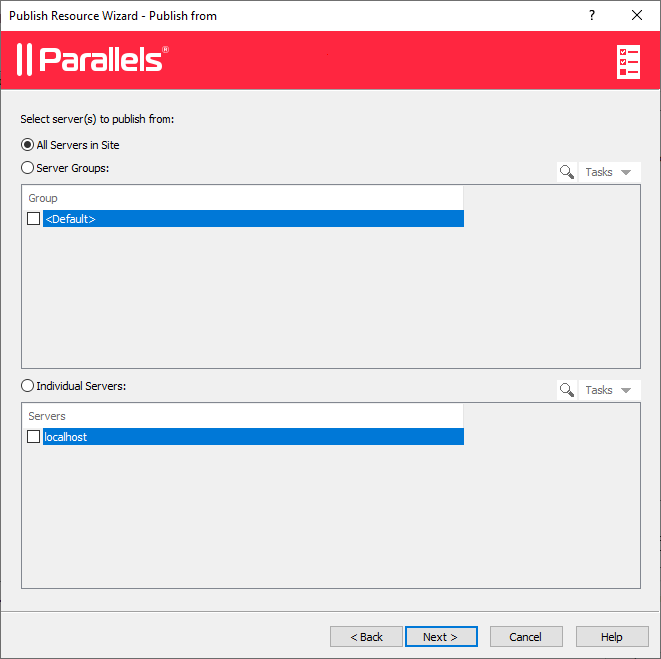
2. Der Assistent **Applikationen veröffentlichen** wird geöffnet. Wählen Sie auf der ersten Seite einen oder mehrere Server, von denen die Anwendung veröffentlicht werden soll. Sie können alle Server, Server-Hostpools oder einzelne Server auswählen.
3. Klicken Sie auf **Weiter**.
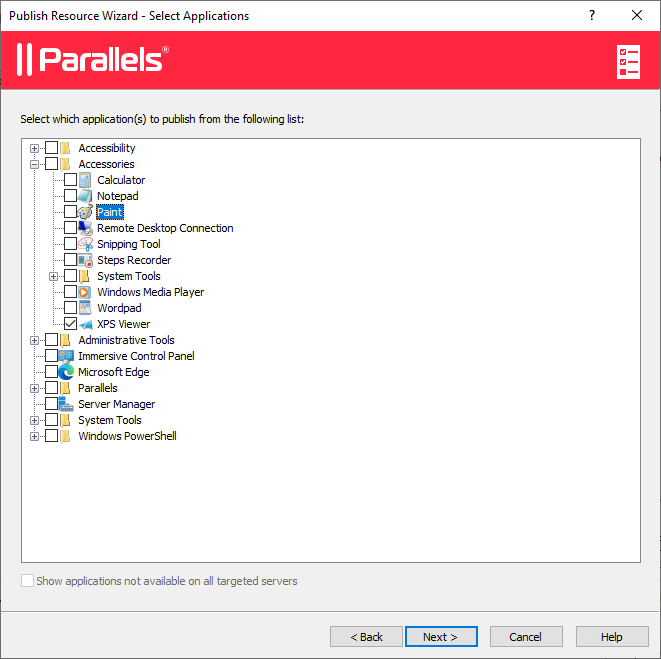
4. Wählen Sie auf der nächsten Seite eine oder mehrere Anwendungen, die Sie veröffentlichen wollen.
Wenn Sie auf dem vorherigen Bildschirm mehr als einen Server ausgewählt haben, wird die Option **Applikationen anzeigen, die nicht auf allen Zielservern verfügbar sind** aktiviert. Wenn die Option deaktiviert ist (Standardvorgabe), enthält der Strukturbaum der Ordner Anwendungen, die auf allen von Ihnen ausgewählten Servern verfügbar sind. Wenn die Option aktiviert wird, enthält die Strukturdarstellung Anwendungen, die auf bestimmten Servern verfügbar sind, vielleicht aber nicht auf den anderen.
5. Klicken Sie auf **Weiter**. Überprüfen Sie die Zusammenfassungsinformationen und klicken Sie erneut auf **Weiter**.
6. Klicken Sie auf **Fertigstellen**, wenn Sie fertig sind.
Um zu überprüfen, ob die Anwendung erfolgreich veröffentlicht wurde, wählen Sie die Kategorie **Veröffentlichung** in der RAS-Konsole. Die Anwendung sollte in der Liste **Veröffentlichte Ressourcen** (im mittleren Fensterausschnitt) aufgeführt sein.
---
# Agent Instructions
This documentation is published with GitBook. GitBook is the documentation platform designed so that both humans and AI agents can read, navigate, and reason over technical content effectively. Learn more at gitbook.com.
## Querying This Documentation
If you need additional information that is not directly available in this page, you can query the documentation dynamically by asking a question.
Perform an HTTP GET request on the following URL with the `ask` and `goal` query parameters:
```
GET https://docs.parallels.com/landing/ras-admin-guide/v20-de-de/erste-schritte-mit-parallels-ras/einrichten-einer-einfachen-parallels-ras-serverfarm/applikationen-veroeffentlichen.md?ask=&goal=
```
`ask` is the immediate question: it should be specific, self-contained, and written in natural language.
`goal` is what the user is ultimately trying to achieve, the reason they need the answer. Sharing it helps GitBook give you a better, more relevant answer. A goal is most helpful when it describes the outcome the user wants rather than restating the question. For example, with `ask=how do I create an API token`, a goal like `build a script that syncs our docs to a CMS` lets GitBook tailor the answer to that use case.
The response will contain a direct answer to the question and relevant excerpts and sources from the documentation.
Use this mechanism when the answer is not explicitly present in the current page, you need clarification or additional context, or you want to retrieve related documentation sections.