> For the complete documentation index, see [llms.txt](https://docs.parallels.com/landing/llms.txt). Markdown versions of documentation pages are available by appending `.md` to page URLs; this page is available as [Markdown](https://docs.parallels.com/landing/ras-admin-guide/v20-en-us/parallels-ras-20-administrators-guide/performance-monitor/using-parallels-ras-performance-monitor.md).
# Using Parallels RAS Performance Monitor
## Configure access to Parallels RAS Performance Monitor
To enable data collection and view the dashboard:
1. In the RAS Console, navigate to **Administration** > **Reporting**.
2. Select the **Enable RAS Performance Monitor** option (the **RAS Performance Monitor configuration** section).
3. Enter the FQDN or IP address of the server where you have the InfluxDB database and Grafana dashboard installed.
4. Click **Apply** to commit the changes.
Once you perform the steps above, the Telegraf service is started on each server in the Site and the data collection begins.
## Viewing performance metrics
{% hint style="info" %}
**Note:** You should give Parallels RAS Performance Monitor some time to collect performance data before you can view it (about 1 hour on initial installation).
{% endhint %}
To view performance metrics, select the **Monitoring** category in the RAS Console. The data is displayed in the right pane. The logon is performed automatically, so no logon credentials are required.
The buttons on the **Monitoring** tab (below the dashboard area) are as follows:
* **Home**. Displays the home page. The button is useful when you click on an external link in the dashboard, which may take you to an external web page.
* **Refresh**. Reloads the current page.
* **Open in browser**. Opens the performance dashboard in a web browser.
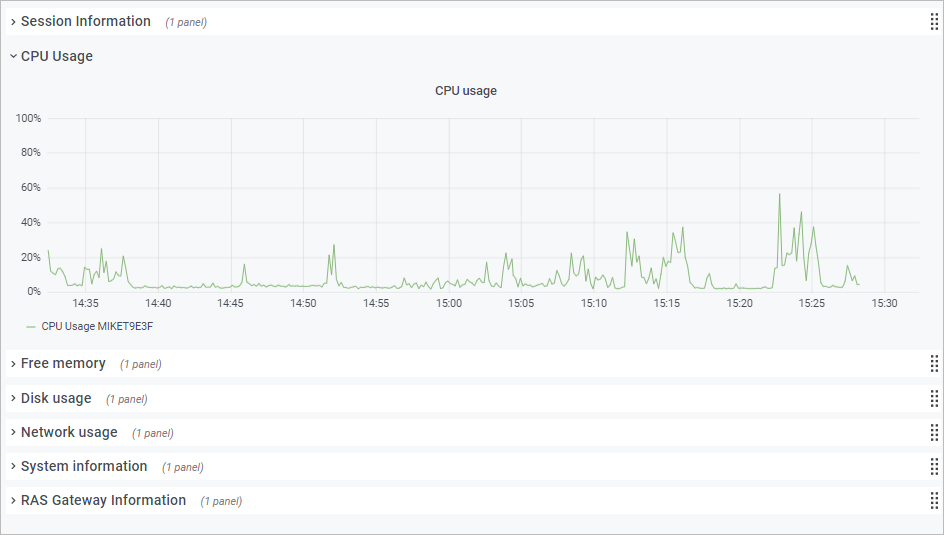
To view metrics of a specific type, expand the desired category in the main area of the dashboard. The categories include:
* **Session Information**. Displays the information about active sessions and disconnected sessions.
* **CPU usage**. CPU counters.
* **Free memory**. Physical memory counters.
* **Disk usage**. Disk I/O counters.
* **Network usage**. Network interface I/O counters.
* **System information**. System information counters.
* **RAS Gateway information**. RAS Gateway counters.
Performance metrics are displayed in the dashboard as a graph. Different counters are displayed using different colors.
To zoom in on a particular area of a graph, select a rectangular block with a mouse. You can also use the **Zoom** controls at the top of the dashboard for time range zoom out, shift time forward, or shift time backwards. To select a specific time range, click the "clock" icon at the top and then specify a time range.
By default, the dashboard opens in kiosk mode. To exist it, press "Esc". To cycle view mode, click the "monitor" icon in the upper right. When you exist kiosk mode, the **RAS Infrastructure Health** page is displayed:
The menu at the top has the following items:
* **Hosts**. Allows you to select one or multiple servers for which the performance metrics should be displayed. To display the data for all servers in the Site, select **All**. Please note that if you don't see any servers in the list, you need to wait for Parallels RAS Performance Monitor to collect the initial set of statistics. This only happens on initial installation.
* **Instance**. This item allows you to select a specific counter instance (if there's more than one). For Network counters it is usually the name of a network interface. For Disk counters it is a disk name. Other types of counters don't usually have multiple instances.
* **Farm & Site**. Select a Site for which to display the data. Selecting **All** displays the data for all sites in the Farm. If you have another RAS Farm, and the RAS Performance Monitor is configured and enabled in it, you can also select a Site from that Farm.
* **Agent Type**. Select a RAS agent type.
* **Group**. Select an RDS group.
For more information about performance metrics and their meaning, please refer to the following articles from Microsoft:
*
*
See also [**RAS Performance Counters**](/landing/ras-admin-guide/v20-en-us/parallels-ras-20-administrators-guide/appendix/ras-performance-counters.md).
---
# Agent Instructions
This documentation is published with GitBook. GitBook is the documentation platform designed so that both humans and AI agents can read, navigate, and reason over technical content effectively. Learn more at gitbook.com.
## Querying This Documentation
If you need additional information that is not directly available in this page, you can query the documentation dynamically by asking a question.
Perform an HTTP GET request on the current page URL with the `ask` query parameter, and the optional `goal` query parameter:
```
GET https://docs.parallels.com/landing/ras-admin-guide/v20-en-us/parallels-ras-20-administrators-guide/performance-monitor/using-parallels-ras-performance-monitor.md?ask=&goal=
```
`ask` is the immediate question: it should be specific, self-contained, and written in natural language.
`goal` is optional and describes the broader end goal you are ultimately trying to accomplish on behalf of the user. GitBook uses it to tailor the answer towards what is most useful for that goal.
The response will contain a direct answer to the question and relevant excerpts and sources from the documentation.
Use this mechanism when the answer is not explicitly present in the current page, you need clarification or additional context, or you want to retrieve related documentation sections.