# アプリケーションを公開
RD セッションホストを追加すると、ここからアプリケーションを公開できるようになります。
アプリケーションを公開するには、次の操作を実行します。
1. Parallels RAS Console で、**\[開始]** カテゴリー選択し、右ペインの **\[アプリケーションを公開]** アイテムをクリックします。
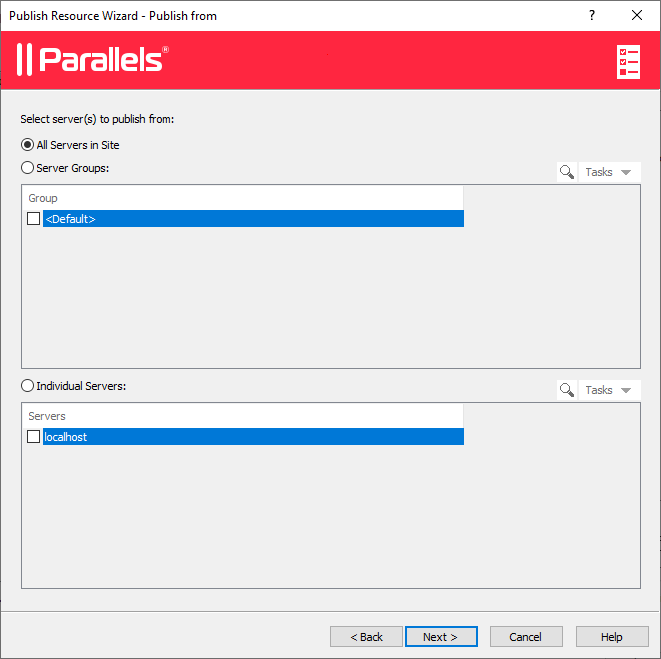
2. **\[アプリケーションを公開]** ウィザードが開きます。最初のページで、アプリケーションのプッシュ元になる、1 つまたは複数のサーバーを選択します。すべてのサーバー、サーバーホストプール、または個々のサーバーを選択できます。
3. **\[次へ]** をクリックします。
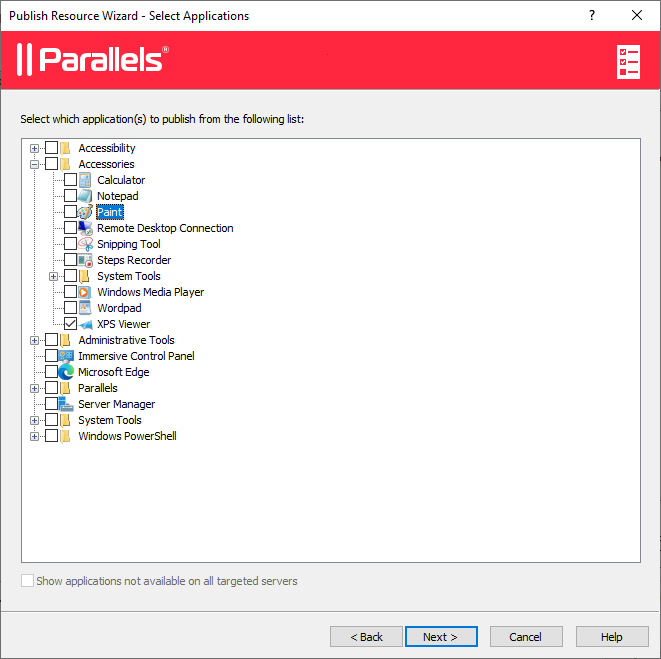
4. 次のページで、公開するアプリケーションを 1 つ以上選択します。
前の画面でサーバーを 2 台以上選択した場合は、**\[すべての対象サーバーで使用できないアプリケーションを表示]** オプションを選択できるようになります。このオプションをオフにすると(デフォルトはオフ)、フォルダーツリーには、選択したすべてのサーバーで利用できるアプリケーションが表示されます。このオプションをオンにすると、ディレクトリツリーには、一部のサーバーでのみ利用でき、他のサーバーでは利用できない可能性のあるアプリケーションも表示されます。
5. **\[次へ]** をクリックします。概要情報を確認して、**\[次へ]** を再度クリックします。
6. 準備が完了したら、**\[完了]** をクリックします。
アプリケーションが正常に公開されたことを確認するには、RAS Console で **\[公開]** カテゴリーを選択します。アプリケーションは、**\[公開済みのリソース]** リスト(中央のペイン)に表示されます。
---
# Agent Instructions: Querying This Documentation
If you need additional information that is not directly available in this page, you can query the documentation dynamically by asking a question.
Perform an HTTP GET request on the current page URL with the `ask` query parameter:
```
GET https://docs.parallels.com/landing/ras-admin-guide/v21-ja-jp/parallels-ras-nowosuru/na-parallels-ras-fmuwosuru/apurikshonwo.md?ask=
```
The question should be specific, self-contained, and written in natural language.
The response will contain a direct answer to the question and relevant excerpts and sources from the documentation.
Use this mechanism when the answer is not explicitly present in the current page, you need clarification or additional context, or you want to retrieve related documentation sections.