> For the complete documentation index, see [llms.txt](https://docs.parallels.com/landing/llms.txt). Markdown versions of documentation pages are available by appending `.md` to page URLs; this page is available as [Markdown](https://docs.parallels.com/landing/ras-admin-guide/v21-ja-jp/performance-monitor/ras-performance-monitor-nosekyuritino.md).
# RAS Performance Monitor のセキュリティの構成
デフォルトでは、どのユーザーでも \[Performance Monitor] ページにアクセスして、パフォーマンスメトリクスを表示できます。セキュリティの向上のため、許可されたユーザーのみが表示できるように、RAS Performance Monitor が資格情報を使用するように設定できます。
最初に、以下のように Grafana 構成ファイルから匿名認証を削除します。
1. ファイル C:\Program Files\Parallels\RAS Performance Monitor\conf\defaults.ini を開きます。
2. ファイルで次を探します。
`#################################### Anonymous Auth ######################`
`[auth.anonymous]`
`# enable anonymous access`
`enabled = true`
3. `"enabled = true"` を `"enabled = false"` に変更します。
* **注:** 匿名アクセスを無効にすると、ユーザーは自動的に管理者パスワードを変更するよう促されます。これに引き続き、Grafana の公式ドキュメントに従って、パスワードを変更できます: 。
* Grafana サービスを再起動します。
* **\[モニタリング]** カテゴリーを選択し、以下の認証情報を使用して Grafana にログインします。
* **ユーザー:** admin
* **パスワード**:admin(以前にパスワードを変更した場合は、現在のパスワードを使用してください)。
* ログイン後、”Esc”キーを押し、”盾”のアイコン > **\[ユーザー]** をクリックします。
[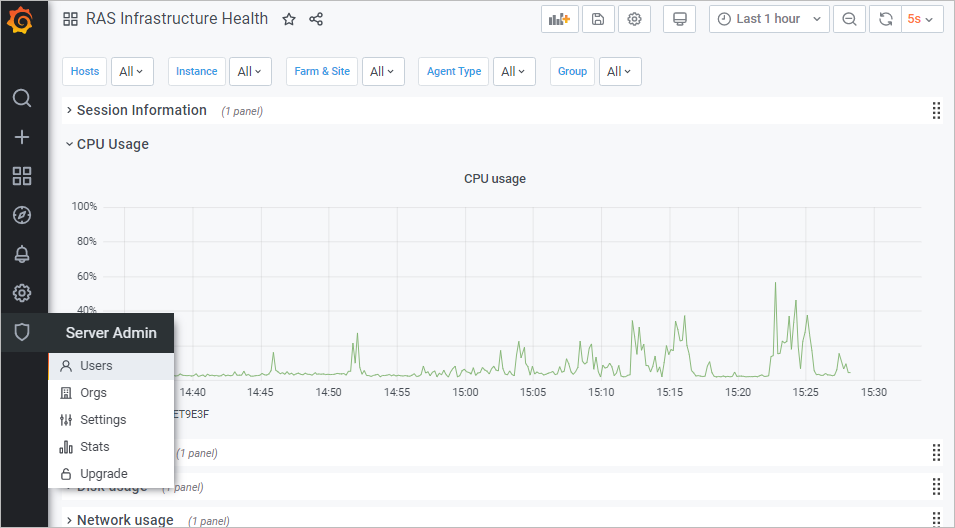](https://download.parallels.com/ras/v19/docs/ja_JP/Parallels-RAS-19-Administrators-Guide/44587.htm)
* **\[新規ユーザー]** をクリックして、新しいユーザーを作成します。
[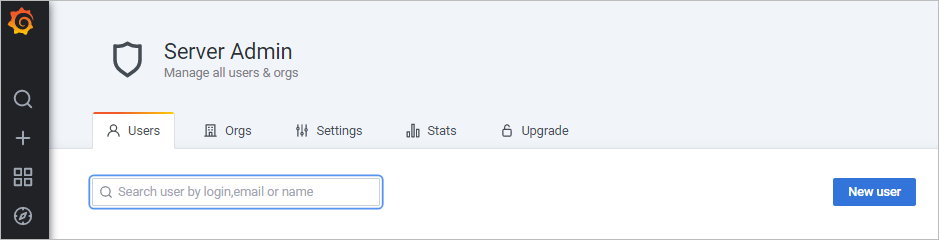](https://download.parallels.com/ras/v19/docs/ja_JP/Parallels-RAS-19-Administrators-Guide/44587.htm)
* ここで、ユーザーを組織のリストに追加する必要があります。そのためには、**\[ユーザー]** リストで、**\[編集]** をクリックしてユーザーを編集し、組織を設定して、ユーザーを **\[ビューアー]** にします。
* **\[追加]** をクリックして、ユーザーを組織のリストに追加します。これで、ユーザーは RAS Performance Monitor 統計データを表示できます。
---
# Agent Instructions
This documentation is published with GitBook. GitBook is the documentation platform designed so that both humans and AI agents can read, navigate, and reason over technical content effectively. Learn more at gitbook.com.
## Querying This Documentation
If you need additional information that is not directly available in this page, you can query the documentation dynamically by asking a question.
Perform an HTTP GET request on the following URL with the `ask` and `goal` query parameters:
```
GET https://docs.parallels.com/landing/ras-admin-guide/v21-ja-jp/performance-monitor/ras-performance-monitor-nosekyuritino.md?ask=&goal=
```
`ask` is the immediate question: it should be specific, self-contained, and written in natural language.
`goal` is what the user is ultimately trying to achieve, the reason they need the answer. Sharing it helps GitBook give you a better, more relevant answer. A goal is most helpful when it describes the outcome the user wants rather than restating the question. For example, with `ask=how do I create an API token`, a goal like `build a script that syncs our docs to a CMS` lets GitBook tailor the answer to that use case.
The response will contain a direct answer to the question and relevant excerpts and sources from the documentation.
Use this mechanism when the answer is not explicitly present in the current page, you need clarification or additional context, or you want to retrieve related documentation sections.