# Create a Remote Application Server Connection
To create a Remote Application Server connection, do the following:
1. Open Parallels Client.
2. Tap the **Plus** icon in the top right corner.
3. Enter the Parallels RAS IP address, its hostname (this should be the server where the RAS Secure Gateway resides), or your work email address. You system administrator should tell you what to use.
4. Tap **Authentication type** and select the desired method of authentication:
* **Credentials**. Select this option and then enter your username and password. You will be authenticated on the remote server using the specified credentials.
* **Web**: Select this option to use the SAML SSO authentication.
5. Once ready, tap **Connect**.
6. The next step may, or may not, appear depending on whether the multifactor authentication (MFA) is configured in Parallels RAS by the administrator. If configured, you need to enter a one-time password (OTP). Parallels RAS supports various MFA providers (Google Authenticator, RADIUS, Deepnet Security, SafeNet, etc.).
To gain a general understanding of how the connection process may look like if MFA is configured, please see the **Authentication Using Google Authenticator** and **Authentication Using RADIUS** subsections below.
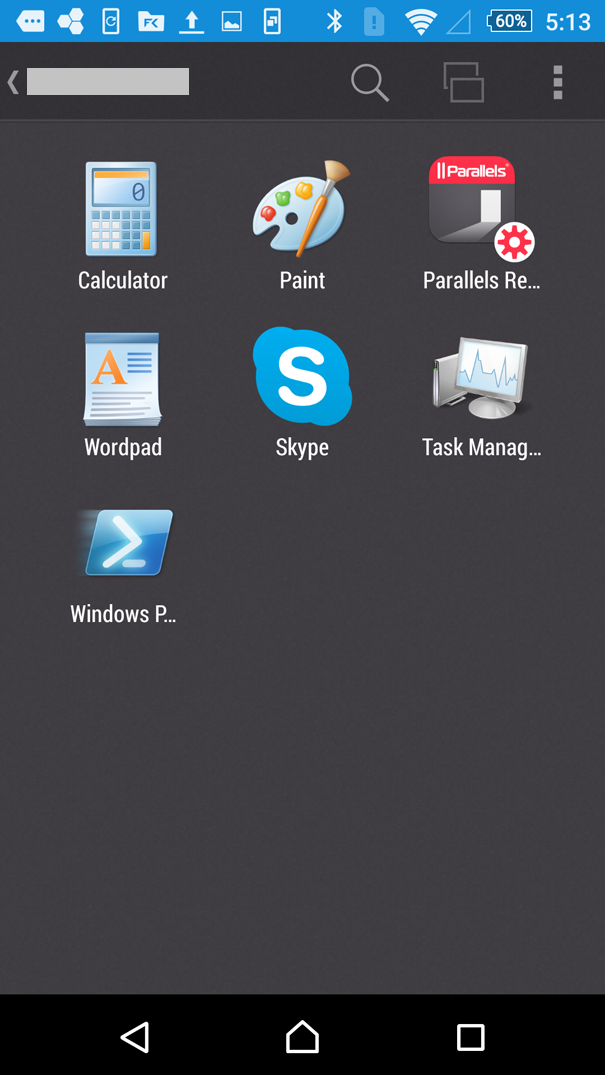
7. If the connection was successful, you will see the published applications that you can use. If you receive an error, verify that the connection and logon information is entered correctly and try again.
{% hint style="info" %}
**Note:** If a remote application is temporarily unavailable (e.g., your system administrator is installing updates, backing up the data, etc.), its icon will be grayed out. You can tap this app to get a message with more details or contact the administrator for information.
{% endhint %}
8. If you connect to Parallels RAS for the first time, you will be suggested to create the "**Shortcuts**" folder on the desktop of your Android device. This folder contains shortcuts to all remote applications published for your user account. Next time you need to work with some application, you can open this folder and tap the app you need - Parallels Client will automatically connect to RAS and launch this application.
## **Authentication Using Google Authenticator**
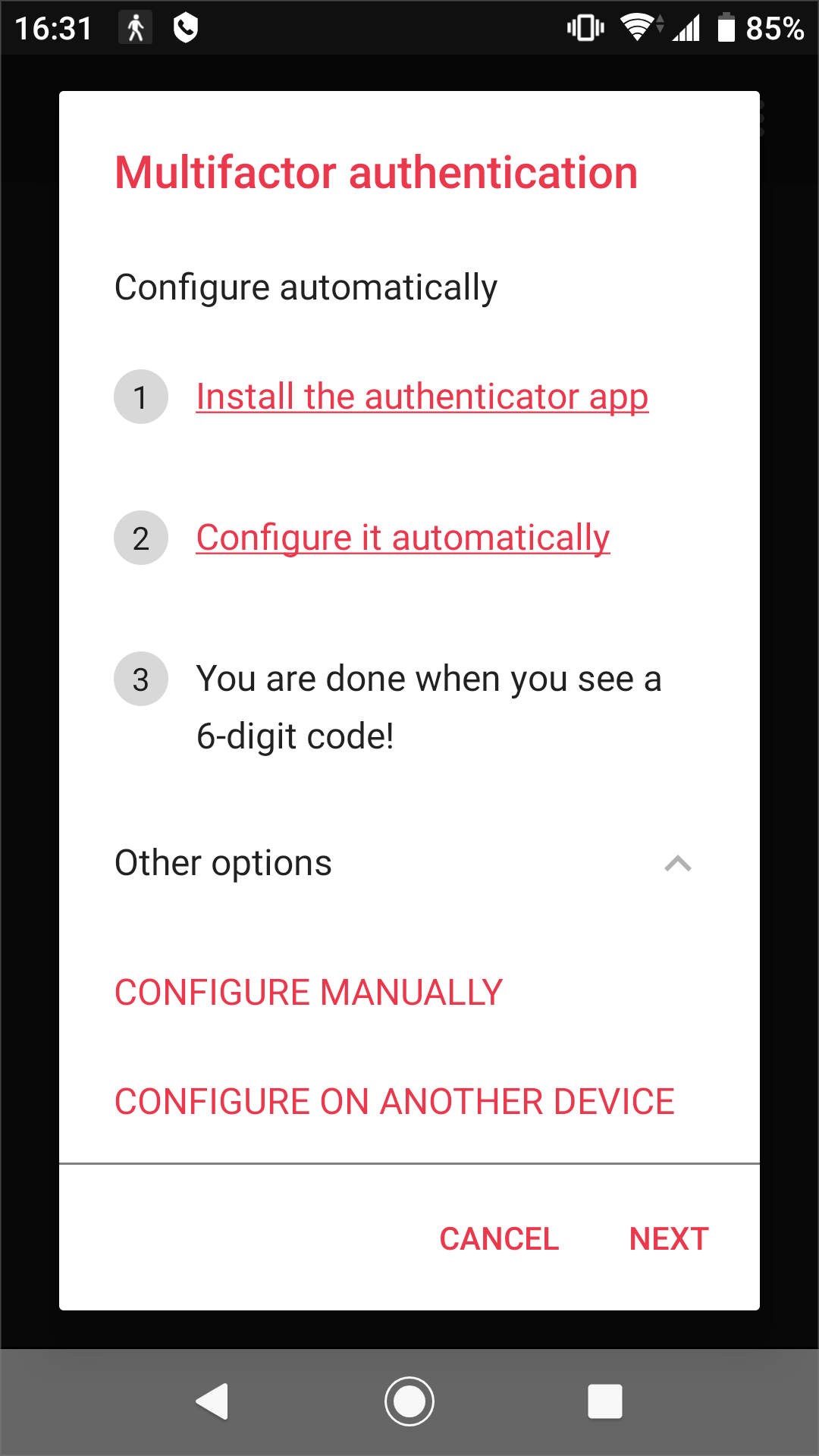
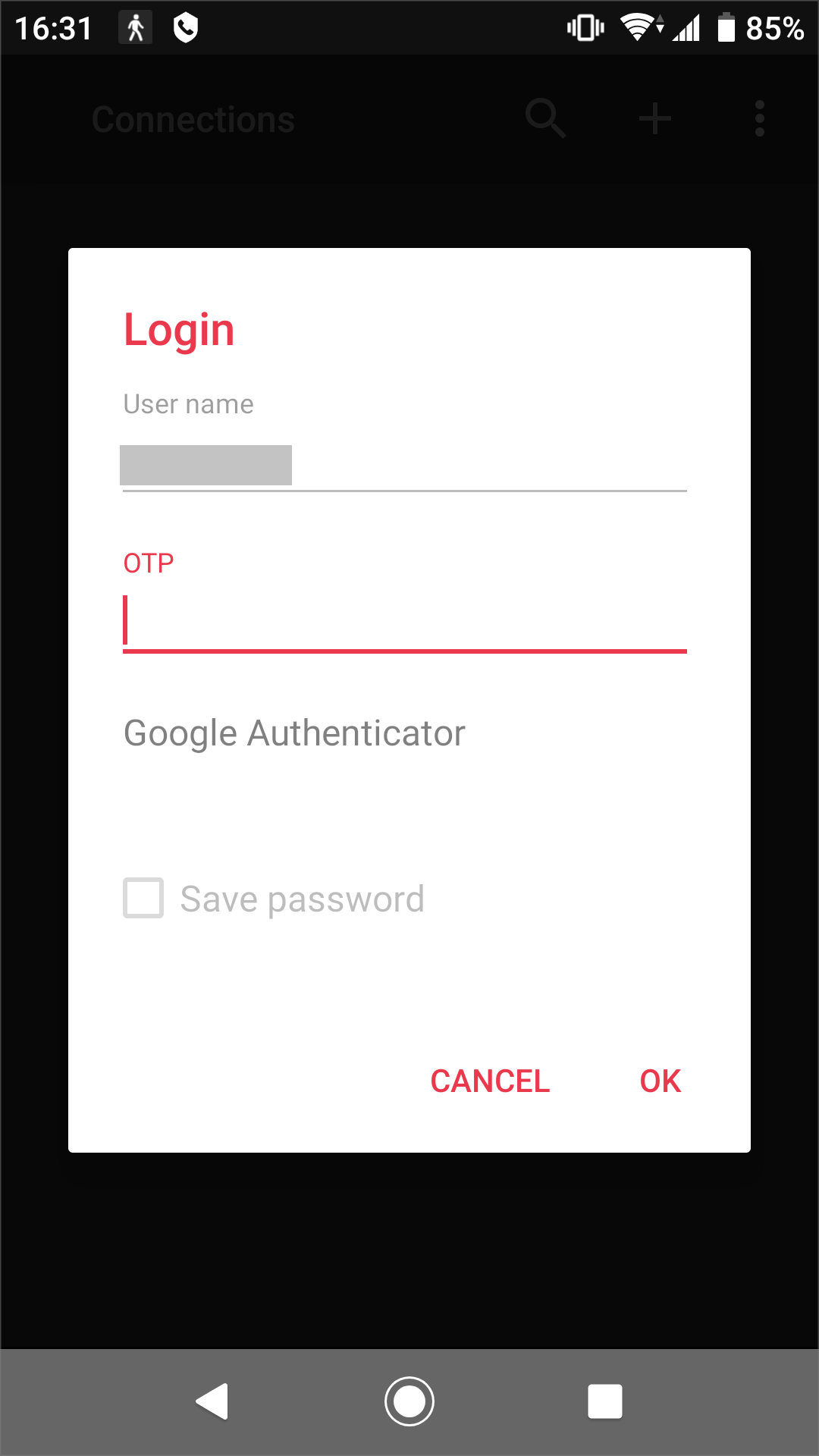
If your IT administrator configured multifactor authentication using Google Authenticator (or another TOTP provider), you will see the following screen after entering your credentials during the login procedure.
1. First you need to install the Google Authenticator app on your mobile device. If it is already installed, go to step 2. To install Google Authenticator, tap **Install the authenticator app**.
2. Configure Google Authenticator. Choose one of the following ways:
* **Configure automatically**. To configure Google Authenticator automatically, tap this option and follow the onscreen instructions.
* **Configure manually**. To configure Google Authenticator manually, tap **Other options** at the bottom of the screen, select **CONFIGURE MANUALLY** and follow the onscreen instructions.
* **Configure on another device**. You can install, configure and use Google Authenticator on any of your other mobile devices. Tap **Other options** at the bottom of the screen, select **CONFIGURE ON ANOTHER DEVICE** and follow the onscreen instructions.
3. When successfully configured, Google Authenticator will display a time-based one-time password. Copy this password to the clipboard, switch back to Parallels Client, tap **Next** and enter the password in the **OTP** field.
## **Authentication Using RADIUS**
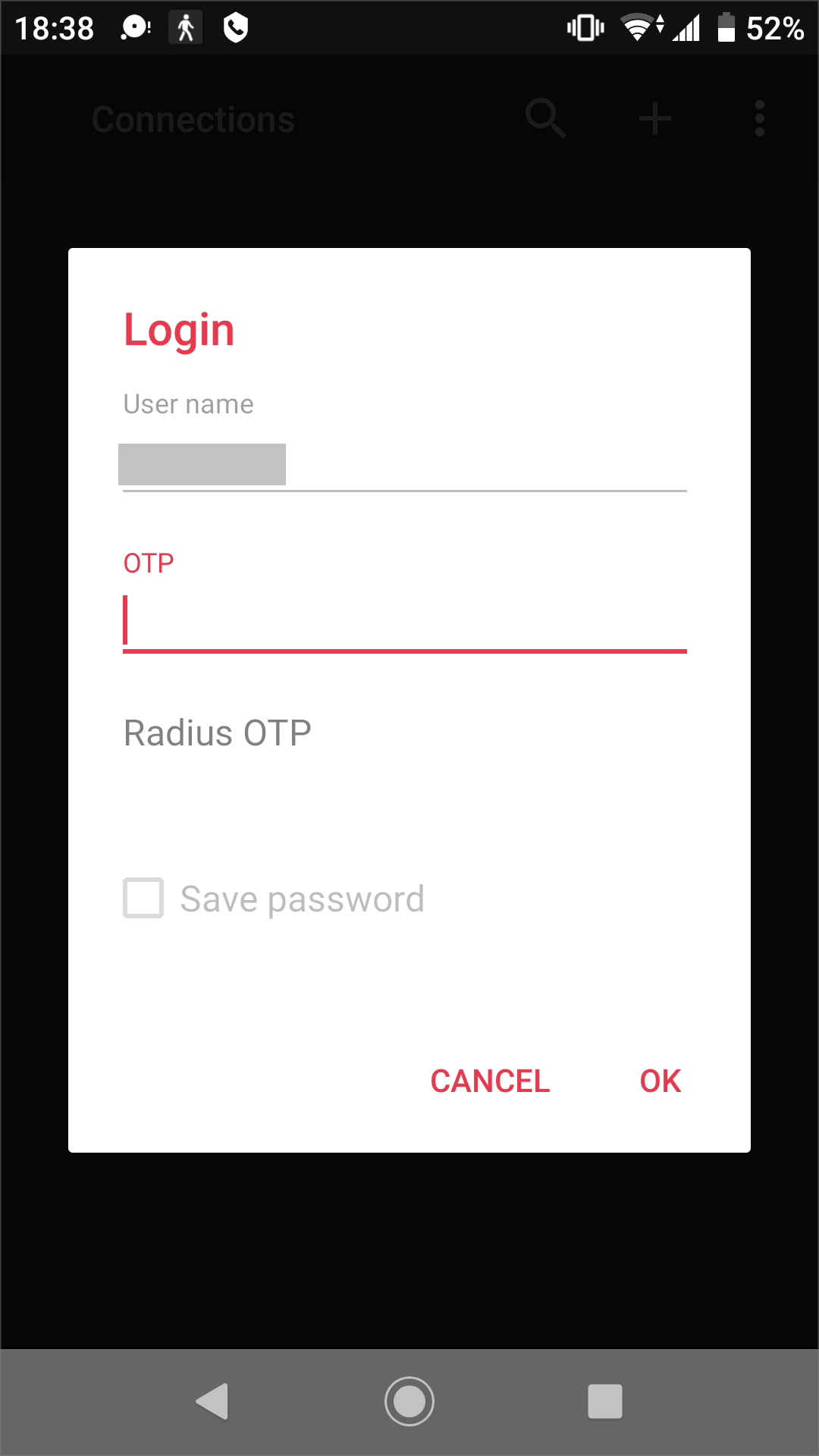
If your IT administrator configured multifactor authentication using RADIUS, you will see the following screen after entering your credentials during the login procedure.
Enter a one-time password in the **OTP** field. The method of OTP delivery (via email, SMS, etc.) depends on how your IT administrator configured the corresponding settings. Parallels Client may also ask you to select one of several available methods.
 in the top right corner.
3. Enter the Parallels RAS IP address, its hostname (this should be the server where the RAS Secure Gateway resides), or your work email address. You system administrator should tell you what to use.
4. Tap **Authentication type** and select the desired method of authentication:
* **Credentials**. Select this option and then enter your username and password. You will be authenticated on the remote server using the specified credentials.
* **Web**: Select this option to use the SAML SSO authentication.
5. Once ready, tap **Connect**.
6. The next step may, or may not, appear depending on whether the multifactor authentication (MFA) is configured in Parallels RAS by the administrator. If configured, you need to enter a one-time password (OTP). Parallels RAS supports various MFA providers (Google Authenticator, RADIUS, Deepnet Security, SafeNet, etc.).
To gain a general understanding of how the connection process may look like if MFA is configured, please see the **Authentication Using Google Authenticator** and **Authentication Using RADIUS** subsections below.
7. If the connection was successful, you will see the published applications that you can use. If you receive an error, verify that the connection and logon information is entered correctly and try again.
in the top right corner.
3. Enter the Parallels RAS IP address, its hostname (this should be the server where the RAS Secure Gateway resides), or your work email address. You system administrator should tell you what to use.
4. Tap **Authentication type** and select the desired method of authentication:
* **Credentials**. Select this option and then enter your username and password. You will be authenticated on the remote server using the specified credentials.
* **Web**: Select this option to use the SAML SSO authentication.
5. Once ready, tap **Connect**.
6. The next step may, or may not, appear depending on whether the multifactor authentication (MFA) is configured in Parallels RAS by the administrator. If configured, you need to enter a one-time password (OTP). Parallels RAS supports various MFA providers (Google Authenticator, RADIUS, Deepnet Security, SafeNet, etc.).
To gain a general understanding of how the connection process may look like if MFA is configured, please see the **Authentication Using Google Authenticator** and **Authentication Using RADIUS** subsections below.
7. If the connection was successful, you will see the published applications that you can use. If you receive an error, verify that the connection and logon information is entered correctly and try again.