> For the complete documentation index, see [llms.txt](https://docs.parallels.com/landing/llms.txt). Markdown versions of documentation pages are available by appending `.md` to page URLs; this page is available as [Markdown](https://docs.parallels.com/landing/ras-android-client-guide/v19/work-with-a-remote-server/remote-application-server-connection.md).
# Remote Application Server Connection
When connected to a remote server via a Remote Application Server connection, Parallels Client shows the App Launcher screen. On this screen, you can find all the applications published for the user you used to connect to the remote server.
## **Launch an application**
To launch an application, just tap its icon. If you launched an app, read [this topic](/landing/ras-android-client-guide/v19/work-with-a-remote-server/remote-application-server-connection/application-toolbar.md) to learn how to use Application Toolbar.
{% hint style="info" %}
**Note:** If a remote application is temporarily unavailable (e.g., your system administrator is installing updates, backing up the data, etc.), its icon will be grayed out. You can tap this app to get a message with more details or contact the administrator for information.
{% endhint %}
## **Search for applications**
If there's a lot of applications, use the **Looking glass** icon at the top of the screen to find the application you need.
## **Select favorite applications**
When an application is added to favorites, you are able to quickly access it on the **Favorites** tab.
To add an application to favorites:
1. Long press the icon of the application that you want to add to favorites. A context menu will appear.
2. In the context menu, tap the **Add to Favorites** option.
The application will appear on the **Favorites** tab.
To remove an application from favorites:
1. Long press the icon of the application that you want to remove from favorites. A context menu will appear.
2. In the context menu, tap the **Remove from Favorites** option.
The application will be removed from favorites.
## **Import files to the remote server**
You can import files from your Android device to the remote server you are connected to. Tap to open the import dialog. For information on how to import files, see [Application Toolbar](/landing/ras-android-client-guide/v19/work-with-a-remote-server/remote-application-server-connection/application-toolbar.md).
## **Switch between applications**
If you have two or more applications running at the same time, tap App Switcher to easily switch between the application windows.
## **Close applications**
To close a running application, tap App Switcher and tap **Close**  on the application you want to close.
## **Additional actions**
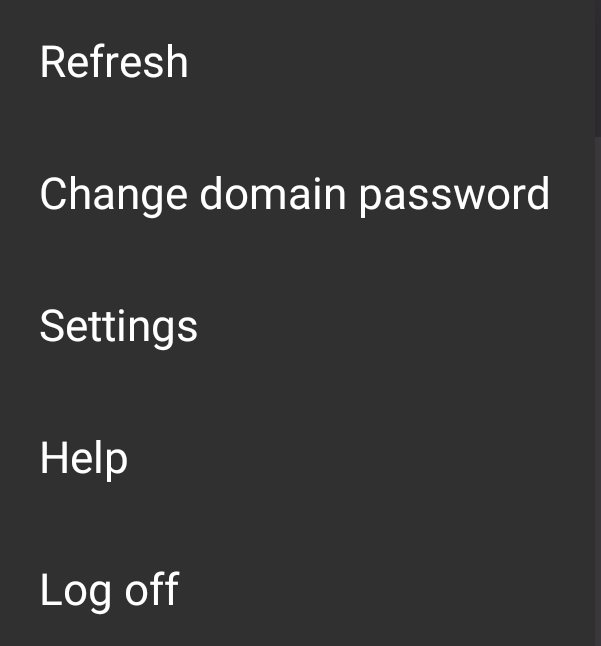
Tap the icon in the top right corner to open the menu that allows you to perform the following actions:
{% hint style="info" %}
**Note:** This icon may be absent if your Android device has a physical or virtual menu button. Use this button instead.
{% endhint %}
* **Refresh**. Tap this item to refresh the list of published applications and connection settings.
* **Change domain password**. Tap this item to change the user's domain password. Depending on Parallels RAS configuration you will be able to change the password either via Parallels Client itself or a third-party identity provider. To be able to change the password via Parallels Client, you must know the current password.
* **Settings**. Tap this item to display and [edit the Parallels Client settings](/landing/ras-android-client-guide/v19/edit-parallels-client-settings.md).
* **Help**. Tap this item to get [help with Parallels Client](/landing/ras-android-client-guide/v19/help.md).
* **Log off**. Tap this item to terminate your session and return to the list of connections.
{% hint style="info" %}
**Note:** Your session on the server will finish and all running apps will be closed.
{% endhint %}
---
# Agent Instructions
This documentation is published with GitBook. GitBook is the documentation platform designed so that both humans and AI agents can read, navigate, and reason over technical content effectively. Learn more at gitbook.com.
## Querying This Documentation
If you need additional information that is not directly available in this page, you can query the documentation dynamically by asking a question.
Perform an HTTP GET request on the current page URL with the `ask` query parameter, and the optional `goal` query parameter:
```
GET https://docs.parallels.com/landing/ras-android-client-guide/v19/work-with-a-remote-server/remote-application-server-connection.md?ask=&goal=
```
`ask` is the immediate question: it should be specific, self-contained, and written in natural language.
`goal` is optional and describes the broader end goal you are ultimately trying to accomplish on behalf of the user. GitBook uses it to tailor the answer towards what is most useful for that goal.
The response will contain a direct answer to the question and relevant excerpts and sources from the documentation.
Use this mechanism when the answer is not explicitly present in the current page, you need clarification or additional context, or you want to retrieve related documentation sections.
 to open the import dialog. For information on how to import files, see [Application Toolbar](/landing/ras-android-client-guide/v19/work-with-a-remote-server/remote-application-server-connection/application-toolbar.md).
## **Switch between applications**
If you have two or more applications running at the same time, tap App Switcher
to open the import dialog. For information on how to import files, see [Application Toolbar](/landing/ras-android-client-guide/v19/work-with-a-remote-server/remote-application-server-connection/application-toolbar.md).
## **Switch between applications**
If you have two or more applications running at the same time, tap App Switcher  to easily switch between the application windows.
## **Close applications**
To close a running application, tap App Switcher
to easily switch between the application windows.
## **Close applications**
To close a running application, tap App Switcher  icon in the top right corner to open the menu that allows you to perform the following actions:
{% hint style="info" %}
**Note:** This icon may be absent if your Android device has a physical or virtual menu button. Use this button instead.
{% endhint %}
icon in the top right corner to open the menu that allows you to perform the following actions:
{% hint style="info" %}
**Note:** This icon may be absent if your Android device has a physical or virtual menu button. Use this button instead.
{% endhint %}