# Work with Remote Apps on Big Screen
Sometimes working with applications on a small screen is inconvenient, especially when you have to scroll the app window left/right/up/down, select or tap small GUI elements, or type a lot of text...
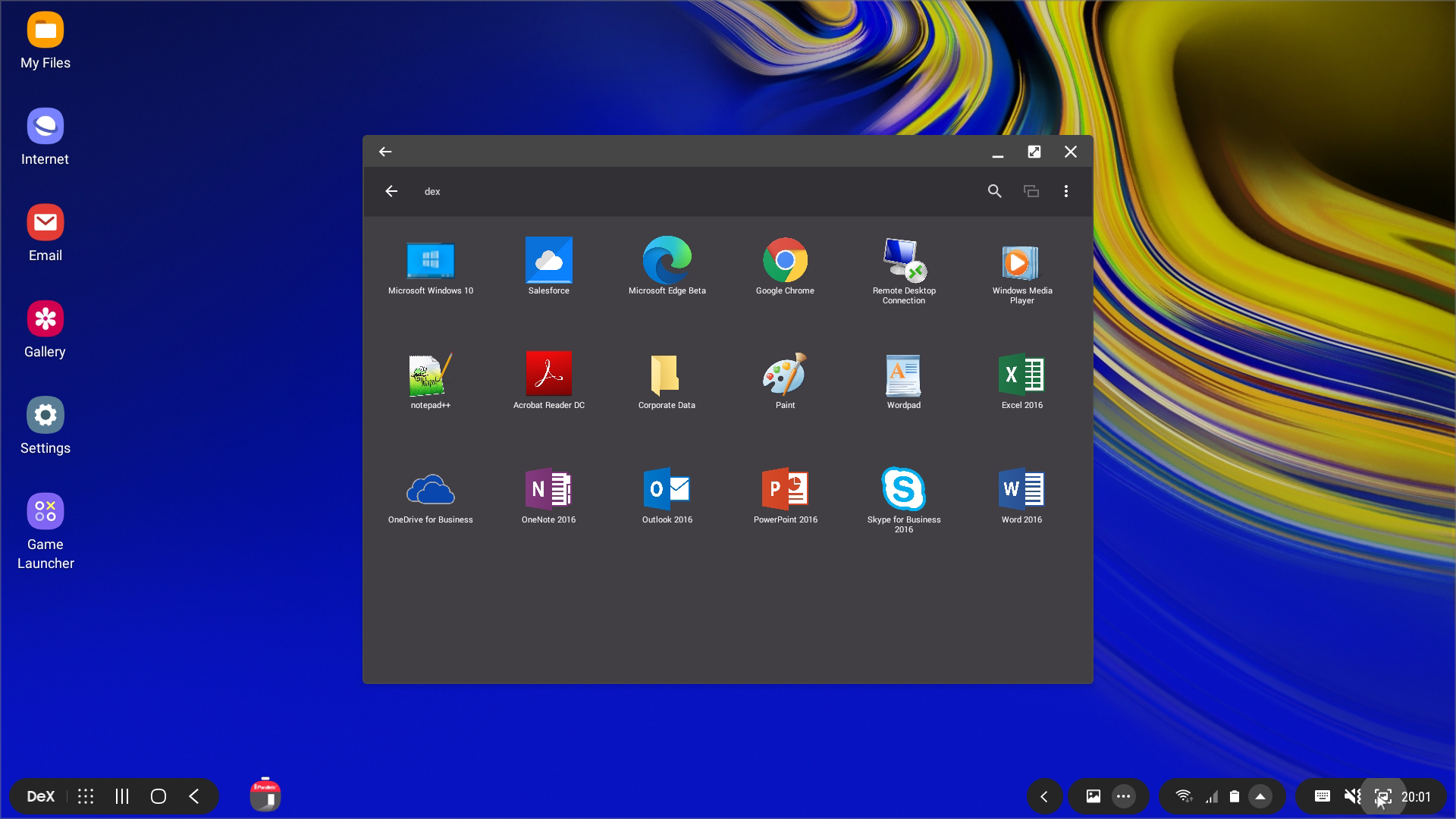
But now, starting from version 17.1, Parallels Client supports the Samsung DeX feature (it was first included on Galaxy S8 smartphones). So if you use a Samsung mobile device with DeX support, you can work with Parallels Client, remote apps and desktops either in the full-screen mode or side by side with other Android apps on a big display (you can use an external monitor or TV).
To make the desktop experience even more convenient for you, the Parallels engineers implemented support for keyboard and mouse. Now you can type in remote apps using the keyboard, click or right-click various GUI items with the mouse and scroll page content with the mouse wheel.
You can also use system shortcuts (e.g., "Alt + Tab", "Windows + D", etc.) while working with remote apps and desktops. When you press them on the keyboard connected to the DeX Station, they are not intercepted by Android.
And that's not all - if you need to go somewhere, take your mobile device with you. Parallels Client smoothly switches between the DeX and phone modes without interrupting your working session.
---
# Agent Instructions: Querying This Documentation
If you need additional information that is not directly available in this page, you can query the documentation dynamically by asking a question.
Perform an HTTP GET request on the current page URL with the `ask` query parameter:
```
GET https://docs.parallels.com/landing/ras-android-client-guide/v20/tips-and-tricks/work-with-remote-apps-on-big-screen.md?ask=
```
The question should be specific, self-contained, and written in natural language.
The response will contain a direct answer to the question and relevant excerpts and sources from the documentation.
Use this mechanism when the answer is not explicitly present in the current page, you need clarification or additional context, or you want to retrieve related documentation sections.