> For the complete documentation index, see [llms.txt](https://docs.parallels.com/landing/llms.txt). Markdown versions of documentation pages are available by appending `.md` to page URLs; this page is available as [Markdown](https://docs.parallels.com/landing/ras-azure-marketplace-deployment-guide/post-deployment-actions.md).
# Post-deployment actions
After successfully completing the steps described in [**Deployment**](/landing/ras-azure-marketplace-deployment-guide/deployment.md), follow these steps to perform the post-deployment actions and complete the Parallels RAS environment:
1. Log on to the Parallels RAS Management Server specified during the setup.
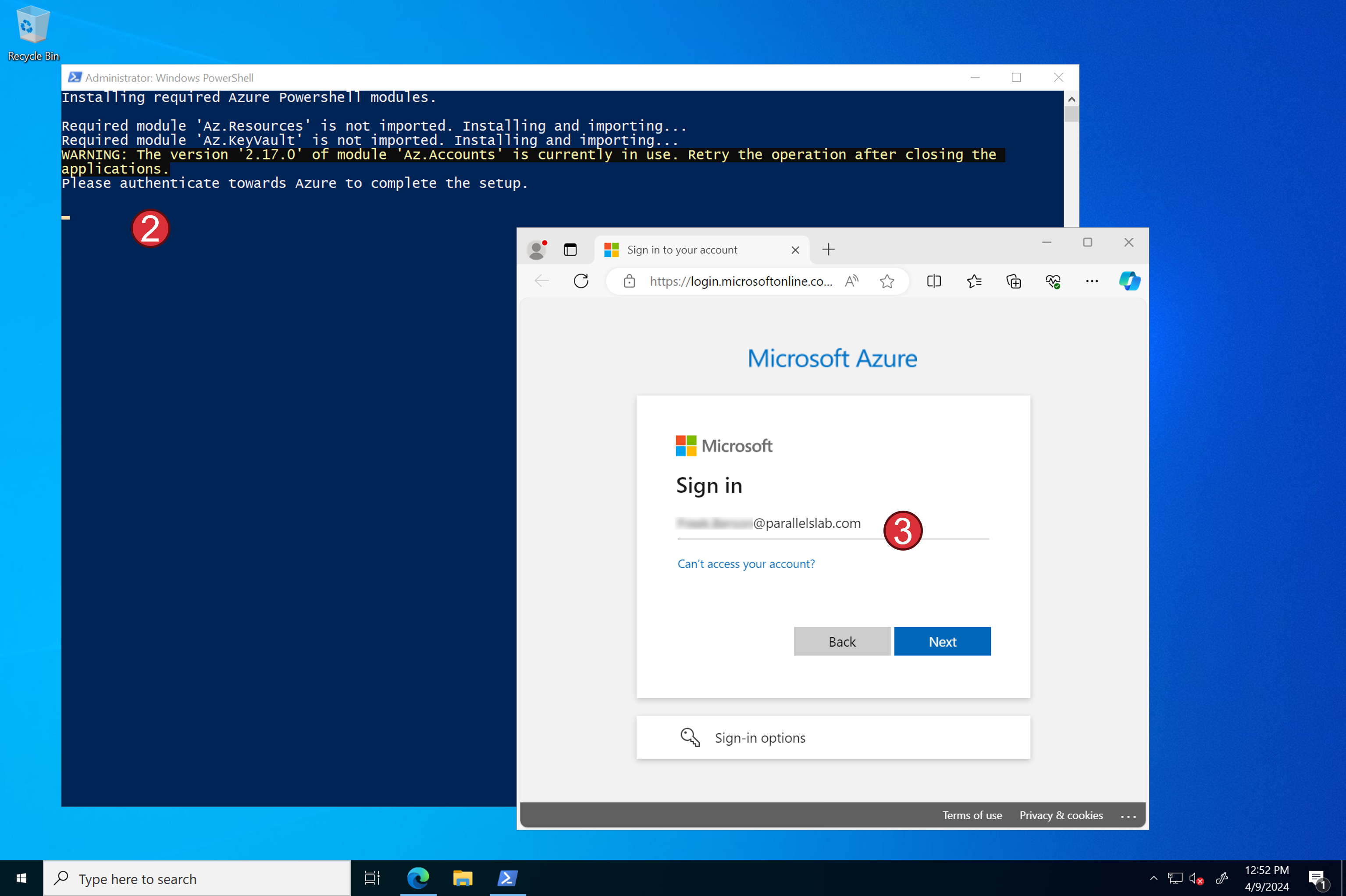
2. A post-deployment script will be launched automatically. Do not close this PowerShell Window.
3. Shortly after, a Microsoft Azure login dialog will appear. Log on with an Azure Account that has Global Admin permissions and Owner permissions for the two resource groups.
{% hint style="info" %}
**Note:** The account you use to log on here is typically the same account you used to start the marketplace deployment.
{% endhint %}
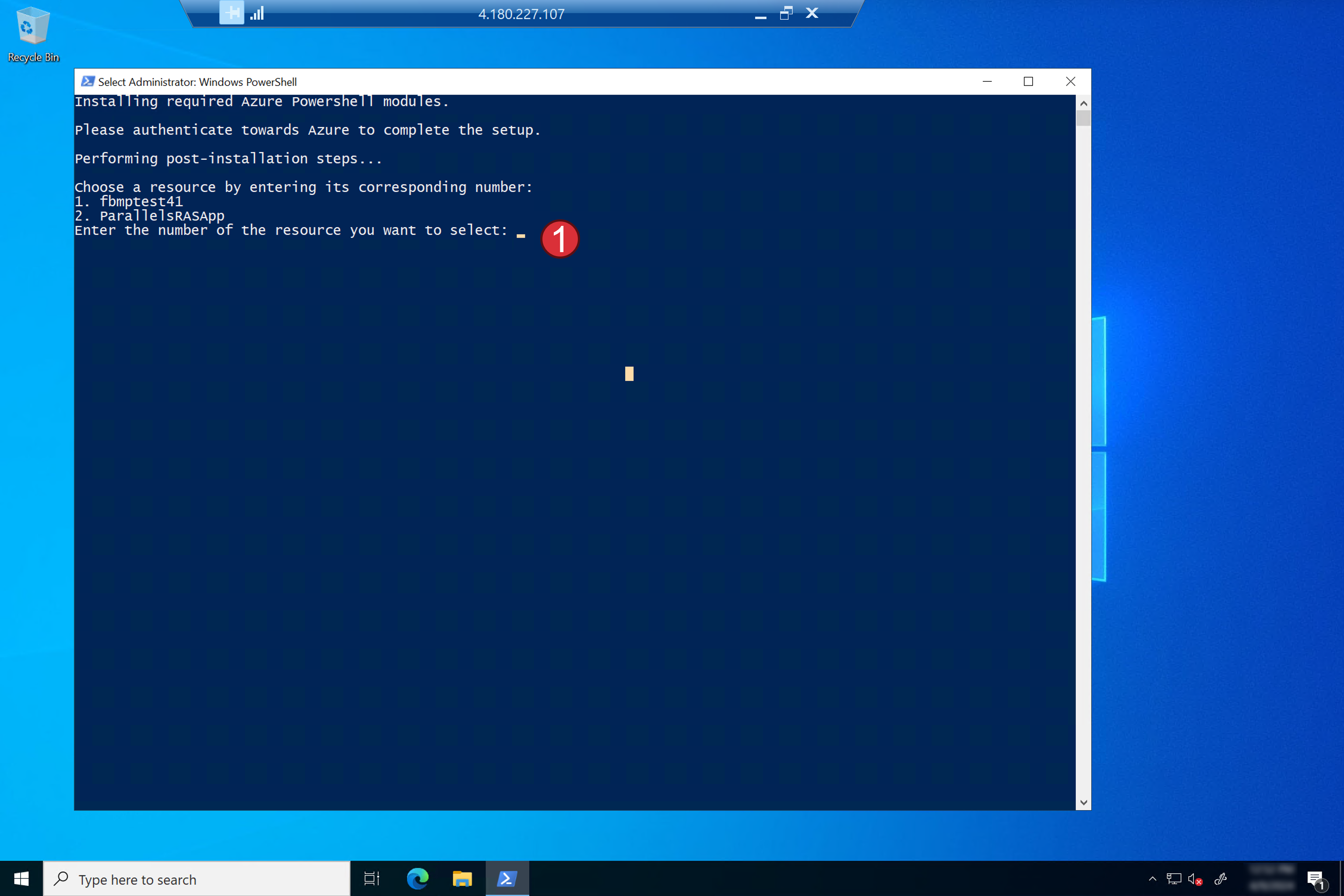
1. In rare scenarios, you might have deployed multiple instances of the Parallels RAS Marketplace deployment. In that case, select the Managed App name you provided during this deployment.
{% hint style="info" %}
**Note:** This screen will only appear if you have deployed the Parallels RAS Marketplace deployment multiple times inside the same subscription.
{% endhint %}
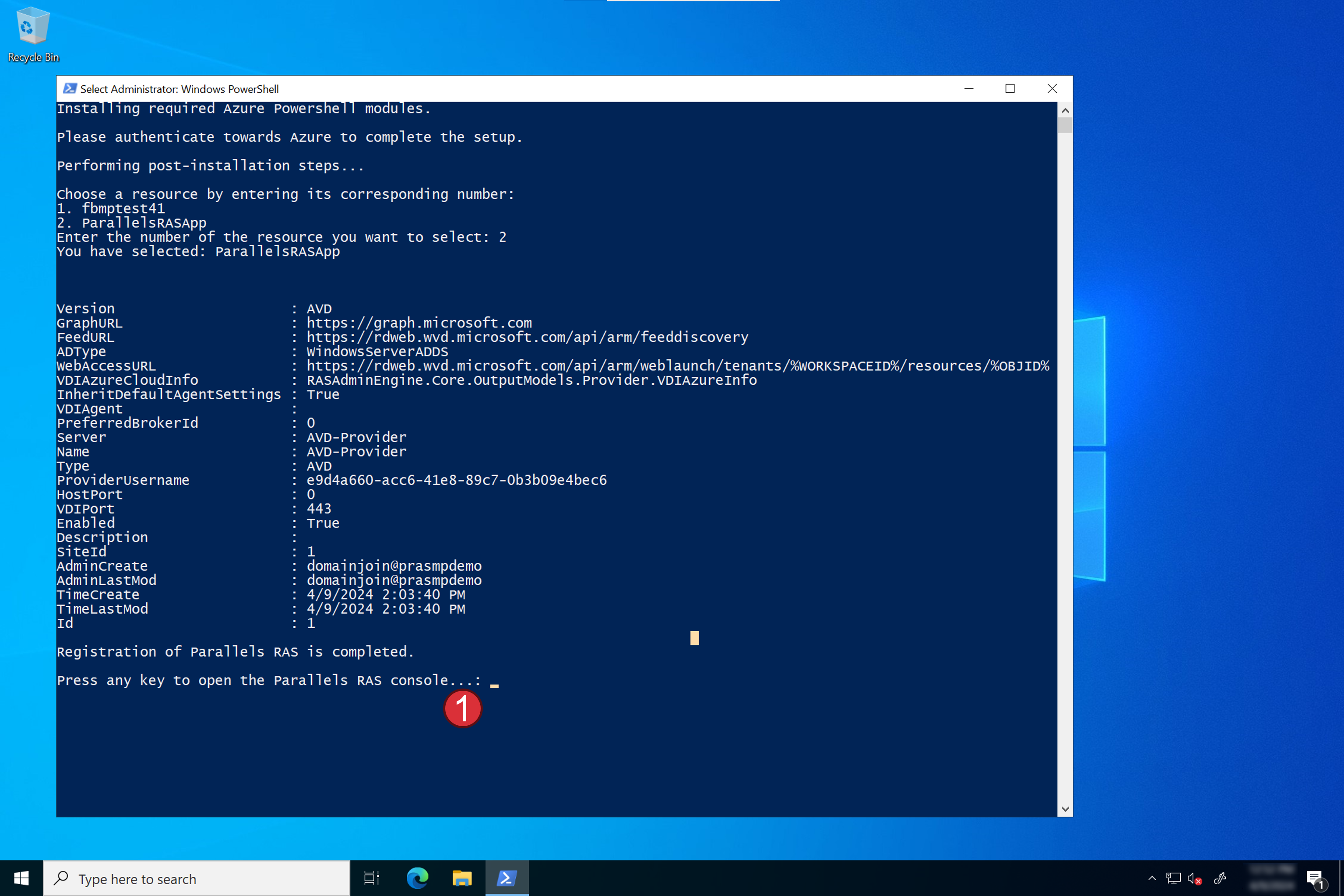
Wait for the script to finish. It will take about 1 minute to complete. Once ready, press any key to open the Parallels RAS console.
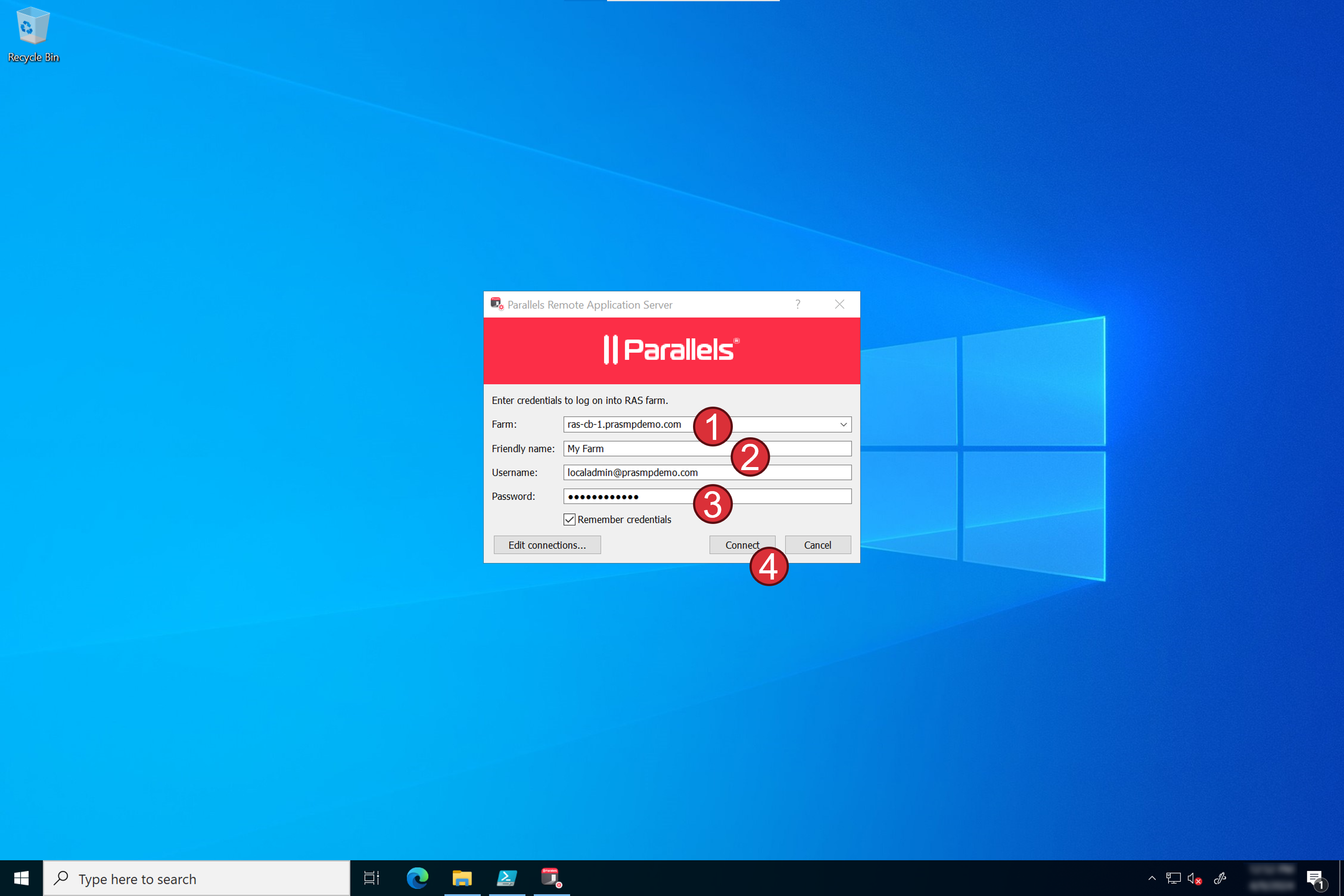
1. Specify the farm name to connect to. This is the FQDN of the Parallels RAS Primary Connection Broker.
2. Specify any friendly name.
3. Specify the credentials you want to use. This user needs to be a member of the Active Directory Group you specified during the deployment.
4. Click **Connect**.
{% hint style="info" %}
**Note:** The FQDN you use here is the name of the Primary Connection Broker server that was created. In this example, that was ras-cb-1.contoso.com. The credentials of the domain account you specify here must be a member of the Active Directory Group you specified during the deployment. This is to ensure that the account had administrative permissions inside Parallels RAS.
{% endhint %}
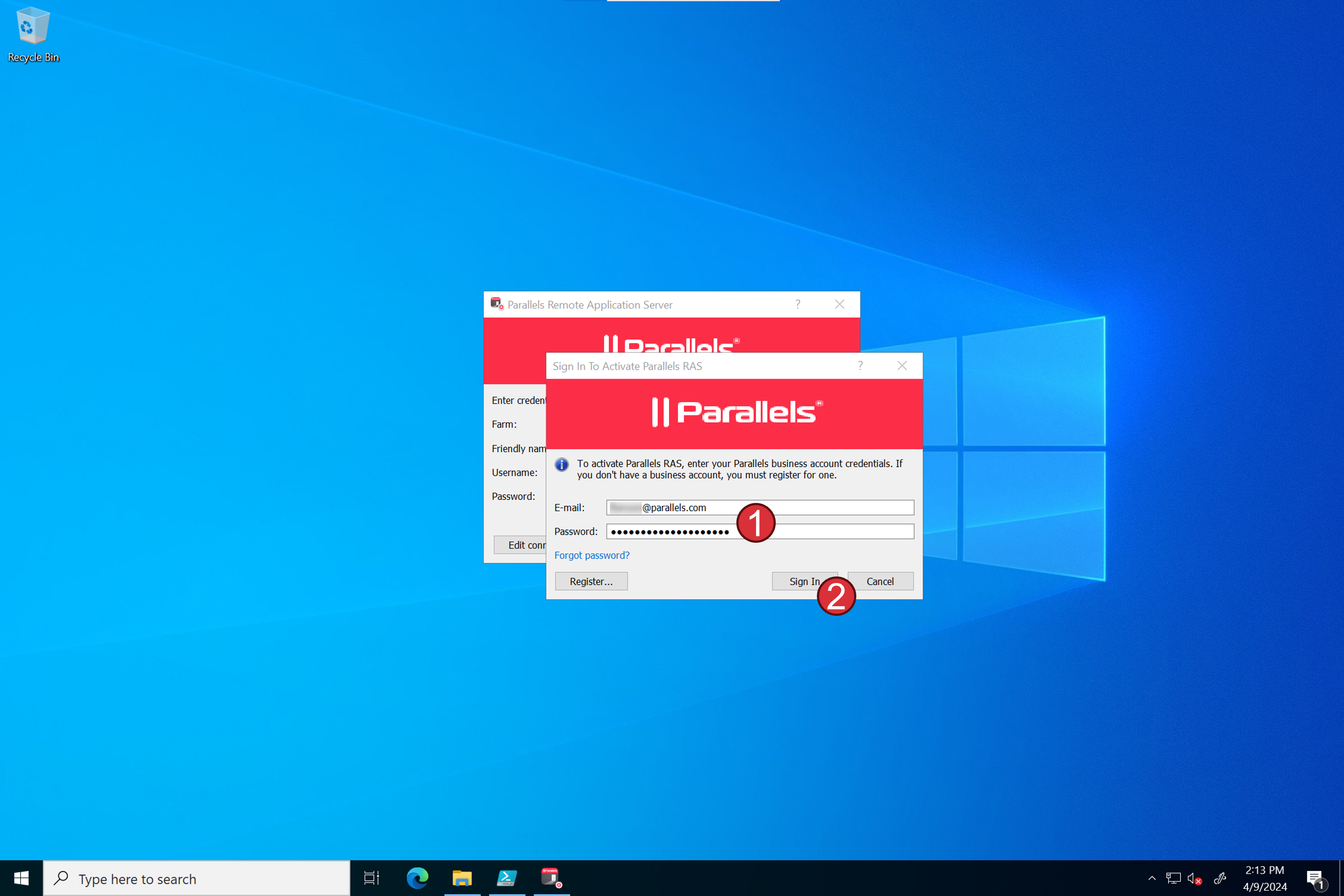
1. Specify the credentials you use to log in to Parallels My Account or click **Register** to register in Parallels My Account if you don’t have done this yet.
2. Click **Sign In** to finish the registration and activation.
{% hint style="info" %}
**Note:** You must be registered in Parallels My Account to perform activation of Parallels RAS and assign a license.
{% endhint %}
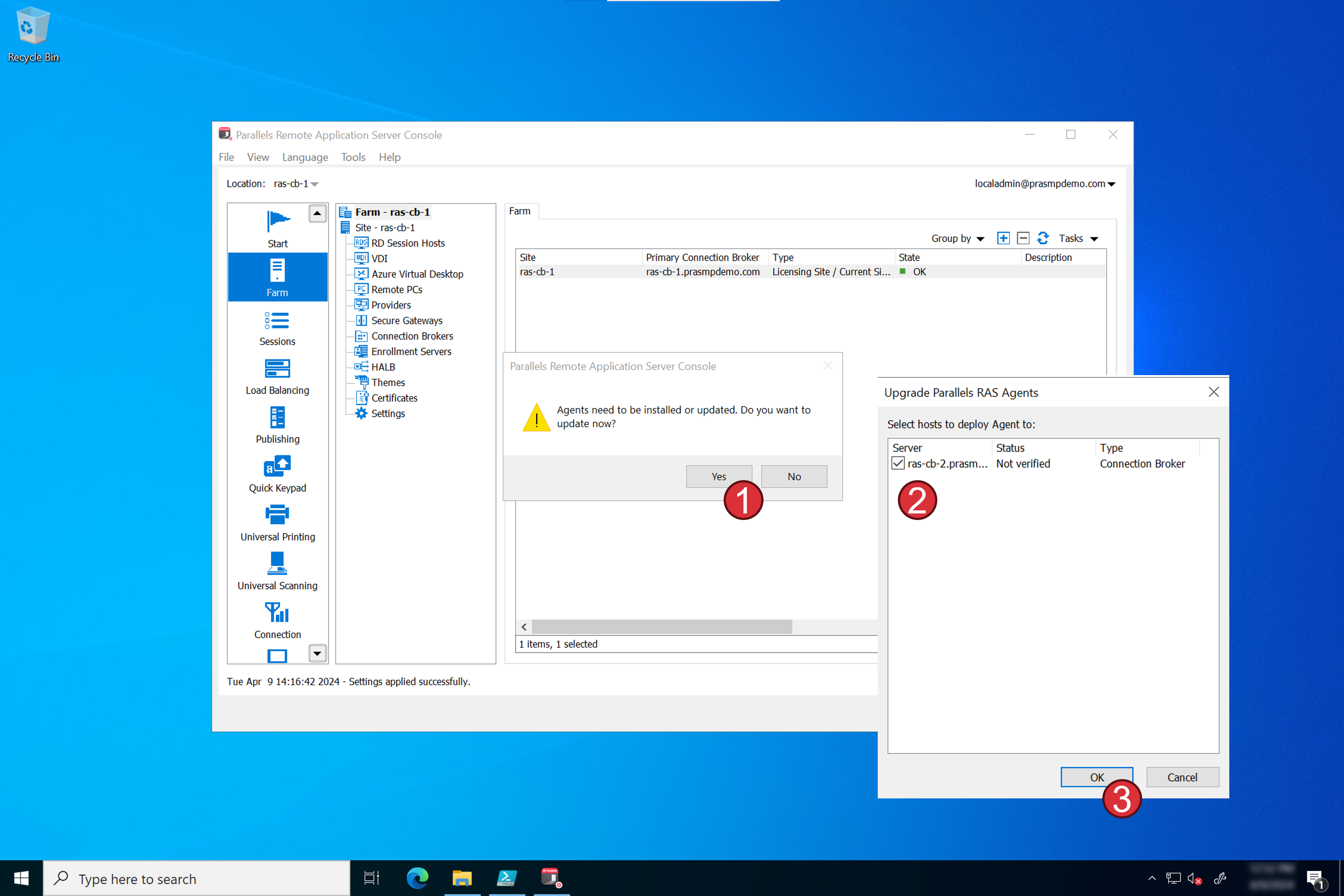
1. Click **Yes** to update the Agent to the latest version.
2. Select all Connection Broker servers.
3. Click **OK** and follow the process to complete.
{% hint style="info" %}
**Note:** This step only applies if you created more than one Connection Broker and ensures that the secondary Connection Broker is properly added to the Parallels RAS Farm.
{% endhint %}
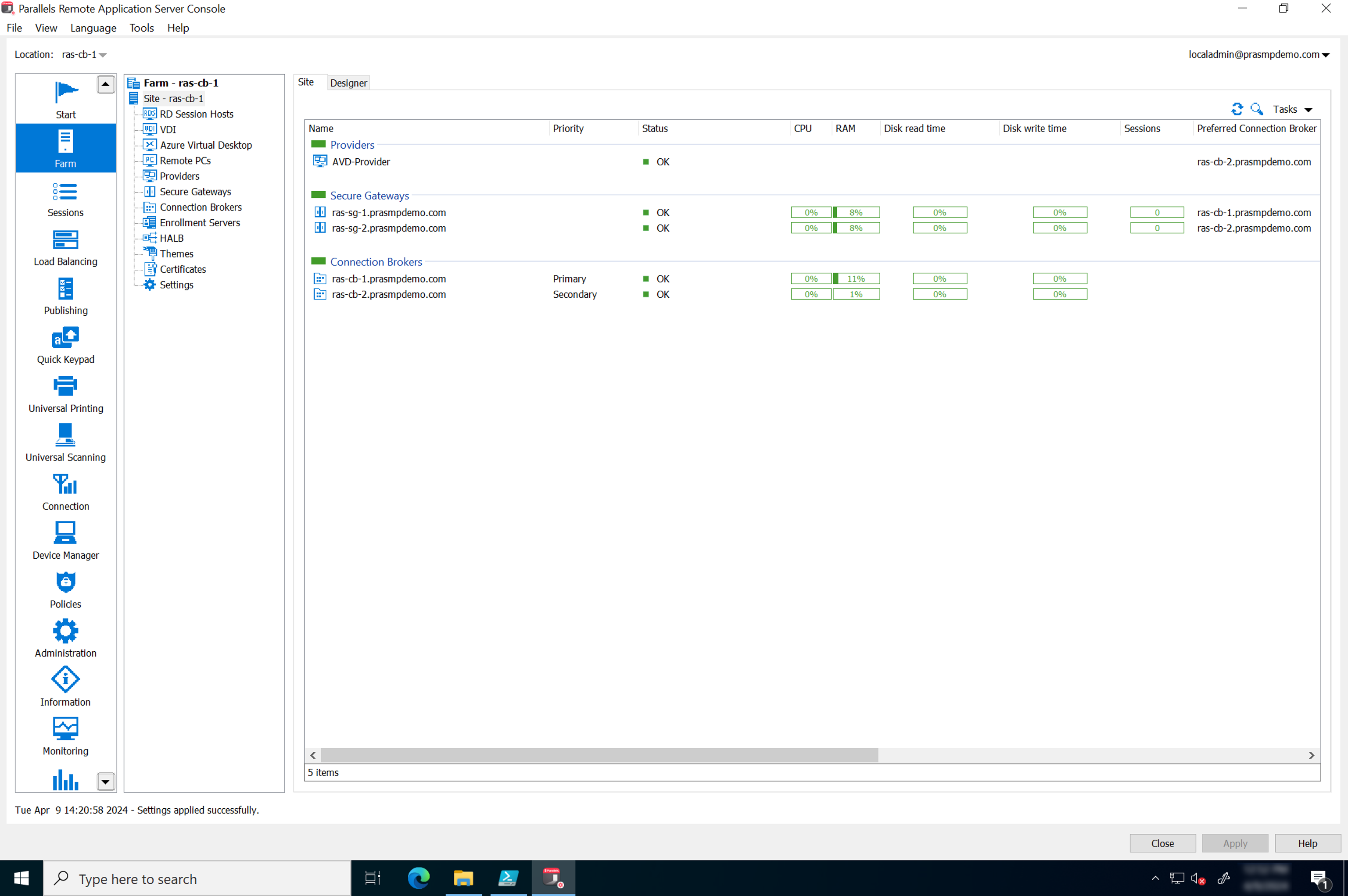
Now Parallels RAS is successfully deployed and registered.
Consult the [**Parallels RAS Administrator's Guide**](https://docs.parallels.com/parallels-ras-administrators-guide-19) for more information on deploying templates, host configuration, publishing resources, and more!
---
# Agent Instructions
This documentation is published with GitBook. GitBook is the documentation platform designed so that both humans and AI agents can read, navigate, and reason over technical content effectively. Learn more at gitbook.com.
## Querying This Documentation
If you need additional information that is not directly available in this page, you can query the documentation by asking a question.
Perform an HTTP GET request on the following URL with the `ask` and `goal` query parameters:
```
GET https://docs.parallels.com/landing/ras-azure-marketplace-deployment-guide/post-deployment-actions.md?ask=&goal=
```
`ask` is the immediate question: it should be specific, self-contained, and written in natural language.
`goal` is what the user is ultimately trying to achieve, the reason they need the answer. Sharing it helps GitBook give you a better, more relevant answer. A goal is most helpful when it describes the outcome the user wants rather than restating the question. For example, with `ask=how do I create an API token`, a goal like `automate deployments from our CI pipeline` lets GitBook tailor the answer to that use case.
The response will contain a direct answer to the question and relevant excerpts and sources from the documentation.
Use this mechanism when the answer is not explicitly present in the current page, you need clarification or additional context, or you want to retrieve related documentation sections.