> For the complete documentation index, see [llms.txt](https://docs.parallels.com/landing/llms.txt). Markdown versions of documentation pages are available by appending `.md` to page URLs; this page is available as [Markdown](https://docs.parallels.com/landing/ras-best-practices-guide/remote-access-configuration/remote-desktop-and-terminal-server-performance-settings.md).
# Remote Desktop and Terminal Server Performance Settings
**Note:** This section describes how to manually optimize remote desktop and terminal server performance. Beginning with RAS 18, these and other settings can be optimized automatically using the new [**Optimizations**](/landing/ras-best-practices-guide/remote-access-configuration/optimizations.md) functionality.
The default Windows performance settings are intended for general purpose servers. In order to maximize application or desktop hosting server performance, the default Windows performance settings should be adjusted on Windows Remote Desktop/Terminal Servers.
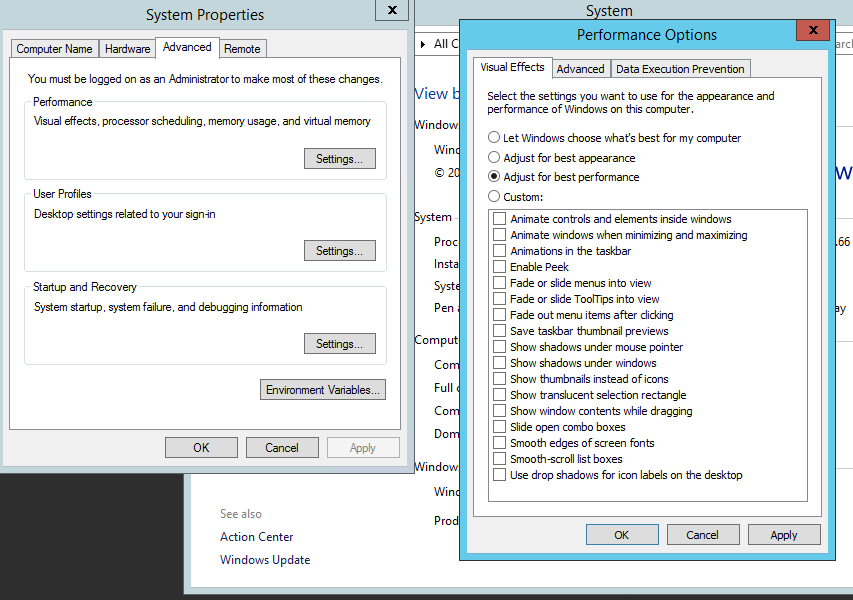
From the Control Panel go to System and click on Advanced System Settings. Under the Advanced tab in the System Properties dialog box, click on Settings under the Performance section.
## **Performance Options settings**
Under the Visual Effects tab from the Performance Options dialog box, change the setting to **Adjust for best performance**.
If a specific application has a custom setting recommendation, you should use it, but in general, the **Adjust for best performance** option will provide the best overall performance in a Parallels RAS environment.
## **Windows paging file settings**
Set the Windows paging file to twice the amount of RAM. For heavier workloads, a paging file of three times the amount of physical memory might be required. For more information on how to determine the exact page file size, please visit .
By default, Microsoft Windows page file size is automatically managed for all drives and grows dynamically as necessary. However, as the system ramps up to intended capacity, dynamic page file growth can result in a fragmented page file, so it is best to set a fixed page file size upfront.
Typically, page file settings are configured when the server is first installed. However, if the server remained in production for a while, Parallels recommends optimizing and defragmenting the drive prior to setting paging options described below.
{% hint style="info" %}
**Note:** If the size of the page file is too small, system will generate a mini dump and will log an event in the System event log during boot to inform you about this condition.
{% endhint %}
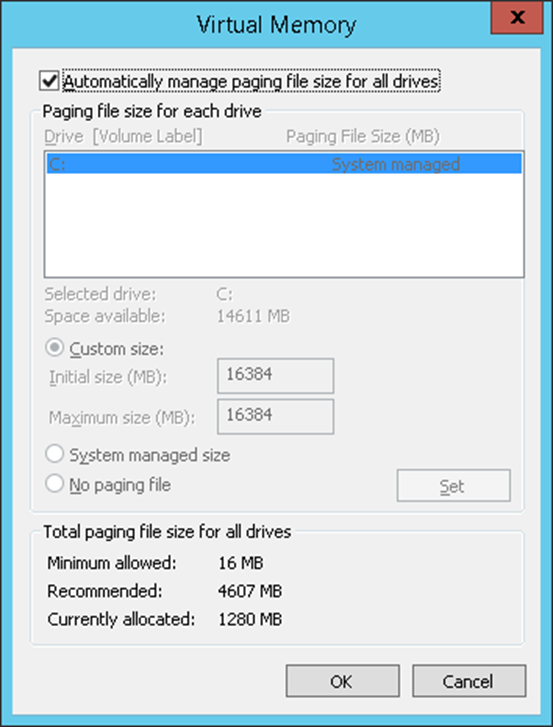
In the example below, the server has 8 GB of RAM:
Note that Microsoft sets it to 1280 but recommends 4607. Parallels recommends to double it and use a new page file on the disk. Therefore the number is 16384 (8 GB in block of 8192 x2 = 16384). Make sure you have enough free disk space to use this setting.
Please also make sure to configure antivirus exclusions for FSLogix Profile Container virtual hard drives as described in [**Antivirus Exclusions**](/landing/ras-best-practices-guide/remote-access-configuration/antivirus-exclusions.md).
---
# Agent Instructions
This documentation is published with GitBook. GitBook is the documentation platform designed so that both humans and AI agents can read, navigate, and reason over technical content effectively. Learn more at gitbook.com.
## Querying This Documentation
If you need additional information that is not directly available in this page, you can query the documentation by asking a question.
Perform an HTTP GET request on the following URL with the `ask` and `goal` query parameters:
```
GET https://docs.parallels.com/landing/ras-best-practices-guide/remote-access-configuration/remote-desktop-and-terminal-server-performance-settings.md?ask=&goal=
```
`ask` is the immediate question: it should be specific, self-contained, and written in natural language.
`goal` is what the user is ultimately trying to achieve, the reason they need the answer. Sharing it helps GitBook give you a better, more relevant answer. A goal is most helpful when it describes the outcome the user wants rather than restating the question. For example, with `ask=how do I create an API token`, a goal like `automate deployments from our CI pipeline` lets GitBook tailor the answer to that use case.
The response will contain a direct answer to the question and relevant excerpts and sources from the documentation.
Use this mechanism when the answer is not explicitly present in the current page, you need clarification or additional context, or you want to retrieve related documentation sections.