> For the complete documentation index, see [llms.txt](https://docs.parallels.com/landing/llms.txt). Markdown versions of documentation pages are available by appending `.md` to page URLs; this page is available as [Markdown](https://docs.parallels.com/landing/ras-best-practices-guide/v21/miscellaneous/large-file-upload-download-via-drive-redirection.md).
# Large File Upload / Download via Drive Redirection
In some cases bandwidth and other factors can cause a memory error when transferring large files between remote applications and local drives.

For large file transfer optimization, the following settings should be made on both the server and client side.
## **RDS/TS Server Settings**
Referencing the **Remote Desktop/Terminal Server Performance Settings** section at the beginning of this document:
* Set Visual Effects to "Best Performance".
* Set the Windows Paging file to three times the physical RAM.
Disable Desktop Composition under Group Policy (on Windows Server 2008 R2 only).
Under Local Computer Policy > Computer Configurations > Administrative Templates > Windows Components > Remote Desktop Services > Remote Desktop Session Host > Remote Session Environment, set Desktop Composition to "Not Configured."
## **Client Settings**
Client settings can be changed on a per client basis using Connection Properties or centrally from the Parallels RAS management console using Policies.
1. For an individual client, under Connection Properties, go the Experience tab and set the Connection Optimization to WAN (10 Mbps or higher with high latency):

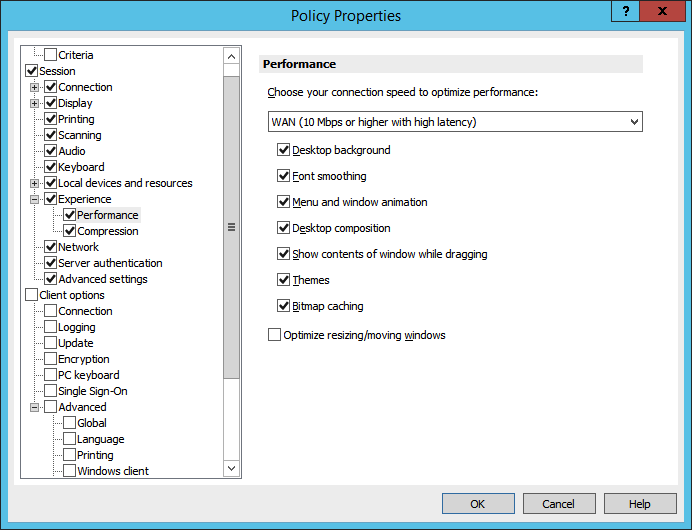
2. To change this setting centrally for multiple clients, in the Parallels RAS Console, select the **Policies** category. Add a policy for a group of users and under **Session** > **Experience**, set the connection speed to WAN.
---
# Agent Instructions
This documentation is published with GitBook. GitBook is the documentation platform designed so that both humans and AI agents can read, navigate, and reason over technical content effectively. Learn more at gitbook.com.
## Querying This Documentation
If you need additional information that is not directly available in this page, you can query the documentation by asking a question.
Perform an HTTP GET request on the following URL with the `ask` and `goal` query parameters:
```
GET https://docs.parallels.com/landing/ras-best-practices-guide/v21/miscellaneous/large-file-upload-download-via-drive-redirection.md?ask=&goal=
```
`ask` is the immediate question: it should be specific, self-contained, and written in natural language.
`goal` is what the user is ultimately trying to achieve, the reason they need the answer. Sharing it helps GitBook give you a better, more relevant answer. A goal is most helpful when it describes the outcome the user wants rather than restating the question. For example, with `ask=how do I create an API token`, a goal like `automate deployments from our CI pipeline` lets GitBook tailor the answer to that use case.
The response will contain a direct answer to the question and relevant excerpts and sources from the documentation.
Use this mechanism when the answer is not explicitly present in the current page, you need clarification or additional context, or you want to retrieve related documentation sections.