> For the complete documentation index, see [llms.txt](https://docs.parallels.com/landing/llms.txt). Markdown versions of documentation pages are available by appending `.md` to page URLs; this page is available as [Markdown](https://docs.parallels.com/landing/ras-ios-client-guide/edit-parallels-client-settings/user-input-settings.md).
# User Input Settings
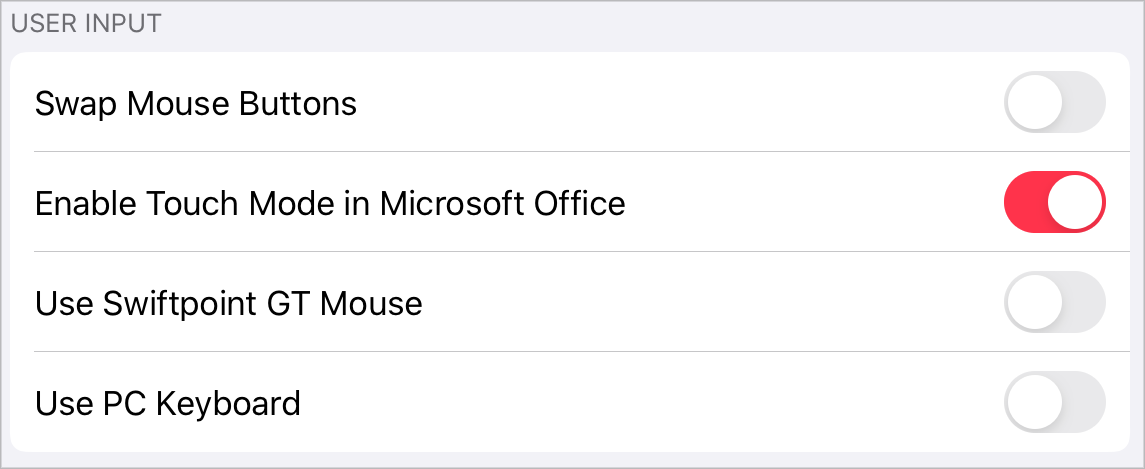
The **User Input** section allows you to modify the following settings:
* **Swap Mouse Buttons**. Enable this option to swap the mouse buttons on the remote server.
* **Enable Touch Mode in Microsoft Office**. Use this option to enable or disable Touch Mode in Microsoft Office applications.
* **Use Swiftpoint GT Mouse**. Enable this option to work with remote desktops and published applications using a Swiftpoint GT mouse. You need to connect this mouse to your iOS device via Bluetooth and once you establish a connection, the mouse will connect automatically and you'll be able to start using it.
* **Use PC Keyboard**. When you're working with published applications and a text field gets focus, a mobile keyboard pops up. By default, an iOS native keyboard is used.
If you experience any input problems (for example, the keyboard types wrong keys), try to switch to a PC keyboard. Enable **Use PC Keyboard** and choose the keyboard language you need from the **PC Keyboard Layout** list.
**Note:** If you have changed the keyboard language (for example, from English to German or French), you need to log off for the changes to take effect. Before you log off, save all your files in remote applications - unsaved data will be lost.
* To log off, do the following:
On the list of published applications, tap the icon in the top right corner and choose **Log Off**.
---
# Agent Instructions
This documentation is published with GitBook. GitBook is the documentation platform designed so that both humans and AI agents can read, navigate, and reason over technical content effectively. Learn more at gitbook.com.
## Querying This Documentation
If you need additional information that is not directly available in this page, you can query the documentation dynamically by asking a question.
Perform an HTTP GET request on the current page URL with the `ask` query parameter, and the optional `goal` query parameter:
```
GET https://docs.parallels.com/landing/ras-ios-client-guide/edit-parallels-client-settings/user-input-settings.md?ask=&goal=
```
`ask` is the immediate question: it should be specific, self-contained, and written in natural language.
`goal` is optional and describes the broader end goal you are ultimately trying to accomplish on behalf of the user. GitBook uses it to tailor the answer towards what is most useful for that goal.
The response will contain a direct answer to the question and relevant excerpts and sources from the documentation.
Use this mechanism when the answer is not explicitly present in the current page, you need clarification or additional context, or you want to retrieve related documentation sections.
 icon in the top right corner and choose **Log Off**.
---
# Agent Instructions
This documentation is published with GitBook. GitBook is the documentation platform designed so that both humans and AI agents can read, navigate, and reason over technical content effectively. Learn more at gitbook.com.
## Querying This Documentation
If you need additional information that is not directly available in this page, you can query the documentation dynamically by asking a question.
Perform an HTTP GET request on the current page URL with the `ask` query parameter, and the optional `goal` query parameter:
```
GET https://docs.parallels.com/landing/ras-ios-client-guide/edit-parallels-client-settings/user-input-settings.md?ask=
icon in the top right corner and choose **Log Off**.
---
# Agent Instructions
This documentation is published with GitBook. GitBook is the documentation platform designed so that both humans and AI agents can read, navigate, and reason over technical content effectively. Learn more at gitbook.com.
## Querying This Documentation
If you need additional information that is not directly available in this page, you can query the documentation dynamically by asking a question.
Perform an HTTP GET request on the current page URL with the `ask` query parameter, and the optional `goal` query parameter:
```
GET https://docs.parallels.com/landing/ras-ios-client-guide/edit-parallels-client-settings/user-input-settings.md?ask=