# Edit Connection Settings
To edit your Remote Application Server or RDP connection parameters, do the following:
**Note:** Parallels Client supports the RAS policies. Due to these policies, some of the settings described below may be grayed out or cannot be changed. If you notice such a setting, please contact your administrator for assistance.
1. Open Parallels Client.
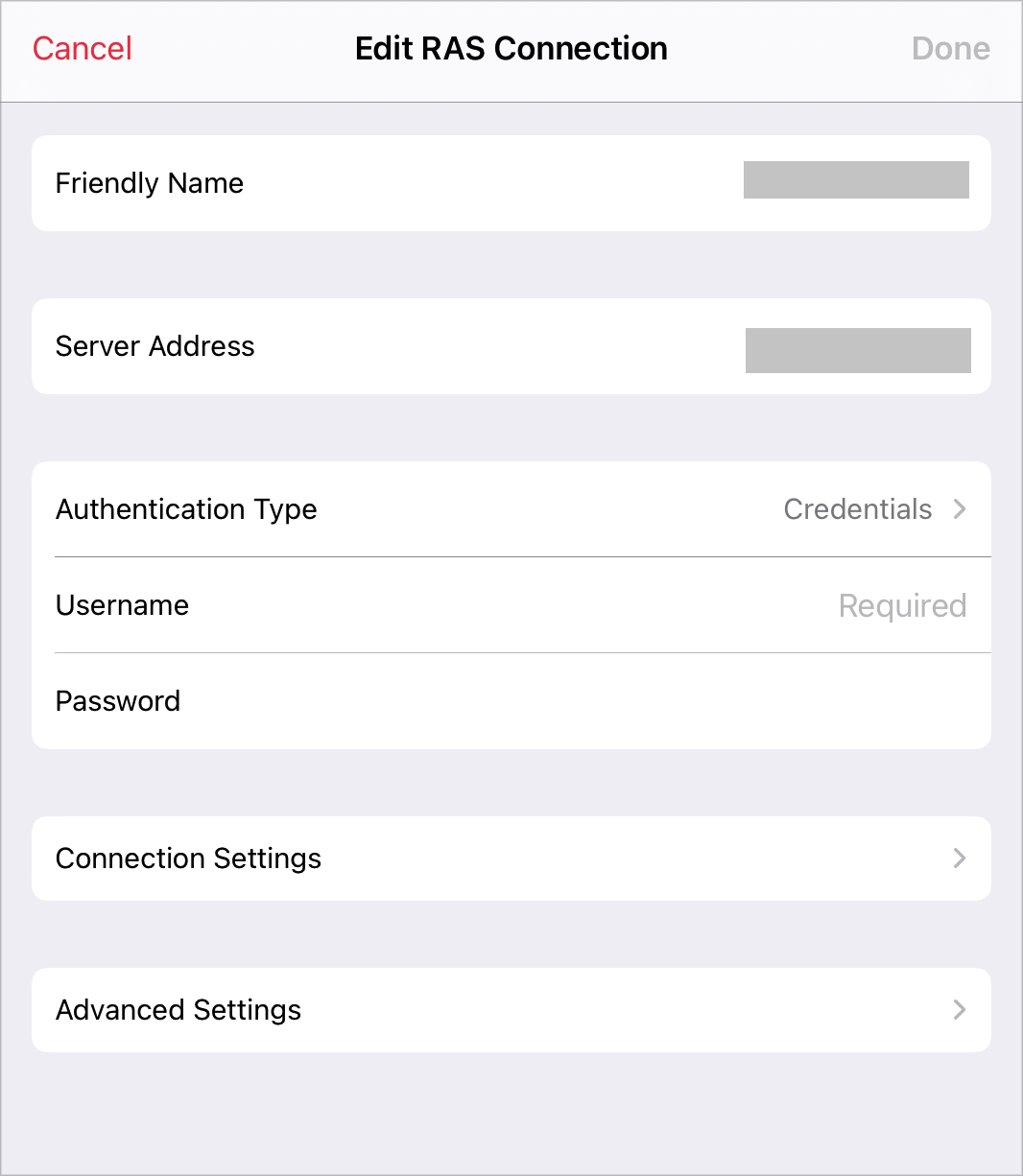
2. Tap **Edit** in the top right corner and tap **Settings** below the connection which settings you want to edit. The following screen appears:
You can edit the following parameters:
* **Friendly Name**. In this field, you can change the name of your connection.
* **Server Address**. In this field, you can change the remote server IP address or host name.
* **Authentication type**. Tap this menu to select the desired method of authentication:
* **Credentials**. Select this option and then enter your username and password. You will be authenticated on the remote server using the specified credentials.
* **Web**: Select this option to use the SAML SSO authentication.
3. Once ready, tap **Done** in the top right corner of the screen.
 below the connection which settings you want to edit. The following screen appears:
You can edit the following parameters:
* **Friendly Name**. In this field, you can change the name of your connection.
* **Server Address**. In this field, you can change the remote server IP address or host name.
* **Authentication type**. Tap this menu to select the desired method of authentication:
* **Credentials**. Select this option and then enter your username and password. You will be authenticated on the remote server using the specified credentials.
* **Web**: Select this option to use the SAML SSO authentication.
below the connection which settings you want to edit. The following screen appears:
You can edit the following parameters:
* **Friendly Name**. In this field, you can change the name of your connection.
* **Server Address**. In this field, you can change the remote server IP address or host name.
* **Authentication type**. Tap this menu to select the desired method of authentication:
* **Credentials**. Select this option and then enter your username and password. You will be authenticated on the remote server using the specified credentials.
* **Web**: Select this option to use the SAML SSO authentication.