> For the complete documentation index, see [llms.txt](https://docs.parallels.com/landing/llms.txt). Markdown versions of documentation pages are available by appending `.md` to page URLs; this page is available as [Markdown](https://docs.parallels.com/landing/ras-licensing-guide/manage-accounts/inviting-users-to-join-a-business-account.md).
# Inviting users to join a business account
As the administrator of a business account, you can invite other users in your organization to join it. Once a user joins the account, you can grant them rights to manage all or specific license keys.
To invite a user to join the business account:
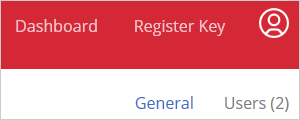
1. On the **Dashboard**, click **Business Profile** in the upper right and then click **Users** (also in the upper right).
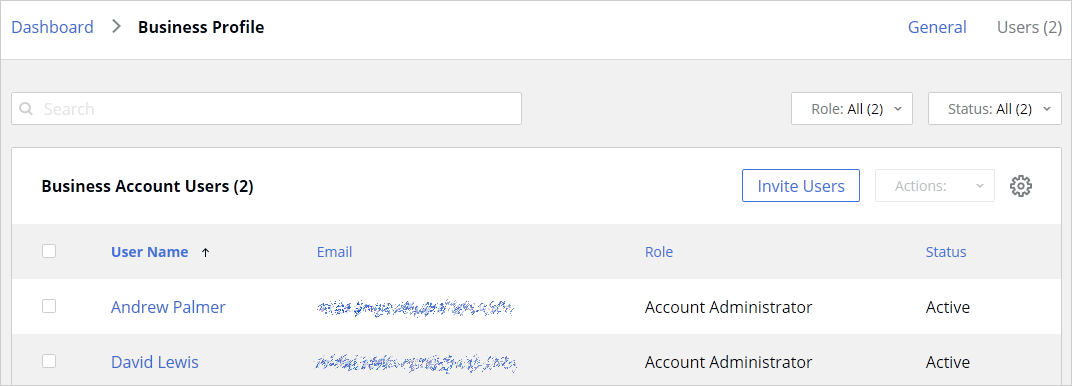
2. The **Business Account Users** list is displayed:
3. Click **Invite Users**.
4. In the dialog that opens, select a language of invitation, then type the email address of a user and click **Add**. You can invite more than one user at the same time. Once the list of users is complete, click the **Send Invitations** button.
When a user receives the email, it will contain instructions and a link to join the business account. Clicking on the link will open the following Parallels My Account dialog in a web browser:

If the user already has a personal account, he/she will need to enter their current password. If the user doesn't have an account, they must choose and type a password to create a personal account. The user then clicks **Join account** to join and log in to Parallels My Account.
## **Types of business account membership**
There are two types of business account membership:
* **Regular Member**. When a user accepts the invitation, they are initially granted privileges of a regular member. A regular member cannot manage any of the subscriptions or licenses and must be either promoted to the account administrator (see below for details) or granted rights to manage a particular license key (see **Managing License Administrators**).
* **Account Administrator**. An account administrator has full privileges to manage all of the available subscriptions and licenses.
## **Promoting a user to account administrator**
To promote a user to the administrator of a business account, you need to do the following:
1. Open the **Business Account Users** list (see above) and click the user name you want to promote.
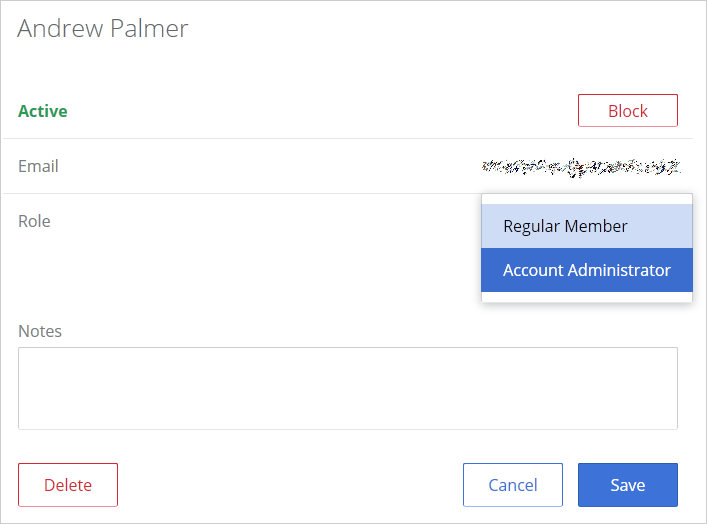
2. The dialog displaying the user membership information opens.
3. Click the **Role** drop-down menu and select **Account Administrator**.
4. Use the **Notes** box to enter a note if desired and click **Save** to save the information.
---
# Agent Instructions
This documentation is published with GitBook. GitBook is the documentation platform designed so that both humans and AI agents can read, navigate, and reason over technical content effectively. Learn more at gitbook.com.
## Querying This Documentation
If you need additional information that is not directly available in this page, you can query the documentation dynamically by asking a question.
Perform an HTTP GET request on the current page URL with the `ask` query parameter, and the optional `goal` query parameter:
```
GET https://docs.parallels.com/landing/ras-licensing-guide/manage-accounts/inviting-users-to-join-a-business-account.md?ask=&goal=
```
`ask` is the immediate question: it should be specific, self-contained, and written in natural language.
`goal` is optional and describes the broader end goal you are ultimately trying to accomplish on behalf of the user. GitBook uses it to tailor the answer towards what is most useful for that goal.
The response will contain a direct answer to the question and relevant excerpts and sources from the documentation.
Use this mechanism when the answer is not explicitly present in the current page, you need clarification or additional context, or you want to retrieve related documentation sections.