> For the complete documentation index, see [llms.txt](https://docs.parallels.com/landing/llms.txt). Markdown versions of documentation pages are available by appending `.md` to page URLs; this page is available as [Markdown](https://docs.parallels.com/landing/ras-licensing-guide/manage-parallels-ras-farms.md).
# Manage Parallels RAS Farms
To view active Parallels RAS farms:
1. In Parallels My Account, click **Dashboard**.
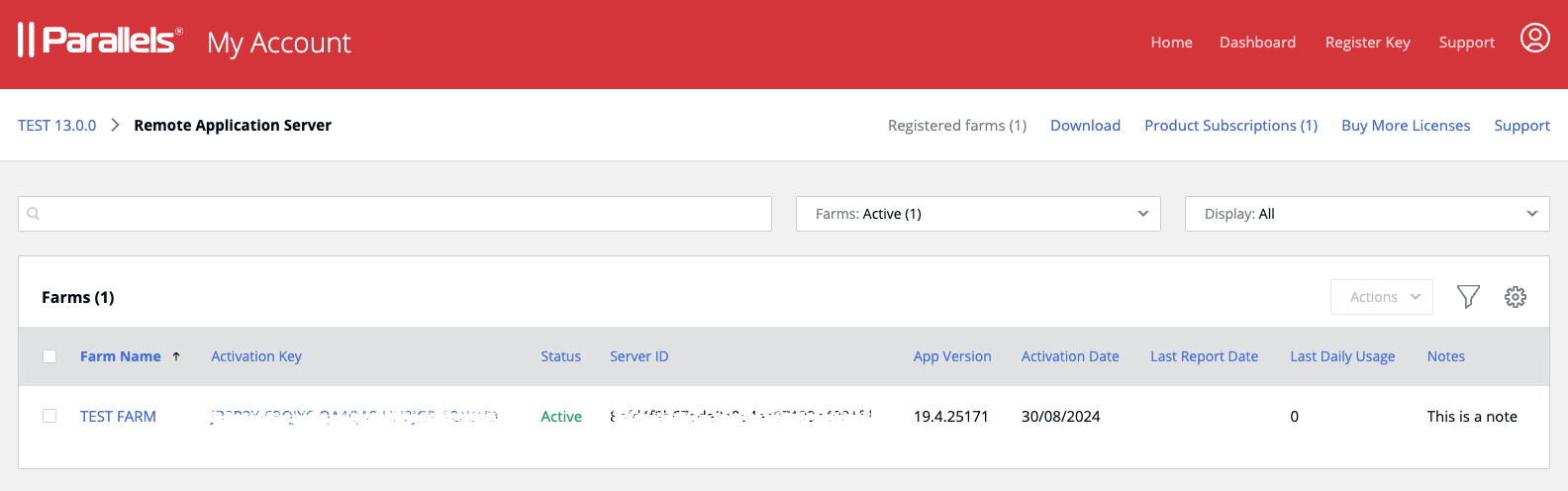
2. Click the **Prepaid farms** row inside the **Parallels Remote Application Server** box. This opens a page listing active and deactivated farms (if any). To see active farms only, click the **Farms** drop-down menu (above the list) and choose **Active**.
Scroll the list vertically to see all displayed columns. To select columns to be displayed, click the "gear" icon and select from the following:
* **Farm Name**: Farm name.
* **Activation key**: License key that was used to activate the farm.
* **Status**: Farm status (active, deactivated).
* **Server ID**: The host server ID.
* **App Version**: Parallels RAS version number.
* **Activation Date**: The farm activation date.
* **Last Report Date**: The date the farm last contacted Parallels Cloud.
* **Last Daily Usage:** The peak number of concurrent users recorded during the last 24 hours.
* **Notes**: A custom note about the farm. See below for the info on how to enter a note.
The **Actions** drop-down menu allows you to save the list to a CSV file and deactivate one or more selected farms (see **Deactivating a farm** at the end of this section). To select a farm, click the checkbox in the first column. To select all farms in the list, click the checkbox in the table header. Once one or more farms are selected, the **Actions** menu becomes enabled.
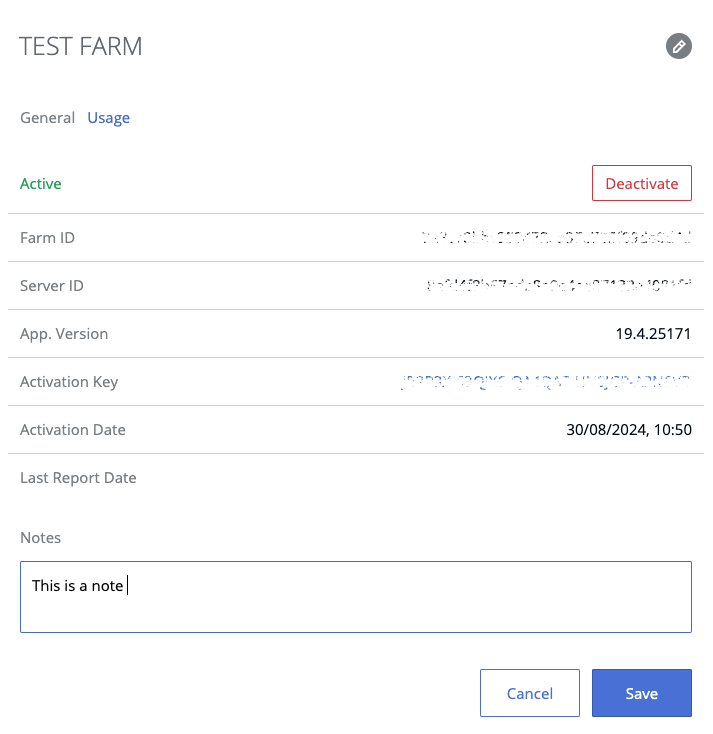
To view the summary info for a farm, click its name in the **Farm Name** column. This will open the following dialog:
Here you can view the farm summary info and enter a custom note using the **Notes** edit box.
## **Deactivating a farm**
You can deactivate a farm by clicking the Actions drop-down menu on the **Prepaid Farms** page (see above) or by clicking the **Deactivate** button in the farm details dialog (see the screenshot above).
The farm will be deactivated the next time it contacts Parallels cloud. Once it's deactivated, the users will no longer be able to connect to it. The license key used by the farm becomes available, so you can use it to activate a different Parallels RAS farm.
---
# Agent Instructions
This documentation is published with GitBook. GitBook is the documentation platform designed so that both humans and AI agents can read, navigate, and reason over technical content effectively. Learn more at gitbook.com.
## Querying This Documentation
If you need additional information that is not directly available in this page, you can query the documentation dynamically by asking a question.
Perform an HTTP GET request on the current page URL with the `ask` query parameter, and the optional `goal` query parameter:
```
GET https://docs.parallels.com/landing/ras-licensing-guide/manage-parallels-ras-farms.md?ask=&goal=
```
`ask` is the immediate question: it should be specific, self-contained, and written in natural language.
`goal` is optional and describes the broader end goal you are ultimately trying to accomplish on behalf of the user. GitBook uses it to tailor the answer towards what is most useful for that goal.
The response will contain a direct answer to the question and relevant excerpts and sources from the documentation.
Use this mechanism when the answer is not explicitly present in the current page, you need clarification or additional context, or you want to retrieve related documentation sections.