Local Resources
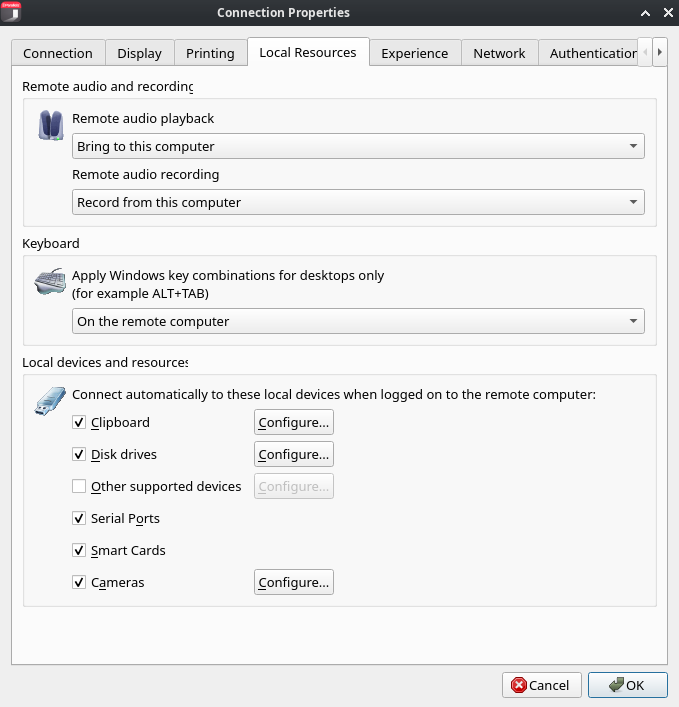
Use the Local Resources tab page to configure how local resources are handled by the remote desktop used in a remote session.

Remote Audio and Recording
Use the Remote audio playback drop-down list to select one of the following remote audio playback options:
Bring to this computer. Audio from the remote computer will play on your local computer.
Do not play. Audio from the remote computer will not play on your local computer and will be muted on the remote computer as well.
Leave at remote computer. Audio will not play on your local computer but will play normally on the remote computer.
Use the Remote audio recording drop-down box to select one of the following:
Record from this computer. Audio from this computer will be recorded using a remote application.
Do not record. Do not recorded audio.
Keyboard
Select how you want to apply key combinations (e.g. Alt+Tab) that you press on the keyboard:
On the local computer. Key combinations will be applied to Windows running on the local computer.
On the remote computer. Key combinations will be applied to Windows running on the remote computer.
In full screen mode only. Key combinations will be applied to the remote computer only when in the full-screen mode.
Local Devices and Resources
Choose local disk drives, devices, and other resources that you want to redirect to a remote computer. Redirecting a resource makes it available for use in a remote session. For example, a redirected local disk drive will be available in a remote application, so you can read from and write to it.
The following options are available:
Clipboard. Select this option to enable the clipboard in a remote session. Click the Configure button and choose clipboard redirection from one of the following: Bidirectional (allows to copy in both directions), Server to client only, Client to server only.
Disk drives. Select this option and then click Configure Drives. See the Configure Drives subsection below for details.
Devices. Select this option and then click Configure Devices. All USB devices currently connected to your local computer are listed here, including supported Plug and Play devices, media players based on the Media Transfer Protocol (MTP), and digital cameras based on the Picture Transfer Protocol (PTP). The Show previously connected devices option displays devices that are not currently connected but were connected previously. When you enable a device in this list, it is redirected directly into the remote session at the USB level. The device is detached from the local Linux client for the duration of the session and presented to the remote host as if it were physically attached there. As a consequence, any drivers or supporting software the device requires must be installed on the remote host, installing them on the local Linux client has no effect on a redirected device.
Attention: Use this feature with caution. Because redirection happens at the USB level, the local operating system loses access to the device while it is redirected. Redirecting a device that the local system depends on (e.g., a USB network adapter, a USB input device, or a dongle providing local connectivity) will cause that functionality to drop from the local machine until the device is released back from the remote session. Only redirect devices that the local Linux client does not need during the session.
For devices that also appear in a dedicated category, use the corresponding option instead of redirecting them as generic USB devices:
USB mass storage → Disk drives
Smart cards → Smart cards
Cameras or scanners exposing PTP, where a higher-level channel is available → the camera/imaging option for that category
The dedicated options use high-level redirection rather than raw USB passthrough, which generally delivers better performance, broader compatibility across session hosts, and lower driver dependency on the remote host. For this reason, disk drives and smart cards are excluded from the Devices list.
Printers. Select this option to redirect printers.
Serial ports. Select this option to redirect serial ports.
Smart cards. Select this option to redirect smart cards.
Cameras. Specifies cameras to redirect from a user device to the remote session. This is a high-level redirection that allows to redirect a composite USB device, such as a webcam with a microphone. When this option is selected, and you click Configure, a dialog opens where you can select the following options:
All — all currently connected devices will be used
Specific only — use only the selected devices
Limit camera resolution to 720p — limit camera resolution to save data
Use also devices that I plug in later — a device that is plugged in after a session is started will also be used
Configure Drives
The Configure Drives button opens a dialog where you can map local Linux directories as disk drives and then use them in remote applications during a remote session.
To map a directory, click the Add button and specify the following:
Share Point: Type the drive name as you want it to appear during a remote session (e.g. sd2). Please note that share names must be unique, use Latin characters only, and cannot be longer than seven characters.
Mount Point: Type a local Linux directory you would like to map (e.g. /home).
Click OK to save the new drive information. The new drive will appear in the Configure Drives dialog. To edit an existing drive, click Edit. To delete a drive, click Delete.
You can enable or disable disk drives by selecting or clearing a corresponding checkbox. To enable all drives, select the Use all disk drives available option.
Last updated