> For the complete documentation index, see [llms.txt](https://docs.parallels.com/landing/llms.txt). Markdown versions of documentation pages are available by appending `.md` to page URLs; this page is available as [Markdown](https://docs.parallels.com/landing/ras-mac-client-guide/using-parallels-client-for-mac/configuring-a-ras-connection/advanced.md).
# Advanced
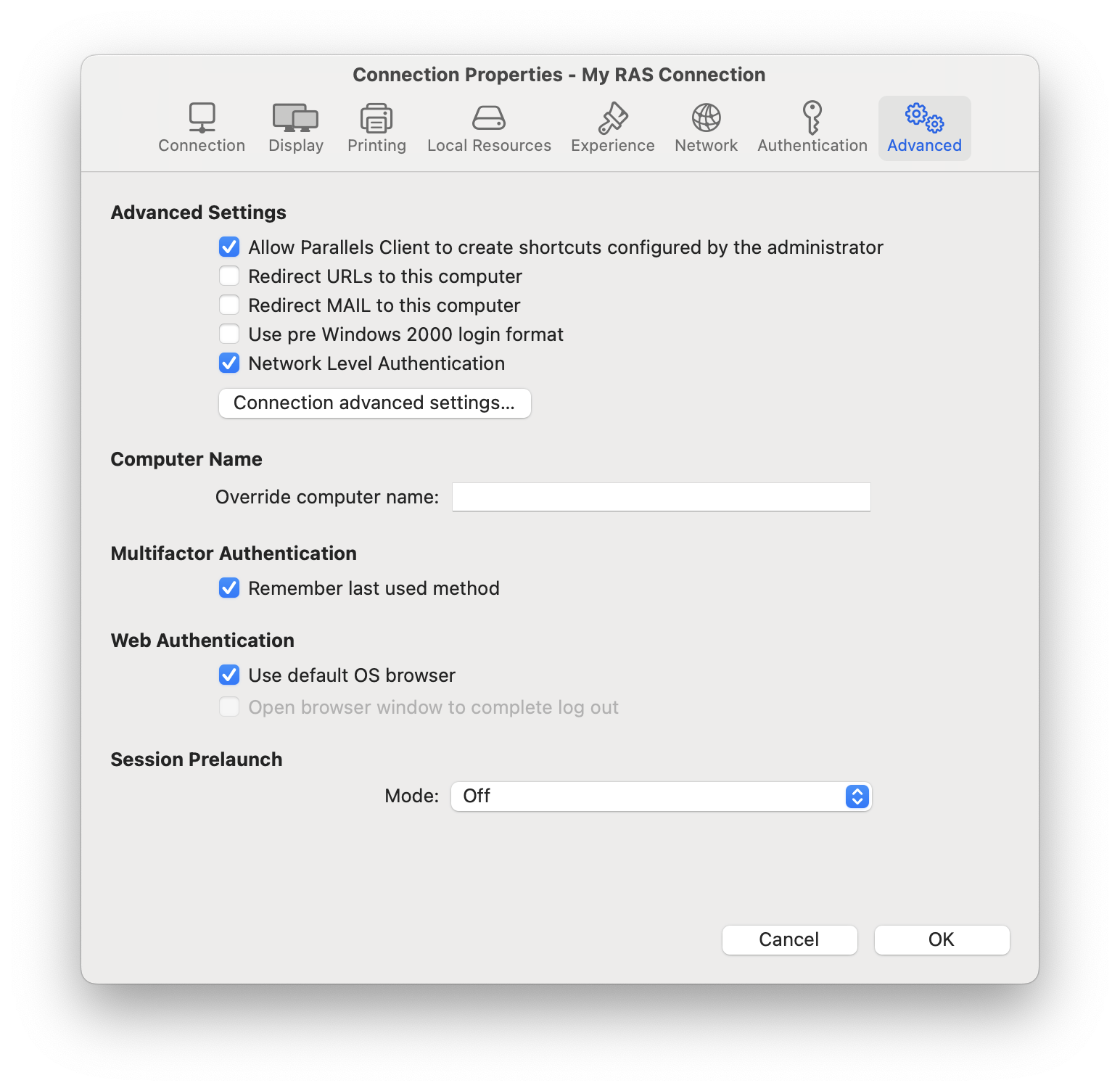
The **Advanced** tab page allows you to specify the following properties:
* **Redirect URLs to this computer**. Enable this option to use the local web browser when opening 'http:" links.
* **Redirect Mail to this computer**. Enable this option to use the local mail client when opening ‘mailto:’ links.
* **Use Pre Windows 2000 login format**. If this option is selected, it allows you to use legacy (pre-Windows 2000) login format.
* **Network Level Authentication**. Check this option to enable network level authentication, which will require the client to authenticate before connecting to the server.
* **Override computer name**. Specifies the name that your computer will use during a remote session. If set, this will override the default computer name. Any filtering set by the administrator on the server side will make use of the name specified here.
* **Multifactor Authentication** - **Remember last used method**. Select this option to remember the last authentication method and use it the next time.
* **Web Authentication** - **User default OS browser**. Select this option to use the default web browser. If cleared, the built-in browser will be used.
* **Session prelaunch**. Enables session prelaunch. This will make a remote application appear to start faster. Use the **Mode** drop-down list to select **Basic** or **Machine Learning**. If you select **Basic**, a session will be launched when **Parallels Client** gets the application listing. Because the session will be launched some time before you start an application, it will take less time to open the app. Please note that for the Basic mode to start working for this connection, you need to enable it and then run an application using this connection for at least 15 minutes. This is to prevent session prelaunch in connections that are not actively used.
The **Machine Learning** option will record and analyze your habits of starting applications and will prelaunch a session a few minutes before you usually open an application on a given day of the week.
### **Connection advanced settings**
The **Connection advanced settings** button opens a dialog where you can configure connection timeout and reconnection settings.
In the **Connection settings** section, specify the following:
* **Connection timeout:** The amount of time during which the client will try to connect to Parallels RAS until the connection is aborted. While the connection is being established, the connection banner will be shown.
* **Show connection banner if connection is not established within:** Specifies the time period in seconds after which the connection banner will be displayed.
* **Show desktop if published application does not start within:** If a published application is not launched within the time period specified in this field, the server’s desktop will be loaded. This is helpful if an error occurs on the server side while launching an application. By loading the server’s desktop, the user will be able to see the error message.
In the **Reconnection** section, specify the following:
* **Reconnect if connection is dropped:** Select this option and set the number of **Connection Retries**. If a connection is dropped, Parallels Client will automatically try to reconnect.
* **Show connection banner if reconnection is not established within:** If reconnection attempts fail after the time period specified here, the connection banner will be shown to the user.
During the reconnect, you are presented with a greyed-out version of the published desktop or Published App(s). This indicates that the session reconnection is in progress, and a connection to the session is being restored. This applies to published desktops and published apps.
---
# Agent Instructions
This documentation is published with GitBook. GitBook is the documentation platform designed so that both humans and AI agents can read, navigate, and reason over technical content effectively. Learn more at gitbook.com.
## Querying This Documentation
If you need additional information that is not directly available in this page, you can query the documentation by asking a question.
Perform an HTTP GET request on the following URL with the `ask` and `goal` query parameters:
```
GET https://docs.parallels.com/landing/ras-mac-client-guide/using-parallels-client-for-mac/configuring-a-ras-connection/advanced.md?ask=&goal=
```
`ask` is the immediate question: it should be specific, self-contained, and written in natural language.
`goal` is what the user is ultimately trying to achieve, the reason they need the answer. Sharing it helps GitBook give you a better, more relevant answer. A goal is most helpful when it describes the outcome the user wants rather than restating the question. For example, with `ask=how do I create an API token`, a goal like `automate deployments from our CI pipeline` lets GitBook tailor the answer to that use case.
The response will contain a direct answer to the question and relevant excerpts and sources from the documentation.
Use this mechanism when the answer is not explicitly present in the current page, you need clarification or additional context, or you want to retrieve related documentation sections.