> For the complete documentation index, see [llms.txt](https://docs.parallels.com/landing/llms.txt). Markdown versions of documentation pages are available by appending `.md` to page URLs; this page is available as [Markdown](https://docs.parallels.com/landing/ras-mac-client-guide/using-parallels-client-for-mac/configuring-a-ras-connection/local-resources.md).
# Local Resources
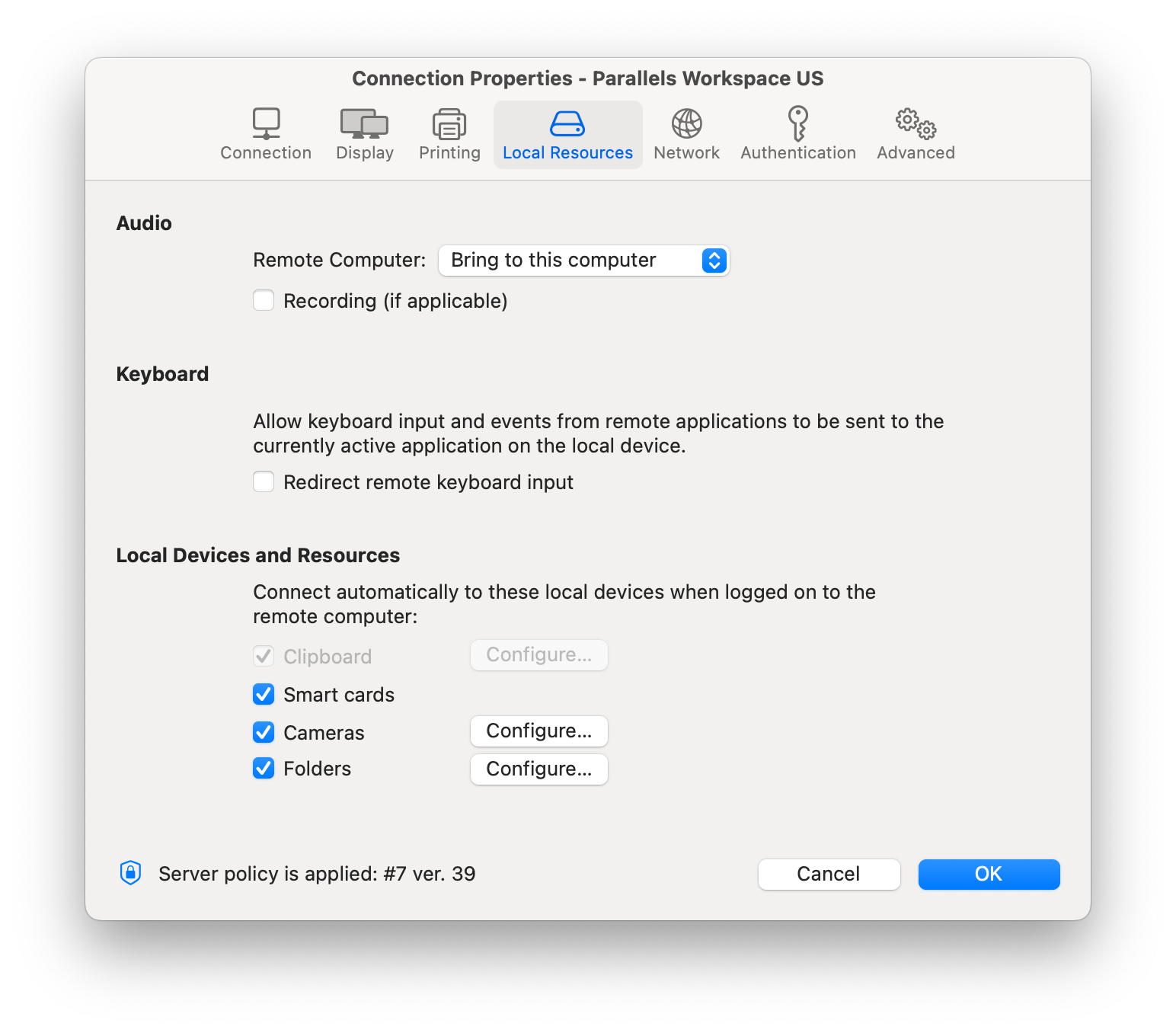
Use the **Local Resources** tab page to configure how local resources are handled by the remote computer.
### **Audio**
Use the **Remote Computer** drop-down menu to specify whether the remote computer sound should be played on your local computer.
Select the **Recording (if applicable)** option to enable audio recording.
### Keyboard
Enable **Redirect remote keyboard input** to allow keyboard input and events from remote applications to be sent to the currently active applications on the local device.
### **Local Devices and Resources**
**Clipboard**. Select this option to enable the clipboard in a remote session. Click the **Configure** button and choose clipboard redirection from one of the following: **Bidirectional** (allows to copy in both directions), **Server to client only**, and **Client to server only**. You can copy and paste content in plain text, RTF, and HTML formats.
**Smart cards**. Enables or disables smart card redirection to be used for authentication.
**Video capture devices.** Specifies video capture devices to redirect from a user device to the remote session. This is a high-level redirection that allows to redirect a composite USB device, such as a webcam with a microphone. When this option is selected and you click **Configure**, a dialog opens where you can select the following options:
* **All** — use all currently connected devices will be used
* **Specific only** — use only the selected devices
* **Limit camera resolution to 720p** — limit camera resolution to save data
* **Use also devices that I plug in later** — a device that is plugged in after a session is started will also be used
**Folders**. Allows you to specify local folders to automatically mount in a remote session. Select the **Folders** option, then click the **Configure** button and add the required folder(s) to the list.
To simplify the process, shortcuts to add the user's Home folder and the Root folder (typically displayed as `Macintosh HD`) are available under the **Add** menu, along with an option to browse for a specific folder.
Once added, you can determine the access level for the specified folder: `Read/Write`, `Read-only`, or `No access`.
There is also a Prompt on Access option to change how you are prompted when accessing a local folder within a session; this can be set to:
* **Always**. You are asked to reconfirm access permission each time you access a local folder.
* **If no folders are configured**. Only applies if no local folders are currently shared.
* **Never**. You are no longer prompted to provide permissions.
Under the list of added folders, you can find the **Enable drive redirection cache** option, which makes file browsing and navigation on redirected drives much faster.
When you run a remote application, you will see these folders mounted as a folder named `Drives on user's `.
For more information on folder redirection, check [this chapter](/landing/ras-mac-client-guide/using-parallels-client-for-mac/using-a-ras-connection/folder-redirection.md).
{% hint style="info" %}
**Note**: A folder can be redirected and will be accesible directly during the existing session via **Session** > **Configure folders**.
When configured via settings it will be visible on the next connection under **Settings** > **Local Resources** > **Folders** > **Configure**.
{% endhint %}
---
# Agent Instructions
This documentation is published with GitBook. GitBook is the documentation platform designed so that both humans and AI agents can read, navigate, and reason over technical content effectively. Learn more at gitbook.com.
## Querying This Documentation
If you need additional information that is not directly available in this page, you can query the documentation by asking a question.
Perform an HTTP GET request on the following URL with the `ask` and `goal` query parameters:
```
GET https://docs.parallels.com/landing/ras-mac-client-guide/using-parallels-client-for-mac/configuring-a-ras-connection/local-resources.md?ask=&goal=
```
`ask` is the immediate question: it should be specific, self-contained, and written in natural language.
`goal` is what the user is ultimately trying to achieve, the reason they need the answer. Sharing it helps GitBook give you a better, more relevant answer. A goal is most helpful when it describes the outcome the user wants rather than restating the question. For example, with `ask=how do I create an API token`, a goal like `automate deployments from our CI pipeline` lets GitBook tailor the answer to that use case.
The response will contain a direct answer to the question and relevant excerpts and sources from the documentation.
Use this mechanism when the answer is not explicitly present in the current page, you need clarification or additional context, or you want to retrieve related documentation sections.