# Local Resources
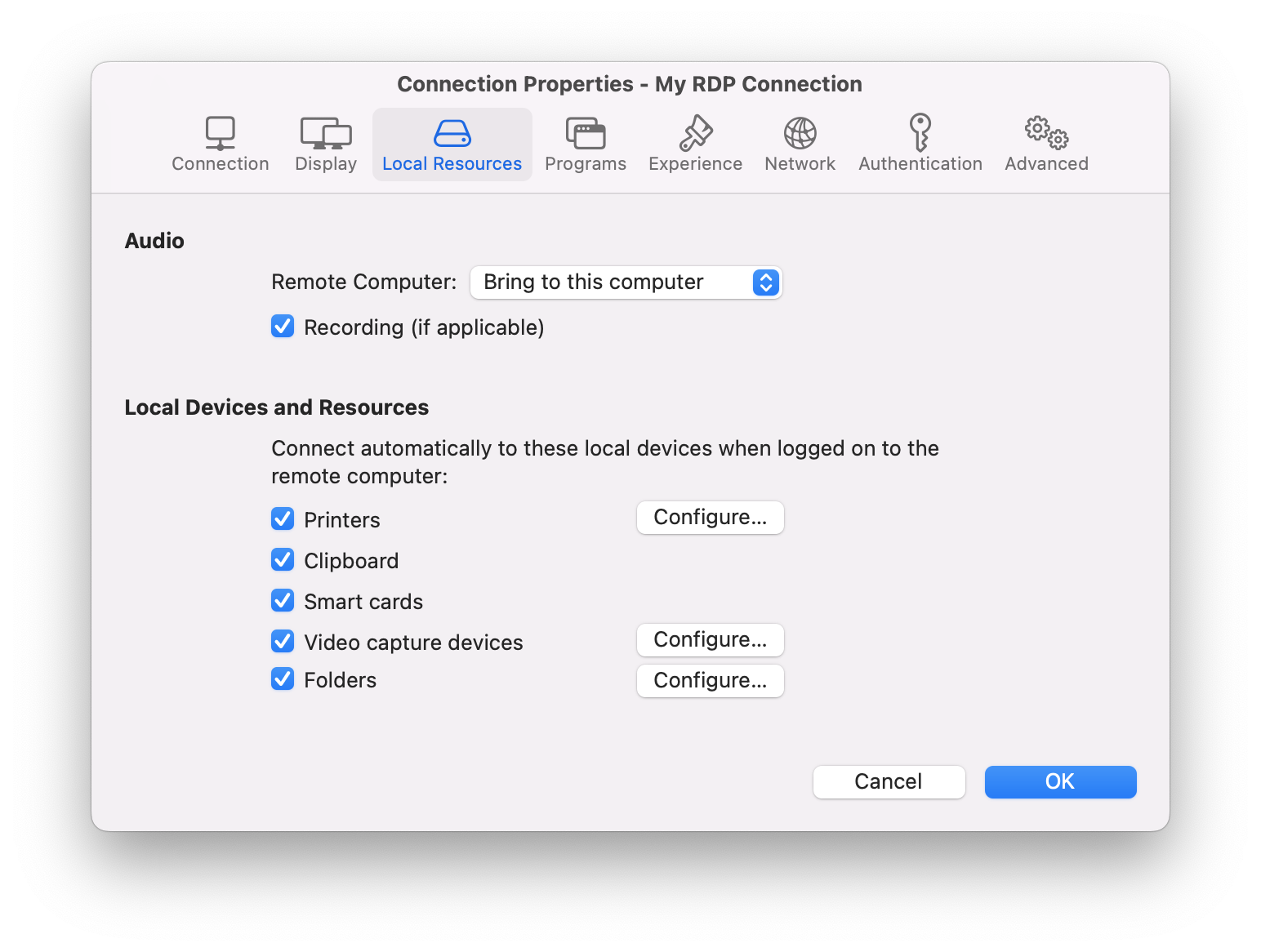
Use the **Local Resources** tab page to configure how local resources are handled by the remote computer.
## **Audio**
Use the **Remote Computer** drop-down menu to specify whether the remote computer sound should be played on your local computer.
Select **Recording (if applicable)** to enabled audio recording.
## **Local Devices and Resources**
**Clipboard**. Select this option to enable the clipboard in a remote session. Clear the option to disable the clipboard.
**Folders**. Allows you to specify local folders to automatically mount in a remote session. Click the **Folders** option, then click the **Configure** button and add the desired folder(s) to the list. When you run a remote application, you will see these folders mounted in the "Drives on user's \" folder. Under the list of the added folders you can find the **Enable drive redirection cache** option that makes file browsing and navigation on the redirected drives much faster.
**Smart cards**. Enables or disables smart card redirection to be used for authentication.
**Video capture devices.** Specifies video capture devices to redirect from a user device to the remote session. This is a high-level redirection that allows to redirect a composite USB device, such as a webcam with a microphone. When this option is selected and you click **Configure**, a dialog opens where you can select the following options:
* **All** — use all currently connected devices will be used
* **Specific only** — use only the selected devices
* **Limit camera resolution to 720p** — limit camera resolution to save data
* **Use also devices that I plug in later** — a device that is plugged in after a session is started will also be used
**Printers**. Select this option to redirect local printers.
To specify local printers:
1. Select **Printers** and then click **Configure**.
2. In the **Select Destinations** drop down list, specify **All printers** or a specific printer.
3. In the **Driver** drop-down list, select the printer driver to use.
4. Select the **Open PDF in Preview** option to be able to open PDF documents in preview before printing.
---
# Agent Instructions: Querying This Documentation
If you need additional information that is not directly available in this page, you can query the documentation dynamically by asking a question.
Perform an HTTP GET request on the current page URL with the `ask` query parameter:
```
GET https://docs.parallels.com/landing/ras-mac-client-guide/v19/using-parallels-client-for-mac/configuring-an-rdp-connection/local-resources.md?ask=
```
The question should be specific, self-contained, and written in natural language.
The response will contain a direct answer to the question and relevant excerpts and sources from the documentation.
Use this mechanism when the answer is not explicitly present in the current page, you need clarification or additional context, or you want to retrieve related documentation sections.