> For the complete documentation index, see [llms.txt](https://docs.parallels.com/landing/llms.txt). Markdown versions of documentation pages are available by appending `.md` to page URLs; this page is available as [Markdown](https://docs.parallels.com/landing/ras-universal-printing-best-practices/v20/parallels-ras-universal-printing-best-practices/universal-printing-compression.md).
# Universal printing compression
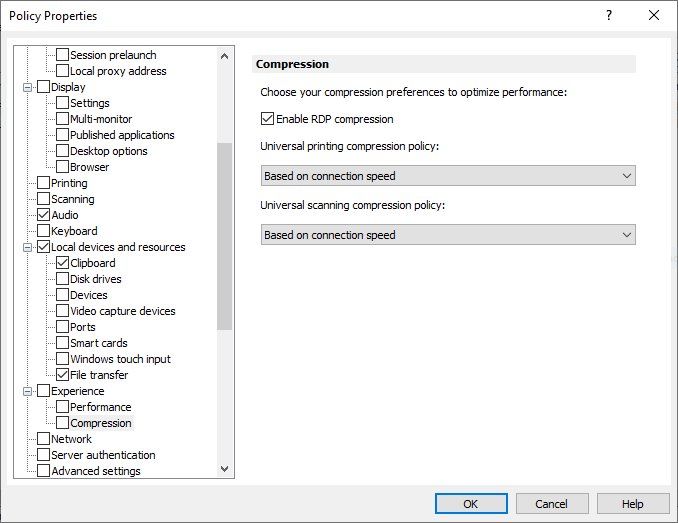
For Windows desktop clients (full and basic), Parallels RAS v15.5 introduces a new option called **Universal printing compression policy**. It allows system administrator to adjust printing compression levels via client policy settings in the RAS Console.
To set a printing compression policy:
1. In the RAS Console, select the **Policies** category.
2. Right-click an existing policy and choose **Properties**.
3. In the **Policy Properties** dialog, navigate to **Session** > **Experience** > **Compression**.
4. Select one of the following options from the **Universal printing compression policy** drop-down list:
* **Compression disabled**
* **Best speed (uses less CPU)**
* **Best size (uses less network traffic)**
* **Based on connection speed** (default)
If the type of printed documents is predictable — for instance, your documents are always very small or always very large — you can benefit by selecting an appropriate compression policy. However, printing compression brings the most benefit to network connections with limited bandwidth or latency when printing often slows down thus negatively affecting user experience.
## **Parallels recommends**
Parallels recommends using the **Best size** compression policy to make print jobs smaller and transfer it faster if the client devices are powerful enough from the CPU and memory perspective. If the client devices are not powerful enough, the **Best speed** option policy should be used.
---
# Agent Instructions
This documentation is published with GitBook. GitBook is the documentation platform designed so that both humans and AI agents can read, navigate, and reason over technical content effectively. Learn more at gitbook.com.
## Querying This Documentation
If you need additional information that is not directly available in this page, you can query the documentation dynamically by asking a question.
Perform an HTTP GET request on the current page URL with the `ask` query parameter, and the optional `goal` query parameter:
```
GET https://docs.parallels.com/landing/ras-universal-printing-best-practices/v20/parallels-ras-universal-printing-best-practices/universal-printing-compression.md?ask=&goal=
```
`ask` is the immediate question: it should be specific, self-contained, and written in natural language.
`goal` is optional and describes the broader end goal you are ultimately trying to accomplish on behalf of the user. GitBook uses it to tailor the answer towards what is most useful for that goal.
The response will contain a direct answer to the question and relevant excerpts and sources from the documentation.
Use this mechanism when the answer is not explicitly present in the current page, you need clarification or additional context, or you want to retrieve related documentation sections.