> For the complete documentation index, see [llms.txt](https://docs.parallels.com/landing/llms.txt). Markdown versions of documentation pages are available by appending `.md` to page URLs; this page is available as [Markdown](https://docs.parallels.com/landing/ras-universal-printing-best-practices/v21/parallels-ras-universal-printing-best-practices/driver-environment-consistency.md).
# Driver environment consistency
Microsoft Spooler Service may become unstable if the terminal server has a very large number of printer drivers installed. Although RAS Universal Printing has no limitations regarding printer types, it is important to protect the terminal servers from printer driver sprawling. In order to mitigate this issue, Parallels RAS Universal Printing includes the printer driver exclusion feature to filter out printer devices that are not needed.
All printer drivers used via Parallels RAS Universal Printing conform to the common Windows printing driver specification and can be managed using standard mechanisms available in Windows.
## **Parallels recommends**
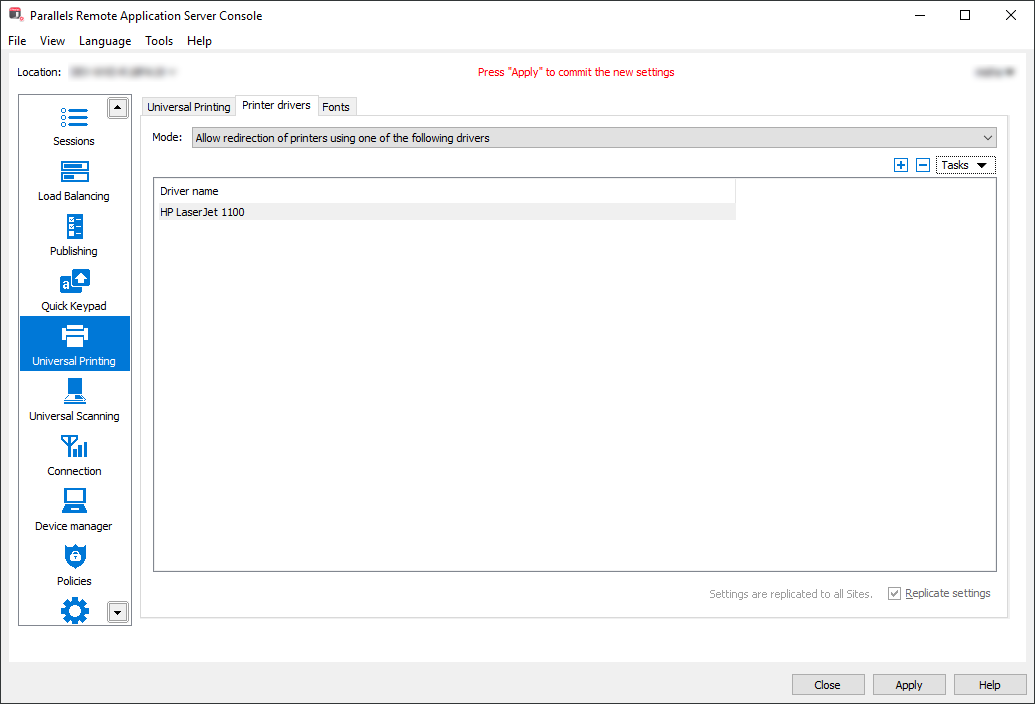
Allow redirection of only the printers that you need and exclude the printers that you don't. This can be done in the RAS console as follows:
1. In the RAS console, navigate to **Universal Printing** > **Printer drivers**.
2. In the **Mode** drop-down list, select one of the following options depending on your preferences:
* **Allow redirection of printers using one of the following drivers** — if you select this option (and specify the driver names in the next step), the printers using the specified drivers will be redirected, while all others will not.
* **Allow redirection of printers which do not use the following drivers** — this option works in the opposite way to the one above.
3. Click **Tasks** > **Add** and then type a driver name. Repeat this step for more drivers if needed.
---
# Agent Instructions
This documentation is published with GitBook. GitBook is the documentation platform designed so that both humans and AI agents can read, navigate, and reason over technical content effectively. Learn more at gitbook.com.
## Querying This Documentation
If you need additional information that is not directly available in this page, you can query the documentation by asking a question.
Perform an HTTP GET request on the following URL with the `ask` and `goal` query parameters:
```
GET https://docs.parallels.com/landing/ras-universal-printing-best-practices/v21/parallels-ras-universal-printing-best-practices/driver-environment-consistency.md?ask=&goal=
```
`ask` is the immediate question: it should be specific, self-contained, and written in natural language.
`goal` is what the user is ultimately trying to achieve, the reason they need the answer. Sharing it helps GitBook give you a better, more relevant answer. A goal is most helpful when it describes the outcome the user wants rather than restating the question. For example, with `ask=how do I create an API token`, a goal like `automate deployments from our CI pipeline` lets GitBook tailor the answer to that use case.
The response will contain a direct answer to the question and relevant excerpts and sources from the documentation.
Use this mechanism when the answer is not explicitly present in the current page, you need clarification or additional context, or you want to retrieve related documentation sections.