> For the complete documentation index, see [llms.txt](https://docs.parallels.com/landing/llms.txt). Markdown versions of documentation pages are available by appending `.md` to page URLs; this page is available as [Markdown](https://docs.parallels.com/landing/ras-windows-client-guide/getting-started/installing-parallels-client-using-an-invitation-email.md).
# Installing Parallels Client Using an Invitation Email
Your Parallels RAS administrator will send you an invitation email with the instructions on how to install Parallels Client for Windows and configure a Parallels RAS connection. The invitation email will contain the following information and action links:
* A message from your system administrator.
* A link to download Parallels Client for Windows (links to Parallels Client for other platforms may also be included if you are using other devices in addition to a Windows computer).
* A link to automatically configure Parallels Client on your computer, so you can connect to Parallels RAS.
* Parallels RAS connection properties. You can use this information to manually create a Parallels RAS connection. The automatic configuration via the link (see above) is the preferred and the easiest method, but you can use this information to create a connection manually if needed for any reason.
### **Install Parallels Client for Windows**
To install Parallels Client for Windows using an invitation email:
1. In the invitation email, click the Windows thumbnail to download Parallels Client for Windows installer.
2. When the download is complete, go to your download folder and run the file that you just downloaded.
3. Follow the onscreen instructions to begin the installation.
4. If you don't have administrative permissions on this computer, a dialog will open saying so. The dialog has two buttons: **Install Full Client** and **Install Basic Client**. If you know credentials of an administrative account on this computer, click **Install Full Client** and enter the credentials when asked. The installation will continue using these credentials and the full version of Parallels Client will be installed. If you don't know the credentials, click **Install Basic Client**. The basic version of Parallels Client will still work but some of the functionality will be missing.
{% hint style="success" %}
**Help us improve our products!**
When you install Full Parallels Client for Windows or launch Basic Parallels Client for Windows for the first time, you can choose to join Parallels Customer Experience Program. For more information about Parallels Customer Experience Program, see .
{% endhint %}
5. On the **Shortcuts** page, select where you want to create a Parallels Client shortcut. You can select one or more options.
6. The **SSO Installation** page will be skipped when installing Parallels Client on a Windows Server operating system. On all other supported versions of Windows, it will be shown. Use the page to specify whether you want to install the **Single Sign-On** component. The component will automatically use your credentials to connect to Parallels RAS. Please note that for the component to work, you will need to reboot your computer (or log off and then log on again) after the installation.
7. Click **Next**.
8. On the **Ready to Install** page, click **Install**.
9. Once the installation is complete, click **Finish** to close the wizard.
You now need to configure Parallels Client, so it can connect to Parallels RAS. The invitation email that you received from your system administrator includes a link that can accomplish this task automatically. Please follow the instructions below to configure Parallels Client.
### **Configure Parallels Client for Windows**
To configure Parallels Client:
1. In the invitation email, find the **Configure** section and click the **Click Here to auto configure the downloaded client** link.
2. The link will open in a web browser after which you should see the following dialog:

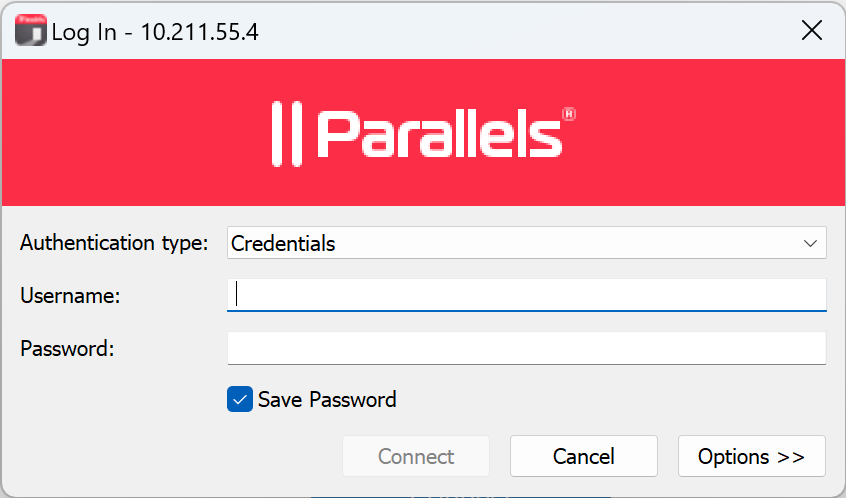
3. Make sure the **TSClient Application** item is selected and click **OK**. This will configure Parallels Client for Windows and then will display the **Log In** screen.
4. Select the **Authentication Type** from the following:
* **Credentials**. Select this option to connect to Parallels RAS by supplying your credentials, such as your domain user name and password.
* **Smart card**. Select this option to connect to Parallels RAS using a smart card.
* **Single Sign-On**. This option will be included in the list only if the Single Sign-On module is installed during Parallels Client installation. Select this option to use local system credentials to connect to the remote server.\
\
[If the authentication type is set to **Credentials** or **Web+Credentials**, the option **Save password** can be enabled. When enabled, the provided credentials are stored in the Windows Credential Manager on the local client.](#user-content-fn-1)[^1]
{% hint style="info" %}
**Note for Administrators:** The allowed authentication type(s) must be specified in RAS Console in **Connection** / **Authentication**.
{% endhint %}
5. Depending on the authentication type selected, type your user name and password or insert a smart card into a reader. If using a smart card, enter a PIN when prompted.
6. Click **Connect**.
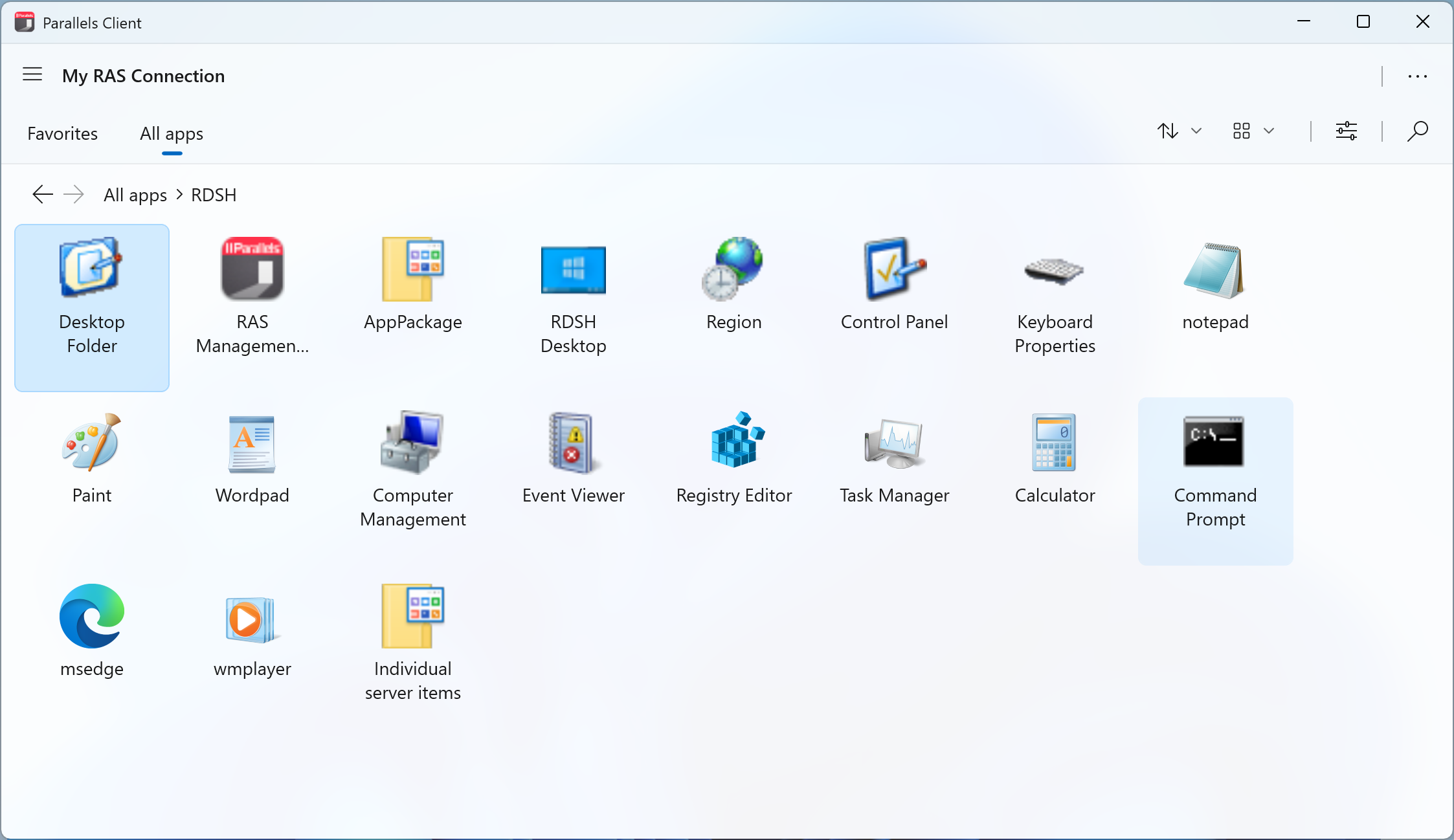
You should now see the main **Parallels Client** window. The left pane of the window displays the connection that was automatically configured for you. The right pane displays published resources that you can use.
Double-click a resource to open it. The resource will open in a separate window on your local computer as if it was a local application or a document (or a remote desktop if one is available as a published resource).
[^1]:
---
# Agent Instructions
This documentation is published with GitBook. GitBook is the documentation platform designed so that both humans and AI agents can read, navigate, and reason over technical content effectively. Learn more at gitbook.com.
## Querying This Documentation
If you need additional information that is not directly available in this page, you can query the documentation by asking a question.
Perform an HTTP GET request on the following URL with the `ask` and `goal` query parameters:
```
GET https://docs.parallels.com/landing/ras-windows-client-guide/getting-started/installing-parallels-client-using-an-invitation-email.md?ask=&goal=
```
`ask` is the immediate question: it should be specific, self-contained, and written in natural language.
`goal` is what the user is ultimately trying to achieve, the reason they need the answer. Sharing it helps GitBook give you a better, more relevant answer. A goal is most helpful when it describes the outcome the user wants rather than restating the question. For example, with `ask=how do I create an API token`, a goal like `automate deployments from our CI pipeline` lets GitBook tailor the answer to that use case.
The response will contain a direct answer to the question and relevant excerpts and sources from the documentation.
Use this mechanism when the answer is not explicitly present in the current page, you need clarification or additional context, or you want to retrieve related documentation sections.