> For the complete documentation index, see [llms.txt](https://docs.parallels.com/landing/llms.txt). Markdown versions of documentation pages are available by appending `.md` to page URLs; this page is available as [Markdown](https://docs.parallels.com/landing/ras-windows-client-guide/v20/using-parallels-client-for-windows/configuring-an-rdp-connection/connection.md).
# Connection
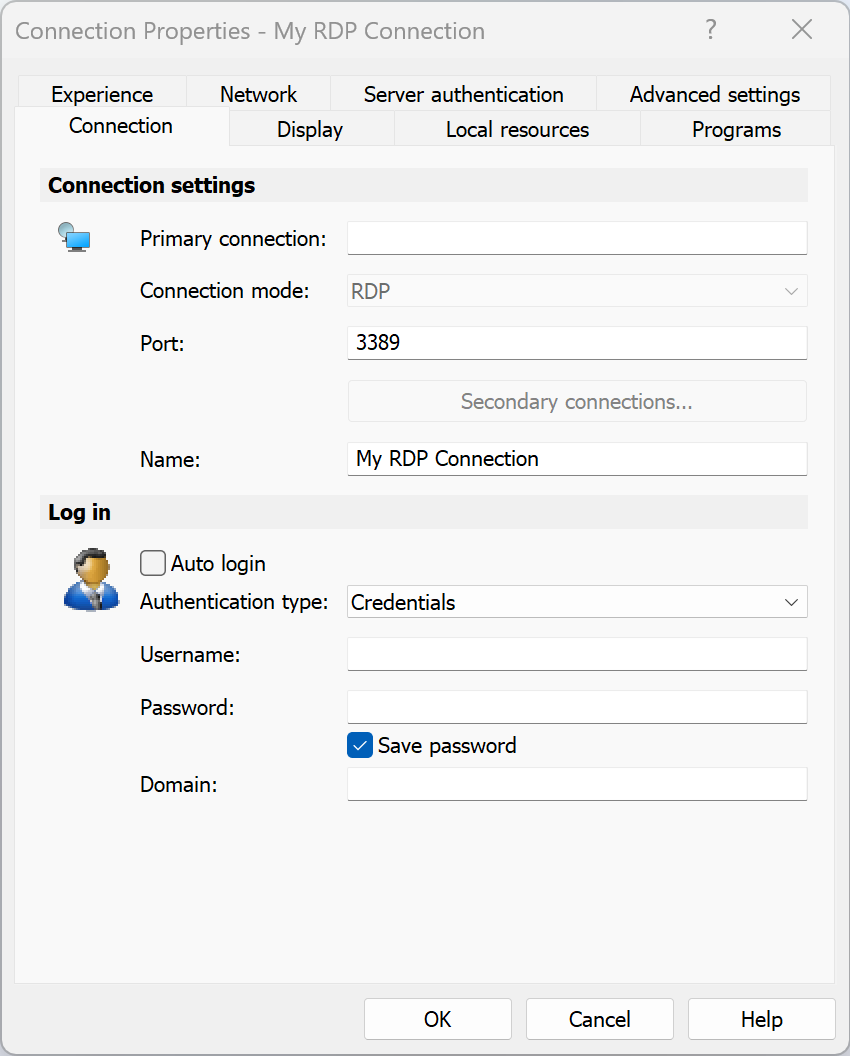
The **Connection** tab page allows you to specify connection settings and logon information.
In the **Connection Settings** section, specify the following properties:
1. In the **Primary Connection** field, specify the remote computer hostname or IP address.
2. The **Port** field contains the TCP port 3389 by default, which is the standard port for RDP connections. You can modify it if the port number was changed on the remote computer.
3. In the **Friendly Name** field, choose and type a name of your choice, so you could easily identify the server in Parallels Client later.
In the **Logon** section, specify the following properties:
1. Select the **Auto start** option to enable Parallels Client to connect automatically (using this connection) on startup.
2. In the **Authentication type** drop-down list, select the desired method of authentication:
* **Credentials**. Select this option and then enter the username, password, and domain information. You will be authenticated on the remote server using the specified credentials.
* **Smart Card**. Select this option to authenticate using a smart card. When connecting to the remote server, insert a smart card into the card reader and then enter a PIN when prompted.
* **Single Sign-On**. This option will be included in the list only if the Single Sign-On module is installed during Parallels Client installation. Select this option to use local system credentials to connect to the remote server.
* **Web**: Select this option to use the SAML SSO authentication.
{% hint style="info" %}
**Note for Administrators:** The allowed authentication type(s) must be specified in the RAS Console in **Connection** / **Authentication**.
{% endhint %}
---
# Agent Instructions
This documentation is published with GitBook. GitBook is the documentation platform designed so that both humans and AI agents can read, navigate, and reason over technical content effectively. Learn more at gitbook.com.
## Querying This Documentation
If you need additional information that is not directly available in this page, you can query the documentation dynamically by asking a question.
Perform an HTTP GET request on the current page URL with the `ask` query parameter, and the optional `goal` query parameter:
```
GET https://docs.parallels.com/landing/ras-windows-client-guide/v20/using-parallels-client-for-windows/configuring-an-rdp-connection/connection.md?ask=&goal=
```
`ask` is the immediate question: it should be specific, self-contained, and written in natural language.
`goal` is optional and describes the broader end goal you are ultimately trying to accomplish on behalf of the user. GitBook uses it to tailor the answer towards what is most useful for that goal.
The response will contain a direct answer to the question and relevant excerpts and sources from the documentation.
Use this mechanism when the answer is not explicitly present in the current page, you need clarification or additional context, or you want to retrieve related documentation sections.