# Display
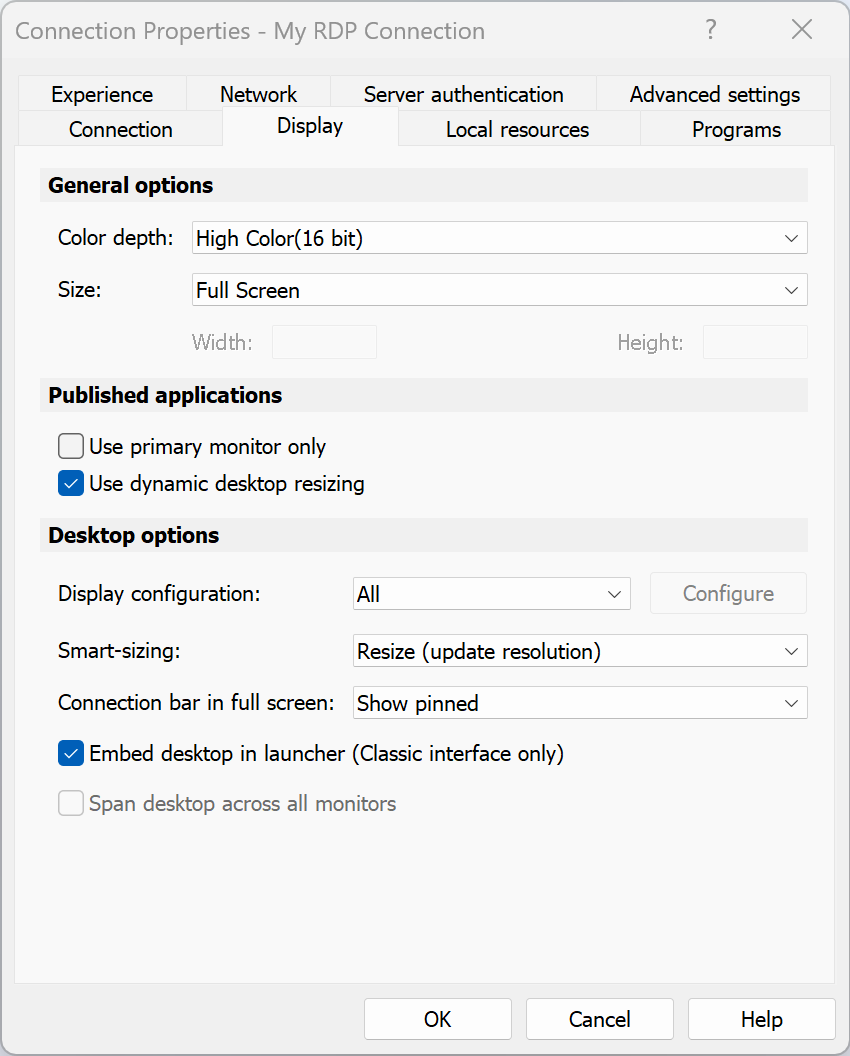
The **Display** tab page allows you to configure display options.
In the **General Options** section, specify the general display properties, including color depth and screen size. If you would like to specify a custom screen size, select **Custom** in the drop-down list and then specify the size using the **Width** and **Height** fields.
If you have more than one monitor connected to your computer, select the **Use all monitors for Desktop session** option to use all of them to display the remote desktop.
Specify the **Desktop Options** as follows:
* **Display configuration:** Choose which monitors will be used to display published resources. The following options are available:
* **All:** All displays.
* **Primary:** Your primary display. You can change the primary display as described below.
* **Selected:** Choose one or several displays manually. To choose a display, select this option and click **Configure**. To see what number corresponds to a display, click **Identify**.
Newly connected displays are detected automatically. To force Client to detect new displays, click **Identify**.
To change the primary display, select the display you want to be primary and click **Set primary**.
* Smart-sizing: Choose a smart sizing option. The Scale (fit to window) option scales a remote desktop to fit the connection window. The Resize (update resolution) option updates the resolution dynamically (without the need to reconnect) based on the display resolution. To disable smart sizing, select Disabled.
* **Embed desktop in launcher**. Enable this option to access the published desktop inside Parallels Client.
* **Span desktop across all monitors**. Enable this option to span the published desktops across all connected monitors (if you have more than one).
* **Connection bar in full screen:** Choose how the connection bar should be displayed in full screen mode by default: pinned, unpinned, or hidden.
---
# Agent Instructions: Querying This Documentation
If you need additional information that is not directly available in this page, you can query the documentation dynamically by asking a question.
Perform an HTTP GET request on the current page URL with the `ask` query parameter:
```
GET https://docs.parallels.com/landing/ras-windows-client-guide/v20/using-parallels-client-for-windows/configuring-an-rdp-connection/display.md?ask=
```
The question should be specific, self-contained, and written in natural language.
The response will contain a direct answer to the question and relevant excerpts and sources from the documentation.
Use this mechanism when the answer is not explicitly present in the current page, you need clarification or additional context, or you want to retrieve related documentation sections.