# Launching Published Resources (Classic Interface)
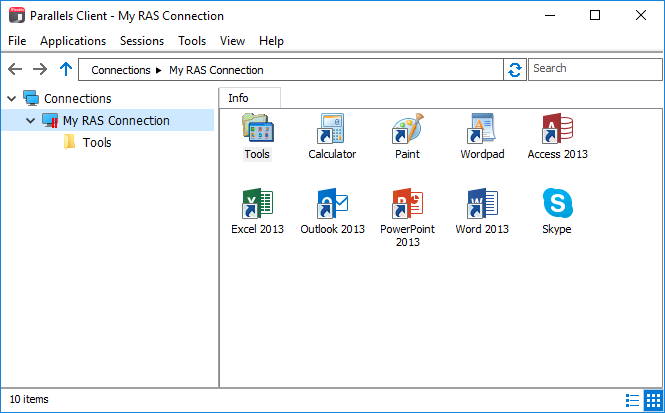
After you connect to Parallels RAS, the **Connections** pane is populated with published folders. When you select a folder in the left pane, the resources that it contains are displayed in the right pane. If your administrator hasn't published any folders, then the available resources are displayed in the right pane when you select the connection itself.
{% hint style="warning" %}
**Important**: If you are using Azure Virtual Desktop in Parallels RAS 19.3, you need to update Parallels Client to version 19.3.
{% endhint %}
To launch a resource, double-click it in the right pane. The resource will open on your Windows desktop. You can also open a resource by selecting it in the right pane and then clicking **Applications** > **Open** in the main menu. Please note that there could be a slight delay before the application opens. If during this delay you double-click the resource again, Parallels Client will ignore it (i.e. the application will not be launched twice).
By default, Parallels Client is configured to minimize to the system tray when you launch a resource. To bring it back up, open the system tray, then right-click the Parallels Client icon  and choose **Restore**. To change this default behavior, click **Tools** > **Options** in the main menu, then select the **Advanced Settings** tab and clear the **Hide Launcher when application is launched** option.
You can navigate and customize the published resources view as follows:
* Use the arrows at the top of the left pane to navigate the **Connections** tree left, right, or up.
* Expand an active connection node to view published folders (when they are available).
* Click a part of the navigation string (e.g. Connections > My RAS Connection > Applications) to display the corresponding tree node.
* Click the recycle icon to refresh the published resources view. If there were changes on the server side, they will be reflected in Parallels Client.
* Use the **Search** box to search for a resource. The list will be filtered as you type. To remove the filter, clear the box.
* Use the **View** menu item to display published resources as icons, tiles, list, etc. To quickly switch between icons and a detailed list, click one of the two icons in the lower right corner of the main window.
---
# Agent Instructions: Querying This Documentation
If you need additional information that is not directly available in this page, you can query the documentation dynamically by asking a question.
Perform an HTTP GET request on the current page URL with the `ask` query parameter:
```
GET https://docs.parallels.com/landing/ras-windows-client-guide/v20/using-parallels-client-for-windows/using-a-ras-connection/launching-published-resources-classic-interface.md?ask=
```
The question should be specific, self-contained, and written in natural language.
The response will contain a direct answer to the question and relevant excerpts and sources from the documentation.
Use this mechanism when the answer is not explicitly present in the current page, you need clarification or additional context, or you want to retrieve related documentation sections.